

Hold Option + Shift and press the hyphen key to type an em dash on a Mac with a U.S. layout, then release the keys.
For another layout or an app that intercepts the shortcut, open Edit > Emoji & Symbols and search for em dash.
Type it with the keyboard shortcut
Click where you want the punctuation in your document or message. Hold Option and Shift, tap the key marked with a hyphen, then release the keys. An em dash should appear where you clicked.
On a U.S. Mac keyboard, the hyphen key is beside the zero key. Use that key, not the subtraction key on a numeric keypad. The shortcut depends on your keyboard layout.
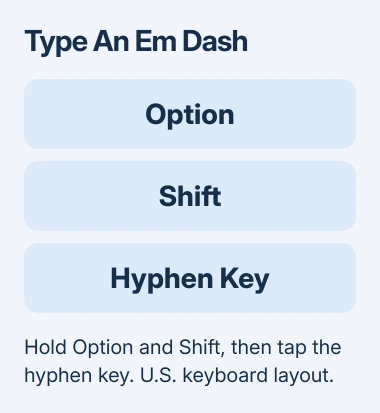
Apple says to use Option-Shift-Hyphen in its style guide. Pressing Option with the hyphen key without Shift produces an en dash on that layout, which is a different character.
This works the same way on Intel and Apple silicon Macs. Your keyboard layout and app affect the shortcut; the processor doesn't. A compact MacBook keyboard doesn't need a numeric keypad for the shortcut.
Try it once in a normal document before assigning a replacement shortcut. If it works there but triggers a command in one app, check that app's shortcuts or use its symbol insertion command.
I'd use the direct key combination for occasional punctuation. It inserts the character without turning on automatic punctuation changes.
Insert it from Character Viewer
Use Character Viewer when your key labels don't match the selected layout, or you need a particular symbol. Click where you want to type, then choose Edit > Emoji & Symbols from the app's menu bar.
In current macOS, Fn + E or Globe + E also opens the viewer. The key label depends on the keyboard. Using the Edit menu avoids relying on a function key that has been assigned another action.
Search for em dash in Character Viewer. In the compact view, select the matching character to insert it. In the expanded window, double-click it; a single click only selects the result.
For repeated use, select the symbol in the expanded viewer and choose Add to Favorites. Next time, you can choose it from Favorites. Click back into your document if the insertion point has moved.
An app that doesn't offer this Edit command may provide its own Insert or Symbol menu. Use the app's help for that menu rather than changing the Mac's whole keyboard layout to solve one app's missing command.
Check the layout when the shortcut types something else
Check the selected input source through the menu bar's Input menu. The selected layout can differ from the labels on your keys, especially with an external keyboard.
If the menu is missing, open System Settings > Keyboard. Under Text Input, select Edit, then turn on Show Input menu in menu bar. Return to the menu and choose Show Keyboard Viewer.
Hold Option and Shift while looking at Keyboard Viewer. It shows which characters those keys produce in your selected layout. Find the character there instead of guessing from instructions for a different layout.
If you switch input sources to check the shortcut, switch back when you're finished. Otherwise the next characters you type may follow the temporary layout too. The Mac shortcut guide explains modifier keys and app commands.
If ordinary key combinations also fail, follow the Mac keyboard troubleshooting before creating a replacement for every missing character.
Decide whether double hyphens should change automatically
Some Mac apps can change two consecutive hyphens into an em dash through Smart Dashes. Automatic replacement depends on the app.
For the system option, open System Settings > Keyboard > Text Input > Edit, then enable Use smart quotes and dashes. This setting also affects quotation marks, so choose it only if you want that behavior too.
In an app that supports substitutions, check Edit > Substitutions. Turn on Smart Dashes if it's available. A missing Substitutions menu means you'll need the direct shortcut or that app's own settings.
If two hyphens stay unchanged, use the direct shortcut instead of changing the system switch again.
If every insertion method fails in one editor, report its version, your keyboard layout and the failed action to its support team. Say whether another app accepts the character, so they can check the editor's commands.
The Short Version
Use Option + Shift + the hyphen key on a U.S. layout. Character Viewer handles other layouts and intercepted shortcuts. Smart Dashes is an optional automatic replacement, with support that varies by app.
Checked November 7, 2026.

Isaac Smith is the founder and editor of PC Glance, a website that covers computers, laptops, and technology. He is a tech enthusiast and a computer geek who loves to share his insights and help his readers make smart choices when buying tech gadgets or laptops. He is always curious and updated about the latest tech trends.