
Missing iMessage search results after an iPhone update or transfer can mean Messages is still indexing its history. Leave the phone locked on Wi-Fi so it can finish, especially when shared photos and links are missing too.
When only one conversation or attachment is missing, check the search filters and Recently Deleted first. A deleted conversation won't appear in search, and changing search settings won't bring it back.
1. Search from the conversation list
Open Messages and return to the list of conversations. On iOS 26 or 27, use the search field beneath your conversations. On iOS 18 or earlier, pull down within the conversation list. Search appears at its top.
Enter an unusual word you remember, then tap Search on the keyboard. Start without a person's name or a content filter. If the result appears, open it to jump to that point in the conversation.
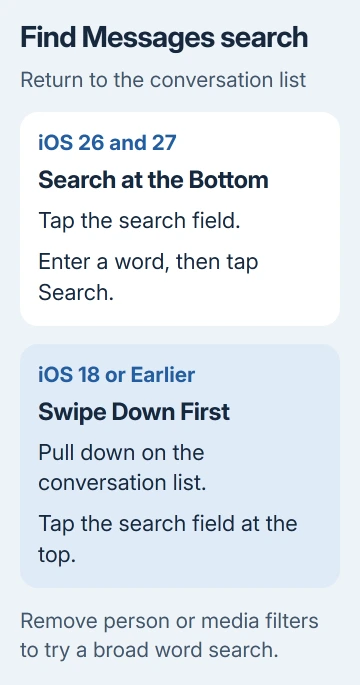
Apple's Messages search instructions explain the changed location and the filters. A missing field after an update can be a layout change rather than a broken message history.
If an existing search is restricted to one person, a conversation or Photos, remove that restriction and repeat the word search. Those filters can hide the message you're looking for.
2. Give indexing time after an update or transfer
Indexing prepares your messages for search. After an update or a move to a new iPhone, the conversations can be present while shared media is still being prepared for search and the contact's details page.
Connect to Wi-Fi, lock the iPhone and let it work. The indexing guidance says the process can finish quickly or take a few days, depending on the saved Messages data and other background tasks.
An indexing alert or photos gradually returning to a conversation's details can show that this is still running. Check the same older conversation later rather than switching several settings during the transfer.
I'd let a newly transferred phone finish before trying a reset. That's different from a phone that suddenly stops finding messages it could search before.
If whole conversations are absent when you scroll through Messages, use the missing-message checks. The history itself needs checking, rather than search.
3. Restart iCloud indexing when shared media stays missing
If you used iCloud for your message history and shared links or photos are still missing after waiting, open Settings > your name > iCloud, then Messages or Messages in iCloud.
Turn Use on this iPhone off, then turn it on again. On iOS 16 to 17.1, this switch is called Sync this iPhone. On layouts that group iCloud apps behind See All or Show All, open that list to find Messages first.
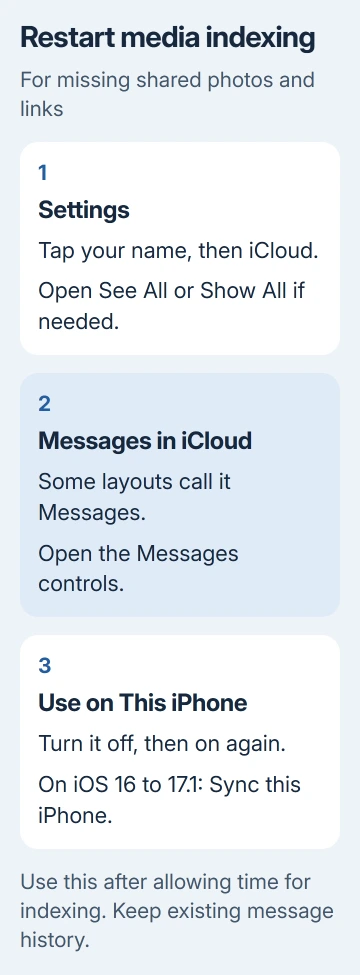
This restarts indexing for missing shared media. It isn't the same switch as iMessage in the Messages app settings, which controls the messaging service.
Don't choose an option to delete Messages data from iCloud while restarting indexing. Return to the conversation afterward and check whether its media categories begin filling in.
4. Look for a shared photo inside its conversation
Open the conversation, then tap the contact or group's name at the top. Look through Photos, Links, Documents or the relevant media category. Swipe between categories where that layout is offered.
You can look for the attachment here when the main search misses it. Open the item to confirm it's the one you need, rather than judging only by a small thumbnail.
If the attachment appears in the thread but not the contact's media list, report that difference. If it's missing from both, check whether the conversation was deleted or your message history is still downloading.
5. Recover a deleted conversation before searching again
On iOS 26 or 27, tap the Filters button in Messages, then Recently Deleted. On iOS 18, tap Edit on the conversations page to reach the recovery option.
Select the conversation, tap Recover, and confirm Recover Messages, Recover Message or the displayed message count. After it returns to the conversation list, search for the original word again.
The recovery instructions allow recovery on supported software for 30 to 40 days after deletion. If the conversation isn't available there, search alone can't restore it.
6. Check whether only Home Screen search fails
If Messages finds the text but the Home Screen search doesn't, use the iPhone Spotlight checks. Home Screen search has its own settings for showing app content.
Check whether Messages has an app lock. Content inside a locked app is hidden from system search. Unlock Messages to search inside it.
To remove the lock, hold its Home Screen icon, choose Don't Require Face ID (or Touch ID or Passcode), and confirm with Face ID, Touch ID or your passcode.
If search inside Messages still fails on an established phone, contact Apple Support about Messages search and indexing. Include the iOS version, whether the text is visible in its conversation, and whether photos or links are missing too.
The Short Version
Try a broad Messages search and allow indexing after a transfer. Restart iCloud indexing for persistent missing media. Recover deleted threads separately; check Spotlight when only Home Screen results fail.
Checked November 7, 2026.

Isaac Smith is the founder and editor of PC Glance, a website that covers computers, laptops, and technology. He is a tech enthusiast and a computer geek who loves to share his insights and help his readers make smart choices when buying tech gadgets or laptops. He is always curious and updated about the latest tech trends.