

Changing Wi-Fi on Google Home means forgetting its saved network, then setting the speaker up on the new one. If the old connection is already gone and the app can't change the network, reset the speaker using its own hardware controls.
The Wi-Fi setting on your phone doesn't move the speaker by itself. Keep the new network name and password ready before removing the old connection.
1. Forget the old network while the device is reachable
Open Google Home with the Google Account linked to the speaker or display. When the old Wi-Fi still works, keep your phone on it while opening the device's settings.
In the current app layout, tap Home > All devices, then touch and hold the speaker's tile. Open Settings > Device information > Wi-Fi > Forget this network.
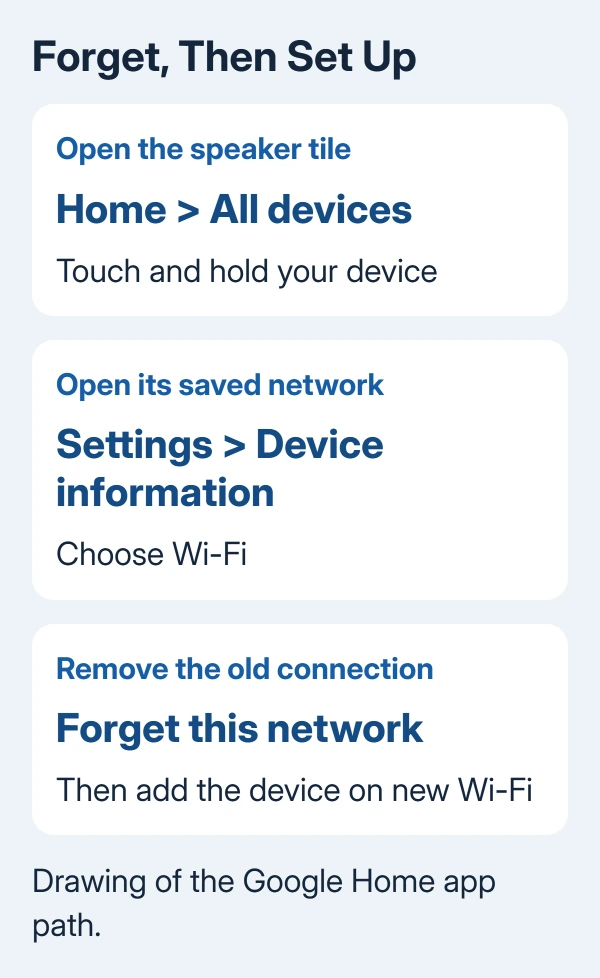
Google says to forget the saved network, then repeat setup. That screen has no box for replacing the saved password.
If the device is offline, network settings won't open, or forgetting produces a communication error, go to step 3.
2. Add the speaker to the new Wi-Fi
Connect your phone or tablet to the new home Wi-Fi. Turn on Bluetooth so the app can discover the speaker. On iPhone or iPad, allow Google Home in Settings > Privacy & Security > Local Network.
Return to the app's home screen and choose Home > Add > Device > Search for device. Follow the setup prompts, select the speaker, and choose the new network when asked. Enter that network's password.
Use your main Wi-Fi connection. A guest network can block communication between devices. If you've also changed the router's network name, choose the new name instead of the remembered one.
Once setup finishes, ask the speaker a question or use its device controls in Home. A response confirms that the speaker is connected. Loading a webpage on your phone only checks the phone's connection.
If setup finds the speaker but can't connect it, use the Google Home Wi-Fi setup fixes. That page covers password entry, phone permissions and router checks after discovery.
3. Reset the right model when the old Wi-Fi is gone
A factory reset erases the device's data and settings. Afterward, repeat setup. Keep the speaker plugged in and use the controls for your model.
Original Google Home: hold the rear microphone mute button for roughly 15 seconds. The speaker announces that it's resetting.
Google Home Mini, first generation: hold the small factory-reset button on the bottom, near the power cord. After the first 5 seconds, keep holding for about 10 more seconds, until you hear the reset confirmation.
Google Nest Mini, second generation: switch the microphone off on the side. When the lights turn orange, press and hold its illuminated top center. Hold for 5 seconds, then about 10 more, until the sound confirms the reset.
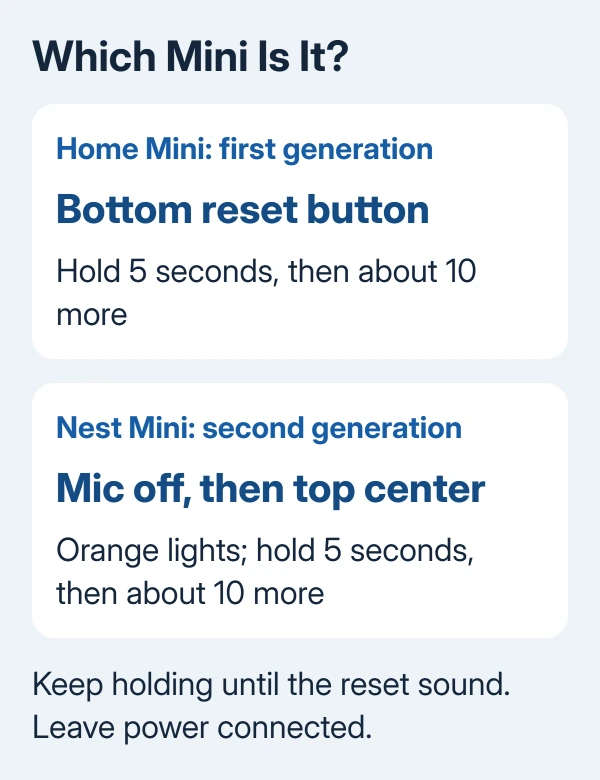
Google Nest Audio: switch off the microphone on the back. With the lights orange, hold the center near the top. After 5 seconds, keep holding for about 10 more seconds, until you hear the reset confirmation.
Google Home Speaker (2026): switch off the microphone on the bottom. Hold the top center for 5 seconds, then continue for about 10 more seconds, until the reset sound.
Google Home Max: hold the factory-reset button on the back near the power cord for about 12 seconds. Listen for the reset announcement.
Nest Hub or Nest Hub, second generation: hold both volume buttons on the back together for about 10 seconds. The display confirms that it's resetting.
Nest Hub Max: save important camera footage and remove the device from Google Home first. Then hold both rear volume buttons together for about 10 seconds, until the display confirms the reset.
The model-specific reset instructions show the controls. Voice commands and the Home app can't perform these speaker and display factory resets.
4. Finish setup or get help with the failed stage
After resetting, restore the mic switch to its on position. Repeat step 2 to select your new Wi-Fi and enter its password.
If you're updating other devices after a router change, the Wi-Fi name and password guide explains the reconnection work that follows a credential change.
If the speaker never announces its reset or still can't be added, use Contact us on the reset support page. Tell support your model, what happened during the reset and exactly where setup stops.
The Short Version
Forget the saved Wi-Fi in the device's Home app settings, then add the speaker on the new network. When the old network is unreachable, use the reset controls for your model and complete setup again.
Checked November 7, 2026.

Isaac Smith is the founder and editor of PC Glance, a website that covers computers, laptops, and technology. He is a tech enthusiast and a computer geek who loves to share his insights and help his readers make smart choices when buying tech gadgets or laptops. He is always curious and updated about the latest tech trends.