
iOS 26 can change your app icons' color, size and clear appearance from Home Screen > Edit > Customize. For a completely different picture on one app, create an Open App shortcut and give that shortcut a custom Home Screen image.
Customize changes the built-in appearance; Shortcuts adds a Home Screen icon that opens an installed app. Choose the first for a matching set and the second for individual artwork.
Open the Home Screen appearance controls
Go to a Home Screen page and touch and hold an empty part of the background. When the icons start jiggling, tap Edit at the top, then Customize.
The appearance panel opens at the bottom. Make one change and look at the icons against your wallpaper before combining several. A color that looks good on a plain background can be harder to recognize over a busy photo.
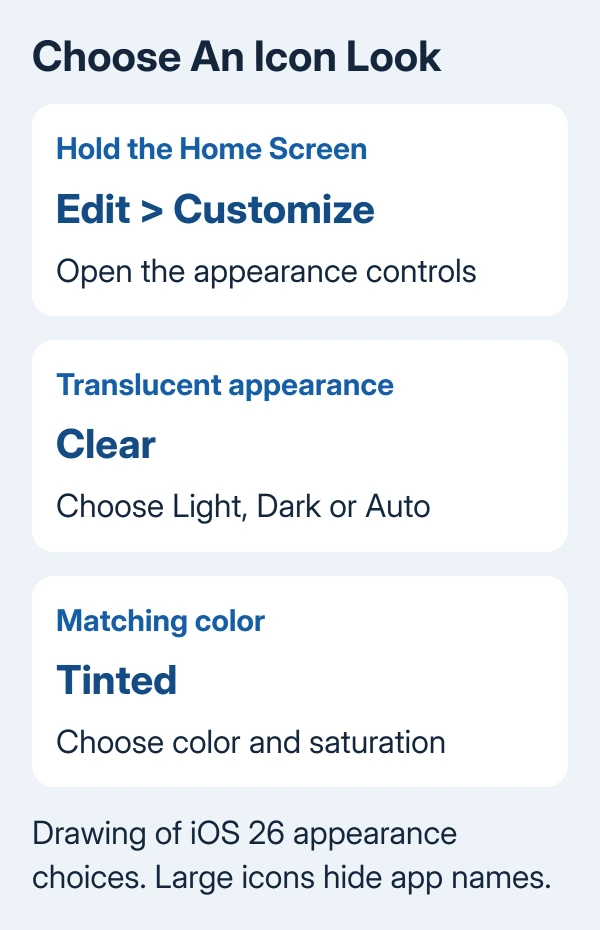
Apple says to use Edit > Customize for these appearance changes. These controls change icons and widgets together. To use a photo for one app, use the Shortcuts steps.
If an app icon has turned into a target-like placeholder rather than a deliberate style, use the missing iPhone icon artwork checks.
Choose dark, clear or tinted icons
For a dark appearance, select Dark in Customize. Use Auto if you want the appearance to follow the light and dark schedule rather than remain dark throughout the day.
For translucent icons, tap Clear, then choose Light, Dark or Auto.
For a matching color, tap Tinted. Move the color and saturation sliders until you get the shade you want. The eyedropper lets you select a color from your wallpaper instead of estimating it with the sliders.
Tinted also offers Light, Dark and Auto. Try the same color in each appearance before settling on it. The same tint can look different against light and dark backgrounds.
I'd choose a recognizable tint before making every icon clear. Familiar shapes are easier to find when they still stand out from the wallpaper.
Change icon size without changing the image
Use the small and large icon-size controls in the Customize panel. Large icons remove app-name labels, so the screen looks cleaner but relies more on recognizing the artwork.
If your main aim is easier reading, compare both sizes with the apps you use most. Larger artwork can help, while losing the names can make similarly colored icons harder to tell apart.
Return to the smaller size if you want names visible again. Changing icon size doesn't change the picture or the text size inside apps.
Put a custom picture on an app launcher
Open Shortcuts, tap + to create a shortcut, then add the Open App action. Tap the app field in that action and select the installed app you want it to launch.
Name the shortcut, then run it once with the play control. Confirm that it opens the intended app before choosing its picture. If another app opens, correct the app selection in the action.
Open the shortcut's details or its name menu and choose Add to Home Screen. In the Home Screen Name and Icon area, tap the icon to change the picture.
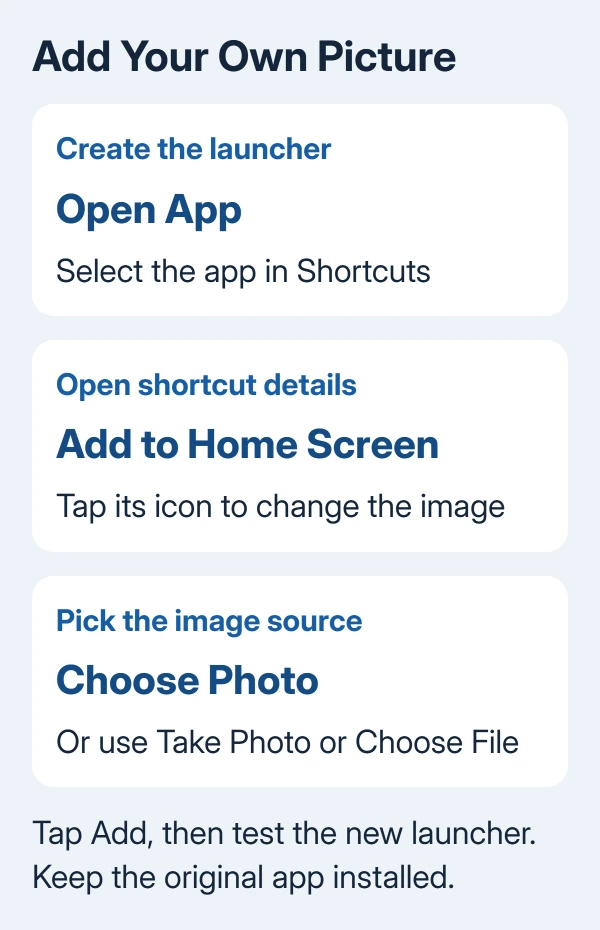
Select Take Photo, Choose Photo or Choose File, then pick your image. Set the name that should appear under the new launcher and tap Add. The shortcut icon instructions describe these image choices.
Tap the new Home Screen icon to check it. The picture belongs to this shortcut. It won't replace the app's artwork elsewhere in iOS.
Keep the original app available and undo unwanted changes
If you don't want two launchers on the Home Screen, touch and hold the original app. Choose Remove App, then Remove from Home Screen. The app remains available in App Library. Don't choose Delete App when you still need it.
To change the shortcut's picture later, edit its Add to Home Screen choice and add the revised launcher. Remove the older Home Screen shortcut if both copies remain. Test the replacement before removing the old shortcut.
For an appearance change, reopen Customize and select the style and size you prefer. If tinted icons cause stuttering on a newer system, the tinted-icon lag discussion covers that specific fault.
If creating or running the launcher fails, tell Apple Support which iOS release you're using and where Shortcuts stops. Include whether the Open App action runs successfully from its editor.
The Short Version
Use Edit > Customize for icon appearance, tint and size. Use an Open App shortcut with Add to Home Screen for an individual picture. Keep the original app installed, even if its normal icon moves to App Library.
Checked November 7, 2026.

Isaac Smith is the founder and editor of PC Glance, a website that covers computers, laptops, and technology. He is a tech enthusiast and a computer geek who loves to share his insights and help his readers make smart choices when buying tech gadgets or laptops. He is always curious and updated about the latest tech trends.