
Power saving and a less demanding screen setup are the quickest ways to make a Samsung A16 battery last longer between charges. Start with Settings > Battery > Power saving, then lower brightness and check which apps use power.
If the battery drains while you aren't using the phone, check app activity. Hours of video or games are a different kind of drain.
Set up Power saving before going out
Open Settings > Battery > Power saving. Review the options your phone offers and switch the mode on. It reduces power use right away, so it's the first change I'd make before leaving the house with a low battery.
Some software versions let you choose which features to limit. If those options are dimmed while Power saving is active, switch it off briefly, adjust the available choices, then turn it back on.
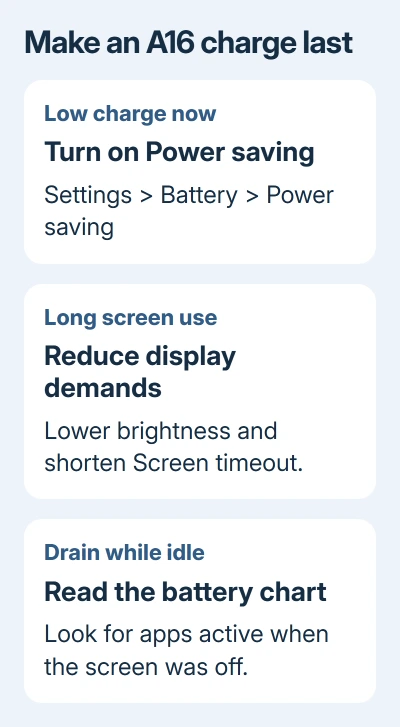
Power saving can slow some tasks and delay background updates or notifications. Check that any app you depend on still behaves as needed. Missing an urgent alert is a poor trade for extra battery life.
The A16 and A16 5G can have different software builds depending on country and carrier. Use Settings > About phone > Software information to identify your One UI version when the controls on your phone look different.
A missing label doesn't call for another battery app. Use Settings search for Power saving first. Start with the built-in control. Another app would also need power to run.
Make the display use less power
Open Settings > Display and lower the brightness to a level you can read comfortably. Turn on Adaptive brightness if you want the phone to adjust it as the lighting changes.
Choose Screen timeout in the same menu and select a shorter delay, such as 30 seconds. A short delay helps when the phone often sits with the screen on after you've finished using it.
Choose Motion smoothness > Standard, then apply the change if prompted. Standard uses a 60 Hz refresh rate. On the A16 5G, High uses 90 Hz, making scrolling smoother at the cost of more battery use.
That refresh rate describes how often the display redraws each second. Scrolling can feel less smooth on Standard, but you can still message, browse and make calls as usual.
Samsung says to select Standard for longer battery life in its A16 setup instructions. If Power saving has already set the display to Standard, that refresh-rate change is already in place.
Dark mode is another option under Settings > Display if you prefer it. Keep brightness and timeout in mind, too; changing the background theme doesn't explain every case of short runtime.
Read the battery chart before restricting apps
Return to Settings > Battery and tap the activity chart or View details, depending on the version shown. Look at the apps listed alongside screen-on and screen-off time.
A long video call can reasonably put its app near the top of the battery chart. The more useful question is whether an app you barely used consumed power while the screen was off.
Compare the chart with your actual day. Games, navigation and video use the phone very differently from leaving it on a desk. Don't judge the battery from two days with completely different use and expect the percentages to match.
If one rarely used app stands out, update it and review whether you still need it. Consider uninstalling an unwanted app instead of adding more restrictions to it.
The A16 battery instructions place both the activity chart and background limits under Battery. Use those controls to decide which apps need limits instead of restricting everything at once.
Put occasional apps to sleep carefully
Open Settings > Battery > Background usage limits and enable Put unused apps to sleep. On versions that group battery controls under Device care, open Device care > Battery first.
Review Sleeping apps and Deep sleeping apps separately. Sleeping apps have background activity limited. Apps in deep sleep won't work until you open them, so that setting limits them much more.
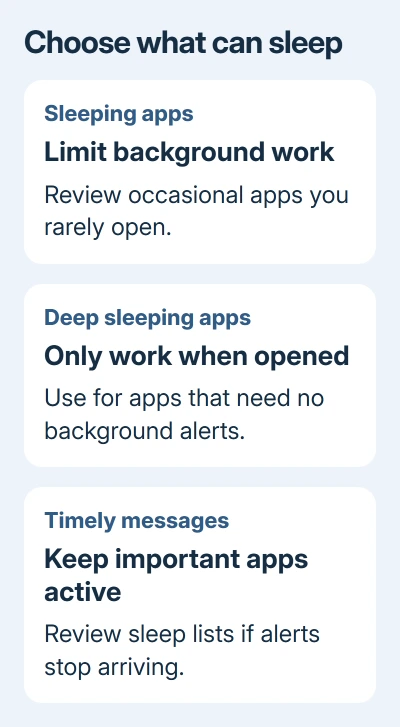
Use deep sleep for something you open occasionally and don't need to hear from between visits. Keep your important messaging, work and reminder apps out of that category if you rely on their background alerts.
To remove an app from a sleep list, open that list, tap its More options menu, choose Remove, select the app and confirm. Then check that you're getting its alerts again.
If you run separate messaging accounts through Dual Messenger on the A16, consider which copies need to stay active. Keep the copy you use for urgent messages out of deep sleep so you don't miss its alerts.
Separate daily runtime from battery protection
Battery protection manages charging to reduce long-term wear. Power saving does a different job: it reduces how much power the phone uses between charges.
Open Settings > Battery > Battery protection to see the choices on your software version. A maximum charging limit can make the phone start the day short of 100 percent even when charging works normally.
If you need the longest runtime for a particular day, review that limit before unplugging. With a lower cap, you have less charge to use before the phone needs plugging in again.
You don't need to drain the phone flat to teach it to last longer. Use the built-in settings and charge when needed. A battery percentage is the charge available now, not a promise of how many hours a specific app will run.
For general habits beyond this model, Google's Android battery guidance covers brightness, heat and battery-saving settings. Avoid letting the phone become hot while trying to stretch its charge.
Check persistent drain or sudden shutdowns
Open Settings > Device care > Optimize now to run the built-in optimization. Keep using the phone with your chosen changes, then compare the next battery chart after a similar day.
If the phone loses charge unusually fast while idle, note the apps active during screen-off periods. Give Samsung Support the One UI version, charge loss and app names so they can check what's using the power.
If the phone suddenly shuts down or lasts much less time than usual, check the battery itself. Open Samsung Members > Support > Get started under Phone diagnostics. Run the diagnosis and select Battery status to review the result.
Ask Samsung to assess the battery if the check reports a problem or the phone keeps shutting down. For a battery percentage that's actively falling while connected to power, use the Android charging checks as well.
The Short Version
Use Power saving and reduce display demands. Check the battery chart before sleeping apps. Review charging limits separately, and request a battery assessment for persistent idle drain or shutdowns.
Checked November 8, 2026.

Isaac Smith is the founder and editor of PC Glance, a website that covers computers, laptops, and technology. He is a tech enthusiast and a computer geek who loves to share his insights and help his readers make smart choices when buying tech gadgets or laptops. He is always curious and updated about the latest tech trends.