
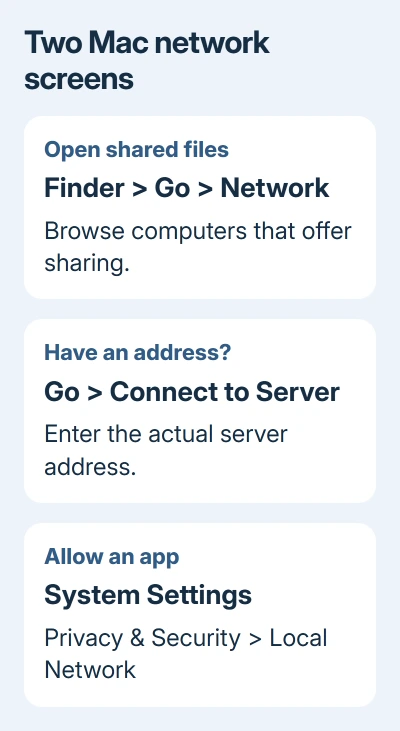
Finder's Network view is the place to open shared computers on your Mac's local network. Click Finder, then Go > Network in the menu bar.
If you mean permission for an app to find nearby devices, that's a different screen: System Settings > Privacy & Security > Local Network.
Open Network in Finder
Click Finder in the Dock to show the Finder menu bar. Choose Go > Network from that menu bar. The keyboard shortcut is Shift-Command-K.
This shows computers and servers that make their shared services visible on your network. It isn't a list of every phone, light bulb or other device connected to your router.
Another route is Network under Locations in a Finder window's sidebar. If Locations is collapsed, expand that heading first. If Network is missing, the Go menu still gives you a direct route.
Intel Macs use the same steps and keyboard shortcut as Apple silicon models. Both use Finder to browse the network.
Connect your Mac to the local network the other computer uses. A home Wi-Fi connection is different from a guest network, even when both provide internet access in the same building.
The other computer needs sharing turned on before Finder can open its files. Simply switching on a Windows laptop beside the Mac doesn't automatically create a folder that anyone can open.
Open a shared computer and sign in
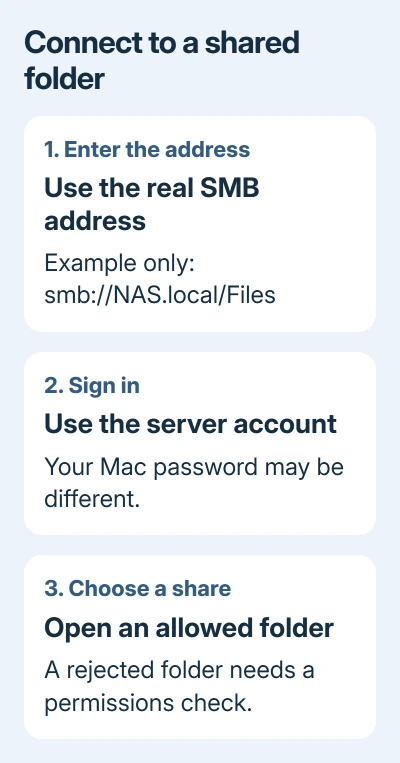
Double-click the computer you want, then click Connect As. Choose a login method that the other computer permits. Guest works only when its owner has enabled guest access.
For an account-based connection, choose Registered User and enter a username and password that work on the other computer. Your Mac login and Apple Account password aren't automatically the correct credentials for a Windows PC or NAS.
After signing in, select the volume or shared folder you want to open. A Finder window should open with that share's contents. The folders available depend on the access granted to your account.
Apple says a shared computer can be reached by browsing or entering its address. Browsing is convenient, but it isn't the only way to reach a known server.
A sign-in error means your Mac reached the point of asking the server to accept your account. Check the username, password and share permissions with the computer's owner rather than repeatedly changing the Mac's Wi-Fi settings.
If you're connecting to a work server, the administrator may supply a particular account format or workgroup. Use those details as given; seeing the computer's name doesn't tell you which account can open its files.
Connect directly when the computer isn't listed
In Finder, choose Go > Connect to Server, or press Command-K. Enter the server's address in Server Address, then click Connect.
For an SMB share, the address usually looks like smb://server-name/share-name. SMB is a file-sharing method used by Windows PCs, Macs and network storage devices.
An address such as smb://192.168.1.20/Documents is only an example. Replace both the address and folder with the details supplied by the other computer's owner. Typing an example won't discover your actual server.
I'd try a known address before changing system settings when a server is missing from Network. A direct connection avoids depending on the browsing list to display its name.
If the address works, the folder is available even though browsing didn't show it. If it fails, note whether the message says the server is unavailable, rejects your login or denies access to a particular share.
Those are different failures. If the server is unavailable, check whether it's running and reachable on your network. A rejected login needs account help. A folder you can't open after signing in needs its permissions checked.
Make the shared folder visible after connecting
Open Finder > Settings > Sidebar and enable Connected servers. Your connected shares can then appear in the sidebar, ready to open without returning to Connect to Server.
To show mounted servers on the desktop, open Finder > Settings > General and select Connected servers there, too. On older macOS releases that call this window Preferences, choose Finder > Preferences.
These checkboxes control where connected servers appear. They don't turn on file sharing on another computer, create access rights or repair a rejected password.
For a frequently used address, open Go > Connect to Server and use the add control to save it as a favorite. Recent servers are also available through Apple menu > Recent Items.
A favorite saves the address for later use; it doesn't promise the share will remain connected through every sleep or restart. For that separate failure, use the Mac network drive reconnection guide.
Turn on sharing on the computer that owns the files
If the files are on another Mac, have its owner open System Settings > General > Sharing and turn on File Sharing. Open its information control to review the shared folders and allowed users.
Under Options, SMB sharing can be enabled for compatible connections. The owner should grant access to the specific folder and account you need rather than assuming that enabling sharing opens the entire computer.
On older macOS versions with System Preferences, start at System Preferences > Sharing. On a Windows PC or NAS, use that device's file-sharing controls and ask its owner for the share name.
Wake the other computer and confirm it has joined your local network before looking for its files. The connection troubleshooting steps also call out server availability and the correct network address.
Find Local Network permission when that's the goal
On macOS versions with the app permission control, open Apple menu > System Settings > Privacy & Security > Local Network. Enable access beside the app that needs to reach nearby devices.
That permission list isn't a network browser. It shows apps asking for local access, rather than the shared folders available in Finder. Older releases may not have the same Local Network pane.
If an app can't find a printer or server while Finder connects, use the Mac Local Network permission checks. That page handles missing app entries and permission failures separately.
If the server remains out of reach, ask its administrator for the current SMB address, a share you can access and the login details. Include the exact error message and whether direct connection worked when browsing didn't.
The Short Version
Browse shared computers through Finder's Go > Network menu. Use Go > Connect to Server for a known SMB address. Local Network under Privacy & Security controls app permission and serves a different purpose.
Checked November 8, 2026.

Isaac Smith is the founder and editor of PC Glance, a website that covers computers, laptops, and technology. He is a tech enthusiast and a computer geek who loves to share his insights and help his readers make smart choices when buying tech gadgets or laptops. He is always curious and updated about the latest tech trends.