
A dark HP printer needs its cord and outlet checked before its driver. Reconnect the cord, try a working outlet, then follow your model's power-reset steps. If the power button lights up but the screen stays blank, have the display checked.
An HP printer that wakes when you press Power may simply have turned itself off to save energy. One that remains completely unresponsive needs the checks in this order.
1. Press Power and watch the printer itself
Press Power on the printer, then wait for startup. Watch for a button light, control-panel activity, or the normal sound of its mechanism. A computer's Offline message doesn't tell you whether the printer has electrical power.
Check the printer itself instead of repeatedly sending documents. If it starts and stays on, it was switched off; a failed driver wasn't keeping it from turning on. Continue with printing only after its normal ready screen or lights return.
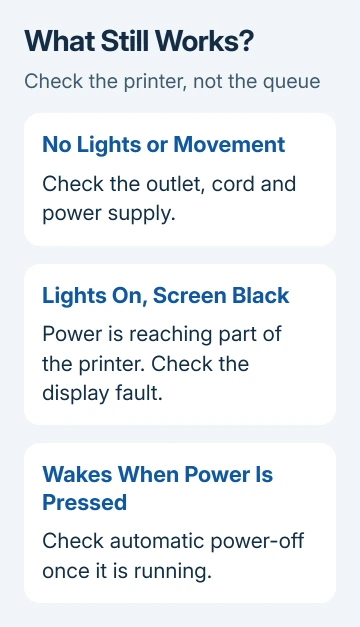
When asking for service, describe a black screen with other lights still on as a display problem. A lit power button means the printer isn't completely without power, even if the display never reaches its normal screen.
A printer that wakes normally but leaves jobs waiting needs the printer offline fixes. The Windows printer troubleshooter can address printing trouble after startup.
2. Test the outlet and both ends of the cord
Disconnect the wall plug. Firmly seat the printer end, then plug it directly into a working wall socket. For this check, leave out the power strip or surge protector.
Test the outlet with a working lamp or appliance. If that stays off too, move to another socket. Check this before buying a printer part: the fault can be in the socket or power strip.
Some HP printers have an external power adapter, the brick between the wall and printer. Check the detachable cord where it enters that adapter as well. Others take the wall cord directly into the printer and have their power supply inside.
Stop using a cord or adapter with exposed wiring, melted plastic, or a burning smell. A damaged power connection needs replacement rather than another startup attempt.
Look for the model label on the printer before borrowing a replacement supply. Matching the plug shape doesn't tell you whether the adapter meets the printer's electrical requirements.
3. Disconnect power long enough to reset it
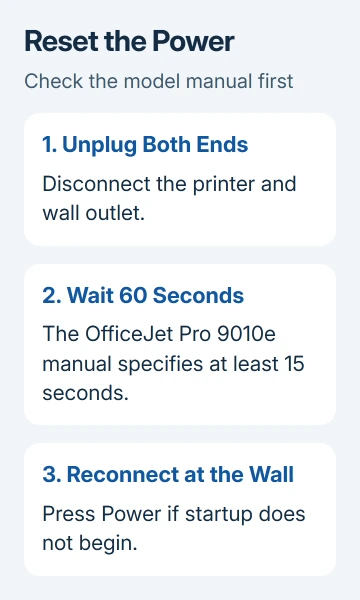
HP says to disconnect Deskjet 2540 power for a minute for its all-lights-blinking error. The OfficeJet Pro 9010e manual also provides a power reset. Check your model's instructions before starting.
For the OfficeJet Pro 9010e series, use this sequence. Its manual requires at least 15 seconds disconnected; the full minute used here also meets that minimum:
- Disconnect the power cord from the printer.
- Unplug it from the wall outlet.
- Wait 60 seconds.
- Reconnect the cord to the wall outlet and printer.
- Press Power if the printer doesn't start on its own.
Watch what happens after reconnecting. If it starts normally and stays on, the printer is getting power and can finish starting up. No response means the outlet, supply, or printer hardware still needs attention.
For another HP model, use its own power-reset sequence. In particular, a portable printer can require removing a user-removable battery as part of the process. Don't substitute a button combination intended for another model.
This doesn't call for restoring wireless or factory settings. The HP reset choices affect different settings, and a printer with no electrical response can't use an on-screen reset menu anyway.
4. Check the adapter or try a matching cord
If your external adapter has an indicator light, watch it with power connected. Tell support whether it lights up at the working outlet. Some adapters have no light, so the absence of one isn't itself a fault.
Check that the adapter's part number matches the supply listed for your printer. Use its original supply or an approved replacement. A laptop charger with a similar connector isn't a suitable substitute.
For printers with a removable wall cord and an internal supply, ask support whether a compatible alternate cord is the next useful check. Give them the model number so they can identify the correct cord and power arrangement.
If the printer starts with a compatible spare cord, replace the original cord. If neither cord restores power, give support that result. That tells them more about the power problem than simply saying the printer won't print.
I'd check the supply's part number before ordering anything. Two similar-looking HP printers can use different power arrangements, and guessing can leave you with a second unusable adapter.
5. Treat a portable printer's battery separately
A portable HP printer also depends on its battery. Connect the correct supply and check whether external power starts it. Use the model's instructions for a user-removable battery; leave the housing closed.
If the printer works on its cord, allow the battery to charge and then check battery-powered operation. A printer that still won't run unplugged needs its battery checked; changing computer settings won't help it run unplugged.
Tell support whether the charging or adapter light comes on, whether the printer starts while connected, and whether it shuts off when you unplug it. Each answer helps them work out which part of the power connection isn't working.
For a model that won't start with either source, ask HP to check the adapter and printer together. Replacing the battery alone won't address a failed external supply or an internal power fault.
6. Handle repeated shutoffs after power returns
If pressing Power always wakes the printer, check its model manual for energy-saving behavior. For example, the Deskjet 2540's Auto-Off can turn it off completely after inactivity. Its On button is then needed to start it again.
Sleep differs from automatic power-off. A sleeping printer normally wakes for work; a fully switched-off printer can need its Power button.
Follow the energy-saving instructions for the exact model. Its controls can differ from those on another HP printer, even when both have an automatic-off feature.
A printer that switches off during startup or while printing needs further attention. Record whether the display goes dark before paper moves, whether it restarts itself, and whether the same thing happens directly at the wall outlet.
For service, use HP Customer Support and provide the exact product number, serial number, outlet test, reset result, and adapter-light behavior. Ask for a power-supply or no-power diagnosis and a warranty check.
The Short Version
Check lights, outlet, cord and the model's power-reset procedure. Match replacement supplies to that printer. If it remains dead, request a power diagnosis. For a portable model, include whether it works on its cord or battery.
Checked November 8, 2026.

Isaac Smith is the founder and editor of PC Glance, a website that covers computers, laptops, and technology. He is a tech enthusiast and a computer geek who loves to share his insights and help his readers make smart choices when buying tech gadgets or laptops. He is always curious and updated about the latest tech trends.