
An Apple Watch charger that isn't working often needs a firm connection or better alignment on the puck. Connect it to a powered wall adapter, clean the charging surfaces, and give a completely drained watch up to 30 minutes to respond.
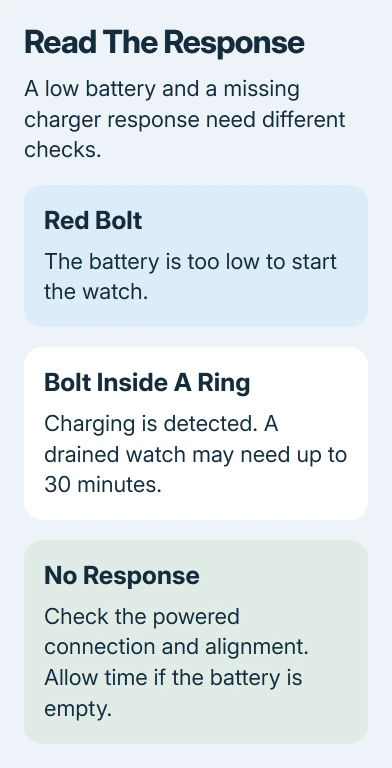
A red bolt means the watch hasn't got enough battery power to start. A bolt inside a ring means the watch has recognized charging. Slow charging or a pause near 80 percent needs its own checks, separate from an undetected charger.
1. Reseat the cable and center the watch
Push the charging cable fully into its USB power adapter, then seat the adapter firmly in the wall outlet. Try another outlet if that one is controlled by a switch or isn't powering other equipment.
Rest the watch on the puck with its back touching the charging surface. Shift it slightly until the magnets hold it in place. Apple's charging troubleshooting steps say a lightning bolt should appear when alignment is correct.
Remove any plastic wrapping from both sides of a new charger. Check that the watch back and charger are clean, with nothing trapped between them. A case or band that holds the watch away from the puck can prevent a good fit.
Check the screen after repositioning. If the indicator appears only while you're holding the watch at an angle, check how it fits on the stand. Try the cable's puck flat on a table before assuming the battery has failed.
The puck is the magnetic charging end, not the wall adapter. Checking those two parts separately makes it easier to replace the right one later.
2. Give a fully drained watch time to respond
A completely empty watch can stay black at first, even after you connect a working charger. Press the side button once to check the screen, then leave it resting on the charger rather than repeatedly lifting it off.
It may need up to 30 minutes before it turns on or displays the charging bolt. The charging-cable picture and a red bolt can appear while the battery still lacks enough power to start watchOS.
When a ring appears around the red bolt, the watch has detected its charger. That change is useful even when the watch face hasn't returned yet. Keep the connection steady while the battery recovers.
If the watch starts, check whether its battery percentage rises while it stays on the charger. The screen coming back on and the percentage rising tell you more than whether the watch feels warm.
If the screen stays blank or the percentage hasn't risen after that wait, try another cable and adapter in the next section. Leaving it on the same unresponsive setup indefinitely won't tell you which part failed.
3. Compare another cable and power adapter
Try a different Apple Watch Magnetic Charging Cable or USB-C Magnetic Fast Charging Cable. Use an appropriate USB power adapter and a working outlet. An iPhone MagSafe disc isn't the Apple Watch charging puck.
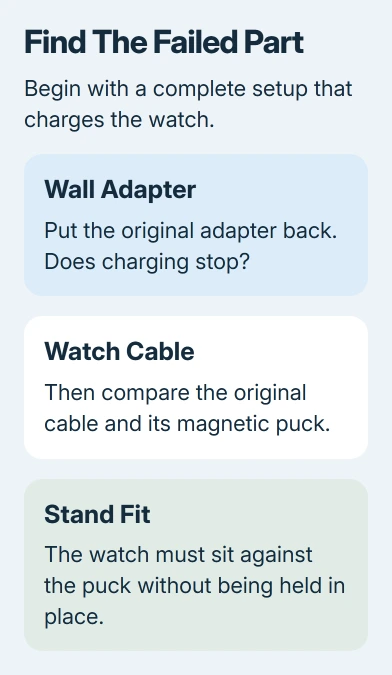
Try a complete working setup first, if you have one. If it charges your watch, put back your original adapter, then your original Watch cable. Swap each part separately and watch for charging to stop.
If charging stops when one part returns, consider replacing that part first. If neither setup charges the watch, the watch still needs checking. Borrowing a working setup can save you buying both parts unnecessarily.
I'd try this comparison before erasing the watch. Erasing removes settings and pairing information without showing whether the charger supplies power.
A watch whose percentage rises but takes longer than expected belongs with the fast-charging cable and adapter checks. Ordinary charging and fast charging have different requirements.
4. Check the stand and any compatibility message
The Apple Watch Magnetic Charging Dock and MagSafe Duo Charger can need a different angle with larger watches. For 44mm, 45mm, or 49mm cases, adjust the charging surface or lay it completely flat.
With an Apple Watch Ultra or later, try removing the band if these chargers still won't connect reliably while flat. A bulky band can change how the watch sits. Look for a charging indicator that stays on without you holding the watch.
A country-specific charger warning is a separate compatibility problem. WPT-compliant chargers bought in China or Indonesia can be incompatible with a particular watch, and the screen explains that the charger is country-specific.
Use a compatible Apple Watch charger for that watch instead. Repeatedly repositioning an incompatible charger won't clear the warning. Keep the charger details when asking the seller or support for the correct replacement.
5. Let an overheated watch cool before charging
Charging can slow or stop when the watch manages its temperature. A red thermometer is different from the red low-battery bolt: it means the watch needs to cool down.
Remove a hot watch from your wrist and its charger. Put it somewhere cooler, out of the sun, and wait for it to cool before resuming the charge. The temperature guidance explains this charging pause.
If charging resumes after cooling, that pause alone doesn't mean the cable has failed. Have the watch checked if it repeatedly overheats during ordinary charging, especially if it also stops taking a charge.
6. Recognize a planned pause near 80 percent
An increasing percentage that later pauses around 75% to 80% can be Optimized Battery Charging learning your routine. Supported models also have Optimized Charge Limit, which can choose a different stopping point from day to day.
For a full charge now, keep the watch connected to power. Tap the screen, tap the circle containing the green or yellow charging icon, then choose Charge to Full Now. Check whether the percentage starts increasing again.
The optimized-charging controls let you request that full charge without permanently disabling the feature. This applies to a watch that already charges; it won't explain an empty watch that never detects its puck.
7. Force restart, then arrange a charging assessment
If charging still fails, hold the Digital Crown plus the side button for 10 seconds or longer. Release them once the Apple logo shows, then check charging again. Don't force restart during a watchOS update.
A watch that starts but quickly loses its recovered charge needs the battery-drain checks. That result points to a different problem than an unrecognized charger.
If it still won't charge, contact Apple Support and request an Apple Watch charging assessment. Bring the watch, charging cable, and power adapter to the appointment so the whole charging setup can be checked.
Report the exact screen, whether you waited 30 minutes, and what happened with the second cable and adapter. Those details help distinguish a charger replacement from a watch or battery repair.
The Short Version
Reseat and align the charger, allow up to 30 minutes for a drained battery, then compare a working cable and adapter. Check stand fit, compatibility warnings, and heat before force restarting or requesting service.
Checked November 8, 2026.

Isaac Smith is the founder and editor of PC Glance, a website that covers computers, laptops, and technology. He is a tech enthusiast and a computer geek who loves to share his insights and help his readers make smart choices when buying tech gadgets or laptops. He is always curious and updated about the latest tech trends.