
A stuck Control Strip can leave a MacBook Pro Touch Bar black while the keyboard still works. Restart the Mac, then check its Touch Bar settings; restarting the ControlStrip process also brought a completely blank bar back for an owner.
Check whether only the app buttons are missing or the entire strip stays dark. The fingerprint reader can still work even when the display strip needs repair.
1. Restart and see whether any controls return
Save open work and select Restart from the Apple menu. After signing in, open Finder and then another app. Touch the bar and press Fn or Globe, depending on the keyboard, to check whether its controls appear.
If the bar lights up in one app but looks empty in another, start with its app controls. A strip that stays black everywhere needs different checks. Use what you see to choose the next check rather than resetting everything at once.
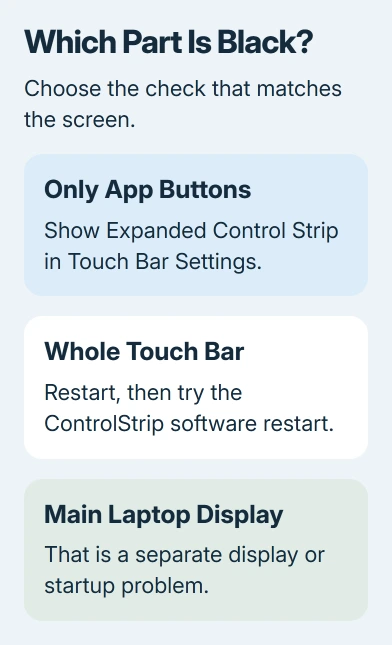
These steps apply to MacBook Pro models that actually have a Touch Bar, including Intel models and the 13-inch M1 and M2 models. The newer 14-inch and 16-inch designs with physical function keys don't have this display strip.
Check Apple menu > About This Mac for your model and chip. You'll need that information for the Intel power-controller steps later. A dark main display needs its own startup checks, separate from the narrow keyboard strip.
2. Put the Control Strip back in Touch Bar settings
Open System Settings > Keyboard > Touch Bar Settings on newer macOS versions. Apple's Touch Bar settings let you choose the controls that appear, including the Control Strip on the right.
Set Touch Bar shows to Expanded Control Strip to see whether the system controls return. This asks the bar to display the system controls rather than depending on an app to supply its own buttons.
Alternatively, choose App Controls and turn on Show Control Strip. That switch isn't available when the whole bar is already showing the expanded strip or the F1, F2, and other function keys.
On older macOS versions, open System Preferences > Keyboard and look in the Keyboard tab for the Touch Bar controls. The panel layout differs, so don't search those older versions for a sidebar called System Settings.
If the buttons return, the selected layout explains the empty area. If the bar remains black, continue with the process restart. Note whether Touch Bar settings are missing too, and mention that when you arrange a repair.
3. Restart ControlStrip once in Terminal
An owner with a completely blank Touch Bar reported that restarting ControlStrip worked after the other suggestions hadn't. Try this software workaround before moving on to the longer hardware checks.
Open Applications > Utilities > Terminal. Type this command, then press Return:
sudo killall ControlStripIf a password prompt appears, type the administrator password for your Mac and use Return to submit it. Terminal doesn't display password characters as you type. The command ends the Control Strip process so macOS can start it again.
Watch for the system controls to reappear. If the command reports that it found no matching process, don't keep repeating it or download a replacement process. Continue with the model-specific checks instead.
I'd try this single command before a reinstall. In the same discussion, the original asker reported that restarting, SMC and NVRAM resets, diagnostics, and reinstalling macOS hadn't brought their Touch Bar back.
The command helped one owner, while those resets failed for another. Try it once, but don't keep repeating resets if your bar stays dark.
4. Use the power reset for the correct Mac
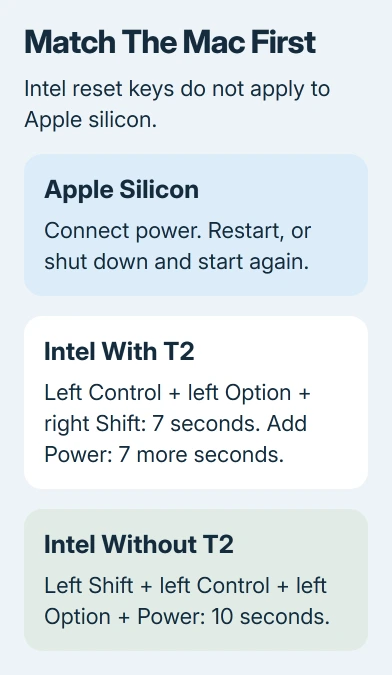
The SMC is the power-management controller on an Intel Mac. Apple silicon Macs don't use the Intel key combinations: connect power and restart or shut down and start the Mac again.
For a T2-equipped Intel Mac, start with a shutdown. Hold Power or Touch ID for 10 seconds, release it, pause for a few seconds, then press Power once to turn the Mac on. An owner in the blank-bar discussion reported success with this step.
If the fault remains on that T2 model, shut down again. Hold left Control, left Option, and right Shift for 7 seconds. Keep holding them and add Power for another 7 seconds.
Let go of all four keys. After a brief wait, start the Mac normally. Pay attention to which Shift key you use: T2 models need right Shift, while the non-T2 sequence needs left Shift.
For an Intel notebook without T2, shut down and hold left Shift, left Control, left Option, and Power together for 10 seconds. Release them, then press Power to start normally.
Use the model list on the SMC reset instructions if you're unsure which Intel sequence fits. If the bar stays black afterward, move on rather than cycling through both sequences.
5. Compare safe mode if software still seems involved
Safe mode starts the Mac while preventing some startup software from loading. It's useful when a Touch Bar utility or other login software might be involved, especially if the bar briefly works after a restart.
On an Intel Mac, restart while holding Shift until the login window appears. For Apple silicon, shut down first. Keep Power held to load startup options, select your startup disk, then use Continue in Safe Mode while holding Shift.
Compare the same apps during safe mode. A normal restart ends the safe-mode session. If the bar works only in safe mode, turn off a third-party Touch Bar tool or a new login item, then compare another normal startup.
Bright flashes call for the Touch Bar flicker checks. Missing icons beside the main screen's clock belong with Mac menu-bar controls, which use different processes.
6. Get a persistent black strip assessed
Back up the Mac before a service appointment. To run the hardware test, disconnect accessories you don't need, shut down, and start an Intel Mac holding D. On Apple silicon, hold Power for startup options, then hold Command + D.
Follow the test's prompts and save its reference code, if shown. Give Apple Support the model, macOS version, whether the whole strip is dark, and the results of the software checks. Ask for a Touch Bar hardware assessment.
The Touch ID button may work and the hardware test may show no error even while the strip stays black. If it stays black across apps and restarts, have the bar inspected rather than erase the laptop again.
The Short Version
Restart, restore the Control Strip layout, and try the owner-confirmed ControlStrip restart once. Use the correct Intel power reset or the Apple silicon restart route. A persistently black strip needs a Touch Bar service assessment.
Checked November 8, 2026.

Isaac Smith is the founder and editor of PC Glance, a website that covers computers, laptops, and technology. He is a tech enthusiast and a computer geek who loves to share his insights and help his readers make smart choices when buying tech gadgets or laptops. He is always curious and updated about the latest tech trends.