
Clear an app's cache on a Samsung phone through Settings > Apps > the app > Storage > Clear cache. This removes temporary files and keeps the app's data. Leave the neighboring Clear data button alone unless you want to reset that app.
Browser cache has its own controls in Samsung Internet and Chrome. A phone-wide cleanup and the older recovery-menu cache option are separate jobs, so choose the one that matches the app, website, or storage problem you're trying to fix.
Clear the cache for the app that's misbehaving
Start with the app that freezes, loads old content, or uses an unexpectedly large amount of temporary storage. Samsung recommends clearing the app cache to remove leftover temporary files.
- Open Settings and tap Apps.
- Find the app in the list, or use the search control to locate it.
- Tap the app, then Storage.
- Tap Clear cache and check the cache-size reading.
- Open the app again and repeat the action that was failing.
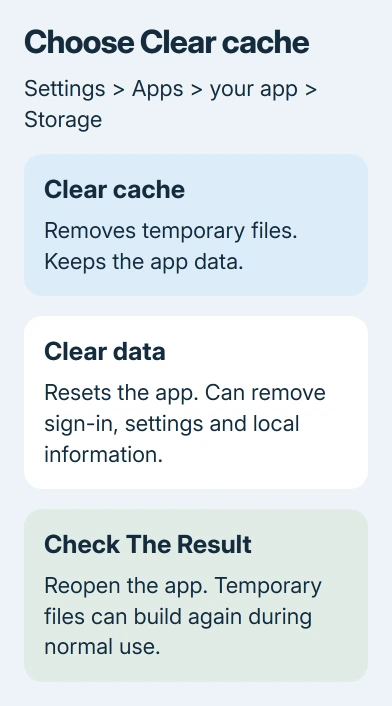
The cache total should drop when you're done. It can increase again as soon as the app loads pictures or other content. That is normal: cache exists so the app doesn't have to retrieve every item from scratch each time.
If the button is dim and the cache total is already zero, it has no cached files to remove. Check that you selected the right app rather than repeatedly tapping a control that has no temporary files to remove.
If only one app is acting up, start by clearing that app's cache. Clearing unrelated apps uses time and makes them rebuild their temporary files without telling you anything about the original problem.
Keep Clear data separate from Clear cache
Clear data resets the selected app to its original state. That can remove its preferences, sign-in, and locally stored information. It's a different action from removing the app's temporary cache.
Before using Clear data, confirm that anything important is backed up or synced and that you can sign in again. The Galaxy confirmation button is Delete, giving you another chance to check what you're about to remove.
I'd use Clear cache first unless the app's own troubleshooting specifically calls for a reset. If the fault survives a cache cleanup, temporary files weren't the whole problem. An app reset still isn't the automatic next step.
Camera is a special case with its own repair sequence. The Samsung Camera failed steps explain when resetting Camera preferences is appropriate and how saved pictures differ from those preferences.
Clear Samsung Internet's cached website files
Use the browser's own cleanup when a website keeps showing a broken layout or old content. You can select cached website files without resetting all of Samsung Internet through the Apps screen.
- Open Samsung Internet or Samsung Browser, depending on its installed name.
- Open the Tools menu, then Settings.
- Tap Personal browsing data > Delete browsing data.
- Select Cached images and files. Review the other selected boxes and clear any you want to keep.
- Tap Delete data, then Delete when prompted.
Recent layouts can show a three-dot Tools control; older layouts use a three-line menu. Follow the menu label rather than expecting the icon to look identical on every version.
Leave Cookies and site data unselected if you're only trying to clear cached files and want to keep site sign-ins. Cookies store different information from cached pictures, so deleting both has a broader effect.
Reopen the troublesome site. Expect a slower initial load while the browser downloads those files again. If the same page still fails while other sites work, the website or its saved site data needs the next check.
Clear cached files in Chrome instead
Chrome doesn't share Samsung Internet's browsing-data controls. Open Chrome, tap its three-dot menu, then Delete browsing data. Use More options to choose exactly which types of data to remove.
Select Cached images and files, set the time range, and review the remaining selections before tapping Delete data. Choose All time when you want all available cached files rather than only the recent period.
The Android browser cleanup instructions explain the current controls. In some older Chrome versions, you'll find these choices on the browsing-data screen without opening More options.
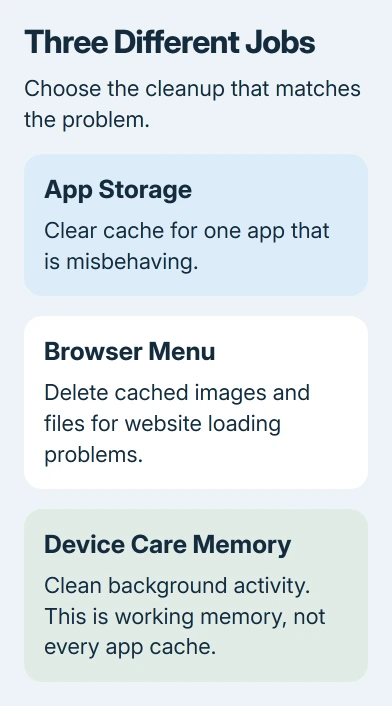
Keep cookies unchecked to retain site sign-in data. Passwords, browsing history, and open tabs are separate choices too. Read the selected items instead of accepting a broader deletion than you need.
Load the same page again afterward. If the page now displays correctly, stop there. Repeating the cleanup every time you browse would discard the files that normally make repeat visits faster.
Use Device care for a broader performance check
Open Settings > Device care > Optimize now, then tap Done if offered. Depending on the phone's software, the section can be called Battery and device care, and older layouts can show Fix now.
Device care checks several parts of how your phone is running. Its Memory > Clean now control clears background activity to free working memory. Working memory is different from an app's saved cache files in Storage.
Cleaning memory won't clear every app's cache with one button. If storage is the problem, inspect the apps that actually use space and remove your own unwanted downloads or other files as needed.
A phone that keeps freezing after cleanup needs the Galaxy restart and recurring-freeze checks. A restart and an app-cache cleanup solve different problems, even when both can help a sluggish phone.
Leave a missing recovery cache option alone
Older Galaxy recovery menus can include Wipe cache partition, a system-cache operation separate from app cache. It isn't available on every current model or software version.
On updated S25-series phones, its removal was intentional. A moderator confirmation about the missing option says the development team removed it as planned; it isn't a bug.
If your recovery screen has no cache-wipe choice, restart normally and use the app-level controls. Do not select Wipe data/factory reset as a replacement. That erases the phone and is a different operation.
For an older device with the cache option, use the model-specific recovery instructions. Home, Bixby, and Side-button models use different combinations, so a generic button sequence won't suit every Galaxy.
If clearing cache doesn't fix the problem
Update the affected app and check Settings > Software update for a phone update. If only one app has the problem, give its developer your Galaxy model, app version, and the steps that trigger it.
For trouble across multiple apps, open Samsung Members and send an error report after the problem happens. Include the symptoms and which caches you cleared, so support can work on the recurring fault instead of another general cleanup.
The Short Version
Clear the affected app's cache from its Storage screen, or select cached files inside your browser. Keep Clear data, memory cleanup, and a factory reset separate. A missing recovery cache-wipe option on updated S25 phones is expected.
Checked November 8, 2026.

Isaac Smith is the founder and editor of PC Glance, a website that covers computers, laptops, and technology. He is a tech enthusiast and a computer geek who loves to share his insights and help his readers make smart choices when buying tech gadgets or laptops. He is always curious and updated about the latest tech trends.