
Magic Mouse scrolling can be turned off separately from pointer movement and clicks. When the pointer still works, open Accessibility's Pointer Control settings and check Use mouse for scrolling before pairing the mouse again.
An entirely unresponsive mouse needs the connection checks instead. If scrolling works in every app except one, start with that app; if you're using Windows, check the Boot Camp software rather than looking for Mac settings.
1. Enable mouse scrolling in Accessibility
On recent macOS versions, open Apple menu > System Settings > Accessibility > Pointer Control. Click Mouse Options and turn on Use mouse for scrolling if it's off. Set Scroll speed to a comfortable position.
Apple says Mouse Options can turn scrolling on or off for Magic Mouse. The ordinary tracking-speed slider controls the pointer, so changing it won't enable scrolling.
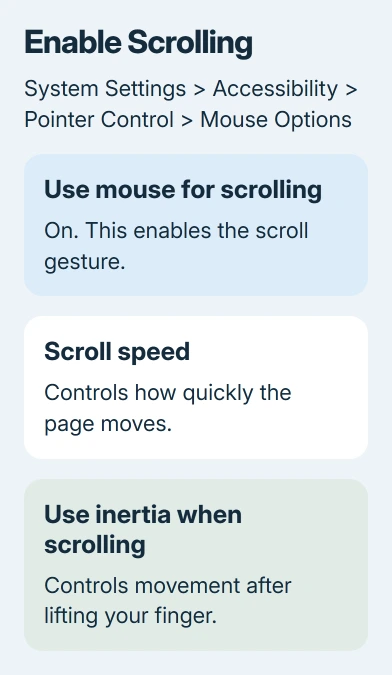
On macOS Monterey 12, open System Preferences > Accessibility > Pointer Control. Select Mouse & Trackpad, then Mouse Options. The older checkbox is labeled Scrolling, rather than Use mouse for scrolling.
Open a long page or document, put the pointer over its content, and slide one finger vertically along the mouse's top surface. Keep the mouse itself still while doing this: sliding the whole mouse on your desk moves only the pointer.
If the page now moves, the disabled option explained the fault. If clicks and pointer movement still work but that gesture does nothing, compare another app before changing the Bluetooth connection.
2. Separate a reversed direction from failed scrolling
A Magic Mouse uses its touch-sensitive top for scrolling; there isn't a physical scroll wheel to turn. A one-finger slide scrolls, while other gestures use different finger movements.
Open System Settings > Mouse > Point & Click and check Natural scrolling. Changing this reverses the direction content moves. It doesn't turn a completely unresponsive scroll gesture back on.
If the page moves in the opposite direction from what you expect, choose the direction you prefer and test again. A direction that feels wrong is different from no response, and doesn't call for a mouse replacement.
Use the Scroll speed slider in Accessibility's Mouse Options if content moves but only very slowly. Leave tracking speed alone unless pointer movement is also uncomfortable. These two speeds control different actions.
The Use inertia when scrolling option controls how movement slows after you lift your finger. Turning inertia off makes the stop more immediate; it isn't the master scrolling switch.
3. Compare an app that has a scrollable page
Try a long document or website in a second app, with the pointer over the page. An app window that already fits all its content has nothing to scroll. A sidebar and a document can also scroll separately.
If the second app scrolls normally, quit and reopen the first app, then check for its updates. That points to trouble in the first app rather than the mouse. Don't reset Bluetooth just because one page won't move.
Quit any third-party mouse, gesture, or scrolling utility for the comparison. If scrolling returns with that utility closed, check its settings and macOS compatibility with the developer before turning it back on.
I'd try that early, because it's quick and easy to undo. You can turn the utility back on afterward, without removing your mouse preferences or installing another mouse app on top of the first one.
When the mouse also freezes or the pointer jumps, use the Mac pointer-freezing checks. A pointer problem and a disabled scrolling gesture can look similar while needing different attention.
4. Reconnect and check the mouse's power
Slide the switch on the underside off, so its green marking isn't visible, then on again. Check that Bluetooth is enabled on the Mac. Keep a trackpad or another mouse available if this is your only pointer.
For a rechargeable Magic Mouse, connect it to the Mac with the appropriate Lightning or USB-C cable, wait one minute, and disconnect it. The cable pairs the accessory and charges its battery; unplug before trying to use the mouse normally.
Use Control Center > Bluetooth to check its charge. If the battery is low, give it more charging time before judging the result. Rechargeable models have the charging port underneath, so the cable step isn't a scrolling test.
The original battery-powered Magic Mouse has replaceable batteries instead of a charging port. Check those batteries and use the Mac's Bluetooth pairing controls if it isn't connected. Don't search that model for a Lightning connector.
After reconnecting, test both pointer movement and scrolling. If the pointer returns but scrolling doesn't, the connection is working at least partly. Continue with the cross-device comparison instead of repeating the same pairing steps.
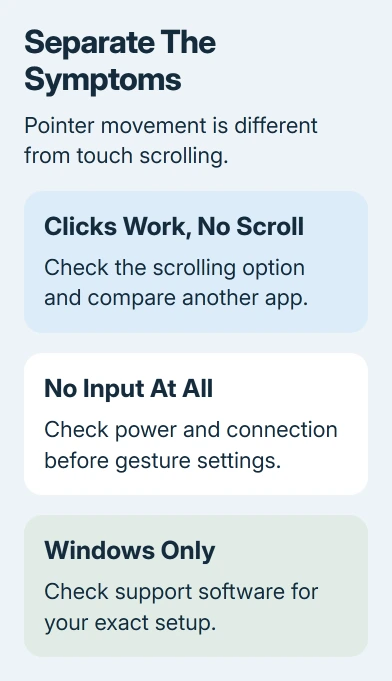
If nothing works despite a Connected label, use the completely unresponsive Magic Mouse checks. When clicks and pointer movement fail too, you'll need different checks from those for scrolling alone.
5. Check Windows support when the mouse clicks only
Windows can let you move the pointer over Bluetooth without supporting every Apple gesture. For Boot Camp on an Intel Mac, use its Apple support software. Windows won't have the Mouse Options panel described for macOS.
In Windows, search for Apple Software Update, open it, and install offered updates. If Apple input features are still missing, use Boot Camp Assistant in macOS to download the Windows support software for that Mac.
Use a spare 16GB or larger USB drive formatted as MS-DOS (FAT) with Master Boot Record. Formatting erases the USB drive, so copy anything you need from it first.
In macOS, open Applications > Utilities > Boot Camp Assistant. Choose Action > Download Windows Support Software and save it to that USB drive.
Back in Windows, locate the USB drive with File Explorer. Launch setup.exe inside WindowsSupport or BootCamp. Allow the installer, click Repair, and finish the restart. Test scrolling once Windows returns.
The support-software instructions include the Disk Utility formatting procedure if you need to prepare the USB drive. Keep another pointer available during installation.
Boot Camp is an Intel-Mac route. It doesn't provide Apple mouse drivers for ordinary PCs or Windows virtual machines running on Apple silicon. For those setups, check which gestures your mouse software and virtual-machine app support.
Working Bluetooth clicks don't tell you whether scrolling support is installed. If your setup has no supported scrolling driver, use a mouse that supports scrolling in Windows rather than keep pairing the Magic Mouse.
6. Test another Mac before requesting service
If possible, connect the mouse to another compatible Mac and check the scrolling option there. If it scrolls on that Mac, check the software or settings on your original computer.
If scrolling fails on both Macs with the setting enabled, request a Magic Mouse touch-input assessment from Apple Support. Report which clicks and gestures work, the mouse model, and both macOS versions.
Sharing those results gives support a clearer picture of the fault than simply calling the mouse broken. Bring the rechargeable model's cable too if its power or pairing was unreliable during the checks.
The Short Version
Enable Use mouse for scrolling, test a long page in another app, and separate direction or speed from no response. Reconnect once, use the appropriate Windows support route, and compare another Mac before replacing the mouse.
Checked November 8, 2026.

Isaac Smith is the founder and editor of PC Glance, a website that covers computers, laptops, and technology. He is a tech enthusiast and a computer geek who loves to share his insights and help his readers make smart choices when buying tech gadgets or laptops. He is always curious and updated about the latest tech trends.