
To get an Inbox for another email address in Outlook, add that email account. If the address is already listed, restore its folder list or Favorites shortcut instead. A team's shared Inbox needs mailbox permission.
Outlook creates the account's Inbox when you connect the mailbox. Don't create a normal folder named Inbox to add another email address: that folder won't collect mail for a separate account.
Choose the kind of Inbox you need
Look at the left side of Outlook before changing anything. If the address is already listed, expand its folder list and look for Inbox. If the address isn't there, add the account using the section for your Outlook app.
For a team address such as a support mailbox, ask whether it's a shared mailbox. That normally needs permission from the organization's administrator, rather than another person's password or an ordinary personal-account setup.
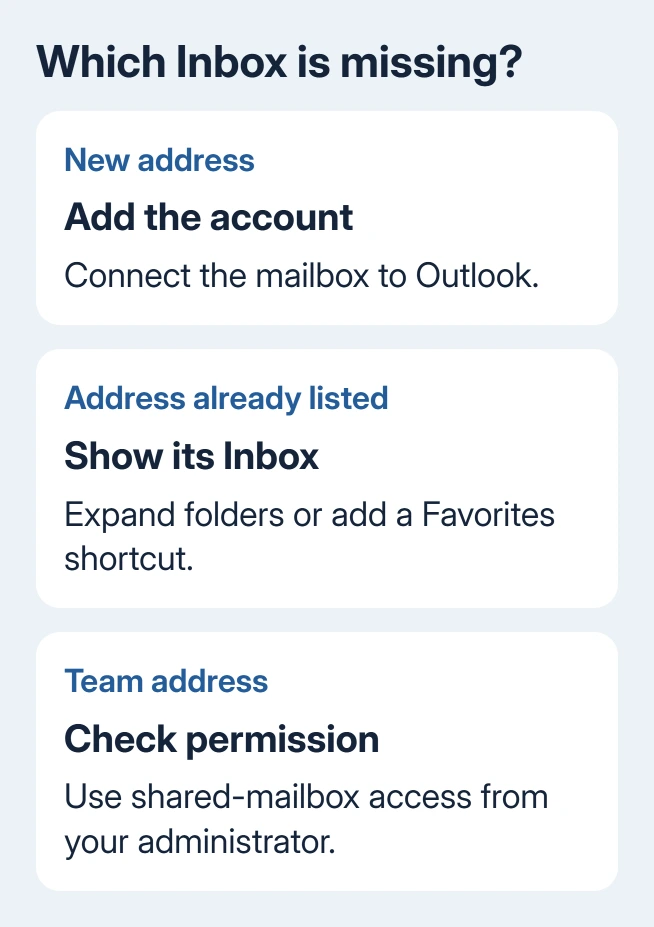
I'd check the folder list first when a familiar Inbox disappears. Re-adding a working account takes longer and can create extra confusion about which copy you're viewing. A hidden shortcut doesn't need a fresh mailbox connection.
Check whether you have new Outlook or classic Outlook before choosing the steps. Classic Outlook has File > Add Account. New Outlook uses account controls in its settings; if File is missing, follow the new Outlook steps.
Connect a second address in the new Windows app
Open View > View settings. Select Accounts > Your accounts, then find Email accounts and choose Add Account. Enter the email address and select Continue.
Follow the provider's sign-in window, including any verification prompt, then allow the connection when asked. Microsoft, Google, and other providers don't all use the same password screen. Complete the flow for the account you're adding.
Microsoft explains in its account setup guide that newer layouts also offer File > Account info to reach account settings. Use the route your app shows.
Close Settings and find the address in Outlook's folder pane. Expand it and select Inbox. Give Outlook time to sync your messages before deciding older mail is missing, especially with a large mailbox.
Some providers need extra settings or an app password. Follow that provider's instructions when Outlook requests more information. Don't guess incoming and outgoing server names when the automatic sign-in fails.
If the account is already listed under Your accounts, open Manage for it and read its status. Adding the same address again won't resolve a provider sign-in or organization-permission problem.
Connect the address in classic Outlook
Select File > Add Account, enter the email address, and choose Connect. Enter the account credentials and complete any provider verification. Follow the remaining prompts and finish the setup.
The additional mailbox should appear as its own top-level account in the folder pane. Expand that account and click Inbox. Adding an account gives it its own mail folders; it doesn't merge every account into one combined Inbox.
If your account needs manual setup, choose the advanced setup option for your provider and enter the server details it supplies. A work Exchange account may have requirements that your IT team needs to check.
If Outlook accepts the address but doesn't show its folders, check the folder pane before changing account settings. If folders appear but new mail doesn't, the mail-receiving checks address delivery and synchronization.
Show an Inbox that's already connected
In new Outlook, open View > Folder pane > Folder list > Show. Expand the account name in that pane, then select Inbox. This changes what's visible; it doesn't move your messages.
In classic Outlook, use View > Layout > Folder Pane > Normal. Depending on the ribbon layout, Folder Pane may appear directly on View. Expand the mailbox name to see its normal folder list.
If the Inbox appears in the complete folder list but not at the top, add a Favorites shortcut. Right-click Inbox and select Add to Favorites. The original folder stays under its account.
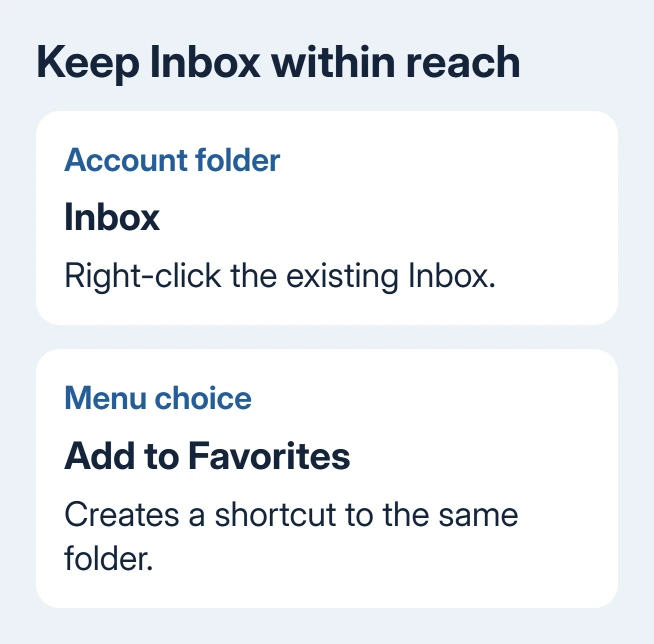
To show Favorites in new Outlook, select View > Folder pane > Show favorites. In classic Outlook, use View > Folder Pane > Favorites. A check mark indicates that the classic app's Favorites section is enabled.
Right-click the shortcut and use Remove from Favorites if you change your mind. In classic Outlook, don't use Delete for this job: deleting a folder is different from removing its Favorites shortcut.
If whole groups of folders are absent, use the missing Outlook folders guide. An Inbox shortcut, a collapsed account, and mail that has moved to another folder each need different attention.
Use the Mac or phone account controls
On current Outlook for Mac, open Outlook > Settings > Accounts and choose + Add Account. Enter the address, select Continue, and finish the sign-in prompts. Then select the account's Inbox in the sidebar.
For Legacy Outlook for Mac, the initial route is Outlook > Settings > Accounts > Add Email Account. For another account, use Tools > Accounts, select the plus control, then Add an Account. Finish the provider's sign-in.
On Outlook for iPhone, open Settings and choose Accounts > Add Account > Email Account. Enter the address, then finish sign-in.
On Outlook for Android, the route is Settings > Accounts > Add Account > Add an email account. The account-menu position can differ between app versions, but the account needs its own completed sign-in.
When adding a work address, a company sign-in or device-management request may appear. Ask IT whether this phone or Mac is allowed to connect if that request blocks setup. A personal Outlook setting can't grant company access.
Open a shared Inbox through its permission route
A shared mailbox belongs to the organization, and its administrator needs to give you access. Once you have access, new Outlook can add it from the account's folder-menu option Add shared folder or mailbox.
In classic Outlook, a shared mailbox may appear automatically after permission is assigned and Outlook restarts. If it doesn't, use the shared-mailbox setup for its separate account-settings procedure.
Seeing the shared Inbox doesn't automatically mean you can send as that address. If replies fail, have the administrator verify your sending permissions. Include the mailbox address and the precise error in that request.
For personal-account setup that still fails, contact the email provider with the sign-in error and Outlook version. For a work or shared account, ask IT to verify mailbox access and the allowed Outlook connection method.
The Short Version
Add an account for a new email address. Show the folder pane or add Inbox to Favorites for an existing one. Use administrator-granted shared-mailbox access for a team Inbox, and follow the setup route for your particular Outlook app.
Checked November 8, 2026.

Isaac Smith is the founder and editor of PC Glance, a website that covers computers, laptops, and technology. He is a tech enthusiast and a computer geek who loves to share his insights and help his readers make smart choices when buying tech gadgets or laptops. He is always curious and updated about the latest tech trends.