
Safari usually hasn't disappeared from the iPhone when its icon is missing. Find it in App Library and move its icon onto a Home Screen page. To add a website shortcut instead, use Safari's Share menu.
A website icon opens one address, while the Safari icon opens the browser itself. Start with the app steps when the blue compass is missing, or use the website section when you want a favorite page beside your apps.
Bring the Safari app back from App Library
Swipe left through your iPhone's Home Screen pages until you reach App Library. Tap its search field and type Safari. Open that result to confirm Safari still launches.
Apple says you can move an installed app from App Library in its Home Screen instructions. This restores its icon without reinstalling Safari or changing its saved information.
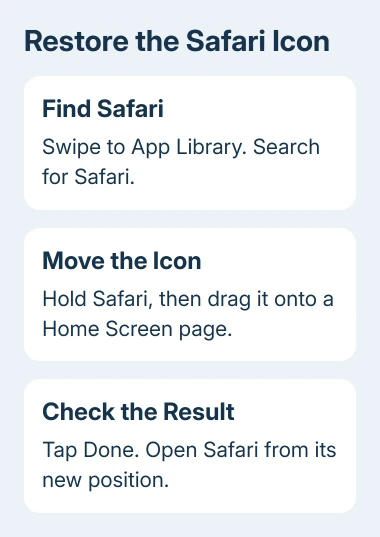
- Return to App Library and find Safari again.
- Touch and hold its icon. Choose Add to Home Screen if that command appears.
- Otherwise, keep holding the icon and drag it onto a Home Screen page. Pause at the screen edge when you need to move between pages.
- Release it in the position you want, then tap Done when editing is finished.
Open Safari from its new position. If it works and your saved information is still there, only its Home Screen icon was missing. No need to clear history or change your Apple Account for that.
On an iPad with App Library, find Safari there and drag its icon onto a Home Screen page. You can also open App Library from the Dock without swiping through every page.
Check a hidden page before rearranging everything
Sometimes Safari is still on a page that isn't showing. This is especially useful to check when several apps disappeared together rather than only the browser.
Press an unused space on a Home Screen page until its icons start jiggling. Tap the page dots near the bottom. Look through the previews and select the circle for a page you want to show again, then tap Done.
Return to that page and open Safari. Restoring a hidden page also brings its other app icons back, which is usually more convenient than rebuilding the arrangement one icon at a time.
Removing a page doesn't necessarily delete its apps. They can remain in App Library even when their old positions are gone. If the page preview isn't there, use the App Library method rather than searching for a page that was removed.
A Focus can also show a chosen set of pages. If the missing page returns when you switch off a Focus, check which Home Screen pages that Focus shows instead of repeatedly moving Safari.
When Safari isn't in App Library
If Safari doesn't appear in search, moving its icon won't solve the problem. Check whether family or work settings block it, or whether it was deleted in a region that allows this.
With current family controls, the parent checks Settings > Family > the child's name > Apps & Websites for Safari's access. A dimmed app can mean it's blocked. Check time limits in Time Allowances and Screen Time Schedule.
Earlier iOS versions use Settings > Screen Time > Content & Privacy Restrictions, with an Allowed Apps or Allowed Apps & Features list. Look for Safari in that list. The person who manages Screen Time needs to approve the change.
On a device managed by school or work, ask the administrator whether Safari is allowed. Moving icons won't override a browser restriction, and removing a management profile can also remove access to school or company services.
Safari can be deleted in supported European Union and Japan configurations. Where that applies, open the App Store, find Safari published by Apple, and tap the button to download it again. The regional deletion rules explain this exception.
I'd check App Library before looking for a download. In many regions, a missing compass means the app was removed from a page, not uninstalled. For an icon that opens but immediately closes, follow the separate Safari launch fixes.
Add a website icon instead of the browser icon
A website shortcut is useful for one frequently visited page, such as a timetable or local news site. It doesn't replace Safari's own icon, and it isn't the same as saving a bookmark inside the browser.
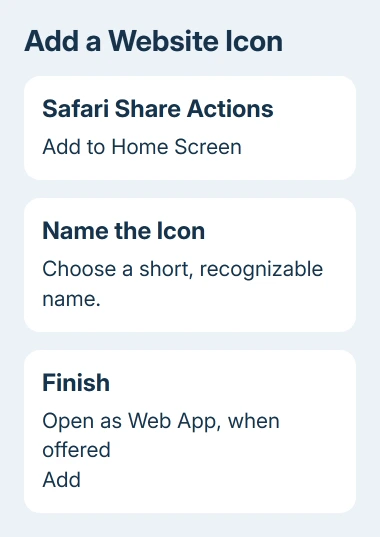
- Open Safari and load the exact page you want to save.
- Open Share. With the current compact tab layout, open Page Menu, then Share; Top and Bottom layouts have a Share control directly.
- Scroll through the actions and tap Add to Home Screen.
- Review the proposed name. Shorten it so you'll recognize it under the icon.
- Where offered, turn on Open as Web App to use an app-style window, then tap Add.
The new icon should appear on the Home Screen. Open the icon and confirm the destination is the page you wanted. If it opens the wrong part of a site, return to Safari, load the correct address, and create the shortcut from there.
On iPad, open the page in Safari, tap Share, and choose Add to Home Screen. The wider toolbar puts the button in a different place, but you still create the shortcut from the page's Share menu.
Find a missing Add to Home Screen action
At the end of the Share actions, choose Edit Actions. Add Add to Home Screen if it is available there, then return to the page's Share menu and try again.
Check that the page is open in Safari itself. A browser window inside a social app or email app may show a different action list. Open the address in Safari before looking for the command.
If you'd rather keep a saved page inside the browser than among your apps, add a Safari Favorite instead. Favorites appear in Safari; a Home Screen shortcut gives the page its own icon.
If Safari is still missing, ask Apple Support to help restore the built-in app. Give them the device model, software version, region, and whether Safari appears in App Library or the App Store.
The Short Version
Find Safari in App Library and move it onto a Home Screen page. Check hidden pages or restrictions when it isn't where expected. For a website icon, use Safari's Share menu and Add to Home Screen instead.
Checked November 8, 2026.

Isaac Smith is the founder and editor of PC Glance, a website that covers computers, laptops, and technology. He is a tech enthusiast and a computer geek who loves to share his insights and help his readers make smart choices when buying tech gadgets or laptops. He is always curious and updated about the latest tech trends.