

Adding a favorite in Safari saves a website in the Favorites collection for quick access. On a Mac, open Bookmarks > Add Bookmark and choose Favorites. On iPhone, choose that same destination when saving the page as a bookmark.
The destination matters: a bookmark saved in another folder will not automatically appear among Favorites. Start with the page open, then follow the controls for the device in use.
Save the page to Favorites on a Mac
With the website open in Safari, choose Bookmarks > Add Bookmark from the menu bar. Select Favorites as its location, give the entry a recognizable name and click Add.
Apple documents that destination in its Mac Favorites instructions. Saving in a different bookmark folder is a different placement, even though the website is still bookmarked.
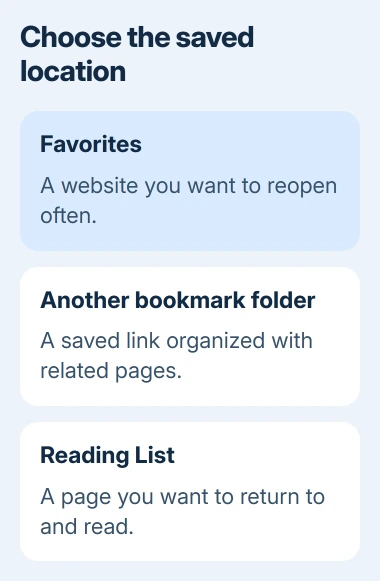
Status: Safari's Mac and iPhone bookmark controls reviewed November 2, 2026, including the current iOS 27 layout. No bookmark collection was changed.
Choose View > Show Favorites Bar if the bar is hidden. Open the new favorite from that bar to check that it loads the intended page, particularly when several pages have similar titles.
Apple says clicking the address field also shows Favorites in the start-page view. Its Favorites display guide separates displaying the collection from adding a page to it.
For an article saved to read later, use Safari's explicit Reading List commands instead. The plus control can suggest a destination, so the named bookmark command makes the choice easier to check.
Choose Favorites while bookmarking on iPhone
Open the website in Safari. In the current compact layout, tap the Page Menu button, choose Add Bookmark to, select Favorites and tap Save.
With the Bottom or Top tab layout, touch and hold Show Bookmarks, the book-shaped control, then choose Add Bookmark. Check the location is Favorites before saving.
These layout-dependent controls are documented by Apple. Older iPhone software can show a different bookmark menu; follow the named save command and its location field.
To verify the entry, open the start page and tap Show Bookmarks. Bottom and Top layouts expose that control directly. Look in Favorites and open the website from its saved entry.
If an existing bookmark went into the wrong folder, touch and hold it and choose Edit. Tap its location, select Favorites and save. This moves the saved entry without needing to create another copy.
Check the saved location before changing iCloud
A favorite visible on one device but absent on another needs a sync check. A page absent from the original device's Favorites first needs its bookmark location checked.
Apple states that Safari's iCloud setup requires the same Apple Account on the devices, with Safari enabled in iCloud. That lets saved browsing items travel between them.
For a collection that exists locally but stops arriving elsewhere, follow the Safari bookmark syncing checks. Repeatedly saving the same website can leave duplicate entries without resolving sync.
If the bookmark cannot be saved even locally, try another ordinary webpage and record the result. Give Apple Support the device, software version, bookmark command and chosen folder. Keep the existing collection intact during that check.
The Short Version
Save a bookmark with Favorites selected as its destination. Mac uses Bookmarks > Add Bookmark; current iPhone layouts use the Page Menu or a held Show Bookmarks button. Verify the saved entry before troubleshooting cross-device sync.

Isaac Smith is the founder and editor of PC Glance, a website that covers computers, laptops, and technology. He is a tech enthusiast and a computer geek who loves to share his insights and help his readers make smart choices when buying tech gadgets or laptops. He is always curious and updated about the latest tech trends.