
When Safari flashes open and immediately closes, swipe away its preview and try opening it again. Then try an iPhone restart and an iOS update check. For a dimmed or missing icon, check whether it's blocked or simply off the Home Screen.
These steps are for Safari itself refusing to open. If it stays open with an empty webpage or connection error, use the page-loading checks. The app has opened in that case, but it can't display the page.
1. Separate a closed app from a page that won't load
Tap Safari from the Home Screen and watch what happens. Does it send you straight back to the Home Screen, or stay open with a blank page, a spinning indicator or a website error?
Try opening Settings and another built-in app. If several apps refuse to open or the whole phone has stopped responding, the restart and system-update checks matter more than a Safari-only setting.
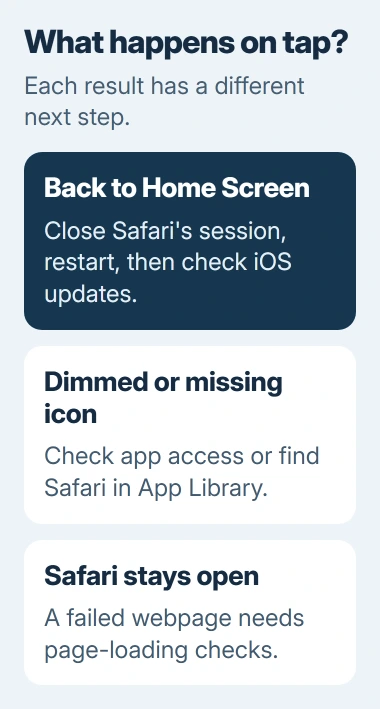
When Safari opens but stays white, use the blank Safari page checks. Check content blockers, JavaScript and website data for that problem, once the app itself opens.
For a missing icon, open Home Screen Search with a downward swipe across the screen's center, then enter Safari. Tap the app result itself. A website suggestion in Search isn't the Safari app result.
If Safari opens from Search, the app works; you just need to find its icon. Swipe left past your last Home Screen page to App Library, find Safari, then hold and drag its icon back onto a page.
The missing-app instructions explain that hidden Home Screen pages don't delete their apps. Finding Safari there saves an unnecessary reinstall or reset.
2. Close the stuck Safari session and reopen it
For a Face ID iPhone, start at the bottom edge, swipe upward and pause halfway to show the app switcher. With a Home-button model, press Home twice instead.
Find Safari's app preview and swipe it upward to close it. Return to the Home Screen, tap Safari again and check whether the browser now stays open. Only the stuck Safari session needs closing for this test.
Apple recommends closing and reopening the affected app in its app-opening advice. This gives a stuck app a fresh start without erasing your browsing history.
If Safari isn't in the app switcher, restart your phone next. An app that closed before it could appear there won't have a preview to swipe away.
3. Restart the iPhone, then check its software
To restart a Face ID iPhone, hold Side together with either Volume key. Release when the shutdown slider appears and drag it. After shutdown, hold Side again to start the phone.
For an iPhone 6, 7, 8 or a second- or third-generation SE, hold Side for that slider. Older models with a top power button use Top instead. Release the buttons once the slider appears.
After the restart, unlock with your passcode and try Safari before changing another setting. If it stays open, try whatever previously made it close and check that it keeps working.
Open Settings > General > Software Update and install any compatible update offered after making a backup. Safari updates come with iOS, so you won't usually fix this by looking for a separate Safari update in the App Store.
The Safari update guide explains how this works. An older iPhone may already have the newest iOS it supports, even if a newer phone has a later version.
If other apps fail too, check Settings > General > iPhone Storage. If it's full, review the items listed, then follow a recommendation or remove content you no longer need so you don't delete important files.
4. Resolve a dimmed app or parental approval message
Read any message that appears when you tap Safari. If it asks for permission or more time, a family control is limiting access. That's a different problem from Safari closing without a message.
With the current family controls, the parent or guardian opens Settings > Family > the child's name > Apps & Websites. If asked, enter its Screen Time passcode, then check whether Safari is Allowed or Blocked.
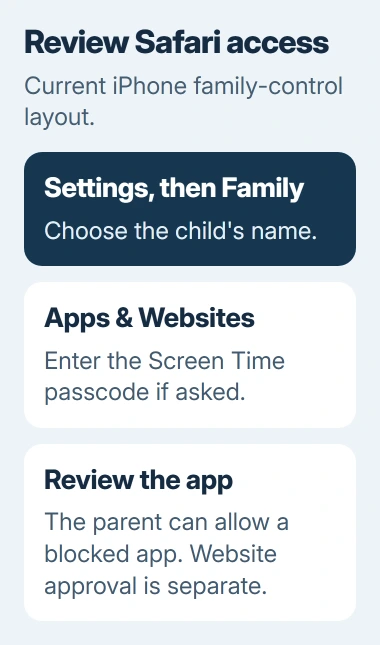
A blocked app stays installed and can look dimmed on the Home Screen. Have whoever manages those controls allow Safari. That restores access without removing the app and downloading it again.
The parental-control instructions explain the separate controls for apps and websites. Safari can open while Ask to Browse still asks for approval to visit a new website.
For a time-based block, the parent should review Time Allowances and Screen Time Schedule on that child's settings page. Changing a website permission won't remove an app's time limit.
Older iOS versions put Screen Time controls in different places. Follow the instructions for the version on your phone. A missing newer Family menu isn't a reason to erase it.
If a school or workplace controls your iPhone, ask its administrator about a blocked browser. Restarting won't lift that restriction. Deleting the management profile can remove access your organization requires.
5. Redownload Safari only when deletion is supported
In supported European Union or Japan configurations, Safari can be deleted. If it was removed, open the App Store, search for the official Safari app from Apple and tap its redownload button.
The regional built-in app rules explain where this is allowed. Removing Safari's Home Screen shortcut leaves the browser installed, so deletion isn't a general repair for every iPhone.
If the App Store was also removed in a supported region, follow its restoration instructions first. You'll need it back before you can redownload Safari or other Apple apps.
Deleting an app can remove the information it stores. Save any important browser information before deleting Safari where that's allowed. Try closing the app, restarting and updating first.
If Safari still closes as soon as it opens, tell support your iPhone model, iOS version and exactly what happens when you tap it. Include whether other built-in apps open and whether Safari is blocked, missing or closing immediately.
The Short Version
Identify whether Safari exits, is missing or is restricted. Close its session, restart and update iOS for a launch failure. Check family permissions for a dimmed icon, and redownload only when it was actually deleted.
Checked November 5, 2026.

Isaac Smith is the founder and editor of PC Glance, a website that covers computers, laptops, and technology. He is a tech enthusiast and a computer geek who loves to share his insights and help his readers make smart choices when buying tech gadgets or laptops. He is always curious and updated about the latest tech trends.