
A cracked iPad screen needs repair or replacement; a restart, app, or liquid repair kit can't mend the glass. Stop using an iPad with broken screen glass and arrange a repair assessment, even if its picture and touch controls still work.
First check whether the damaged layer is only an added screen protector. A broken protector and a broken iPad display need different repairs, and a picture that still looks normal doesn't settle which layer cracked.
1. Separate a broken protector from the iPad's glass
Look at the edges without pressing or touching the crack. An added protector may have an edge around the display or camera opening. That helps you spot the extra layer, but the iPad's glass under it could be damaged too.
Apple says broken screen glass can cause injury in its iPad safety instructions. Don't keep testing touch gestures across damaged glass to see how much still works.
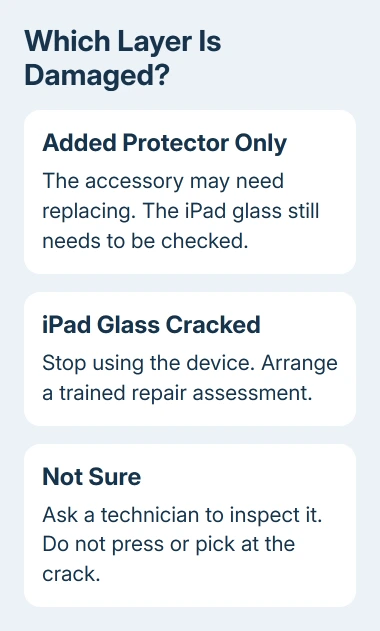
If only an added protector is damaged, replacing that accessory may be all that's needed. If you can't tell which layer is cracked, ask a trained repair technician to check it rather than pulling at loose pieces yourself.
The separate cracked screen protector guide explains that accessory problem. Arrange an iPad repair if its own glass is cracked, the picture is damaged, or you can't safely tell how bad the damage is.
Tell the technician whether touch stopped working, colored lines appeared, or dark areas spread after the impact. Those details describe the damage, but a working picture doesn't mean a software change can mend the glass.
2. Put the damaged iPad aside and check existing backups
Set the iPad down somewhere stable and keep it away from children. Don't press the display flat or add glue, toothpaste, or other liquids. None of those replaces the broken glass or repairs the display assembly.
If the display has separated from the frame, the case is bent, or the device becomes unusually hot, stop using and charging it. Tell the service provider about those symptoms before following ordinary shipping or repair instructions.
Check the backup you already have in iCloud or on a computer. Your iPad may be erased or replaced during service, so that copy of your information matters as much as the repair.
For a device with only a damaged protector and safe, working controls, a manual iCloud backup is in Settings > your name > iCloud > iCloud Backup > Back Up Now. Stay on Wi-Fi until it finishes and check the displayed backup date and time.
For cracked glass or an unresponsive screen, don't keep handling the damage to force a backup. Tell the provider that a recent backup may be missing and ask about saving the data before agreeing to the work.
The iCloud backup steps describe what a completed backup looks like. A backup that failed for lack of space isn't a fresh copy, even if automatic backup was switched on.
3. Find the model and check repair coverage
Repair choices depend on the exact iPad; a Home button alone isn't enough to identify it. Find its model name, size, and generation in your purchase details or device information you can check without using the damaged glass.
Use the iPad model identification guide when you're unsure which generation you own. Give the service provider that model before accepting a quote intended for a different iPad size or generation.
Check whether you have an active AppleCare plan, other accidental-damage insurance, or coverage from the seller. An ordinary limited warranty covers manufacturing problems; accidental drop damage isn't covered by that warranty on its own.
Don't assume a single online screen-repair price applies to every iPad. The model, country, plan, and other damage can change the estimate. Consumer-law rights can also apply separately from a manufacturer's warranty.
I'd compare the quote with a suitable replacement before approving an expensive repair on an older iPad. Include the storage you need and the work of restoring your information, rather than choosing by the lowest advertised price alone.
4. Request a quote for the damage that actually happened
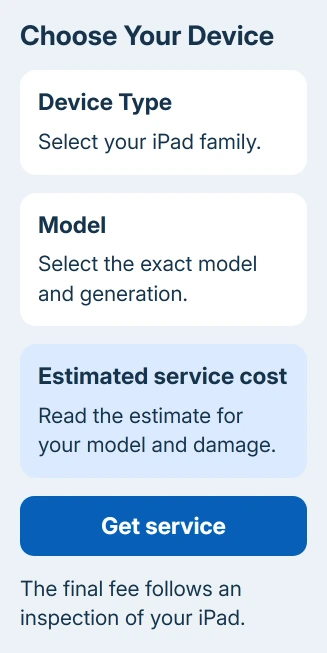
Open the iPad repair page on another device. Choose your device type and model in the estimate tool where available, then use Get service to arrange the assessment.
Describe the cracked screen and any separate touch, image, frame, or charging problem. Ask whether the proposed service is a screen repair or an iPad replacement, and whether the estimate includes every damaged part.
You'll get the final fee after the provider inspects the iPad. An Apple Authorized Service Provider can set its own out-of-warranty fees, so ask for a written estimate rather than assuming it must match a price seen elsewhere.
For an independent repair quote, ask which part will be fitted, what the price includes, and what repair warranty is offered. It's easier to judge a cheaper quote when it names the work and explains what happens if a fault remains.
In-person and mail-in service are offered where available. Use the provider's packing instructions, especially for damage beyond a crack. Don't ship a device with suspected battery damage without their guidance.
5. Prepare for the appointment using your iPadOS version
Once you've arranged service, follow the service preparation instructions. Complete the steps you can safely perform; an unresponsive device doesn't mean you should force every setting change.
On iPadOS 27 or later, the current preparation process uses Find My > your device > More > Repair or Trade In > Enable to turn on Ready for Repair or Trade-In.
On iPadOS 26 or earlier, turn off Find My when preparing for service: Settings > your name > Find My > Find My iPad. Follow the provider's instructions if the damaged screen prevents that step.
Keep your password and passcode private. If software support needs one entered, type it yourself and remain present. Bring identification, proof of purchase if available, and any accessory involved in the fault.
Ask about restoring your backup if the service involves erasing or replacing the iPad. Before leaving with the repaired device, check the picture, touch response, buttons, and any function that stopped working after the impact.
When the first repair option doesn't work out
If the provider can't service it, ask whether the reason is parts, other damage, or a service limit. Request a replacement quote or a second assessment from a trained technician who handles that exact iPad.
If your returned iPad has touch or image problems, contact the repair provider with the receipt and a description of the remaining fault. Ask them to follow up on the repair rather than repeatedly erasing the iPad.
The Short Version
Identify the damaged layer before arranging service. Broken iPad glass needs trained repair or replacement. Check backups and coverage, get a model-specific estimate, and follow the preparation steps for your iPadOS version.
Checked November 8, 2026.

Isaac Smith is the founder and editor of PC Glance, a website that covers computers, laptops, and technology. He is a tech enthusiast and a computer geek who loves to share his insights and help his readers make smart choices when buying tech gadgets or laptops. He is always curious and updated about the latest tech trends.