
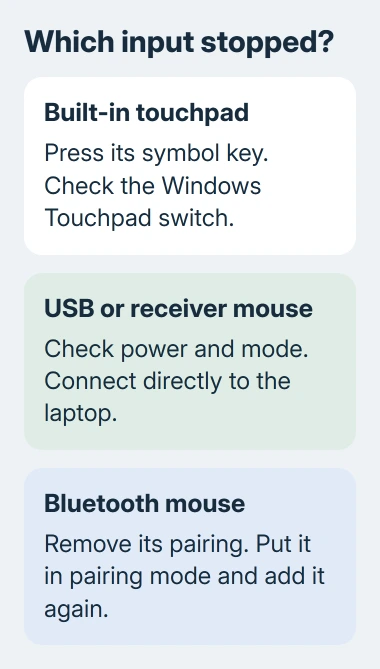
A disabled touchpad is a common reason an ASUS laptop's mouse pointer won't move. Press its touchpad-symbol key, usually F6 or F9, with Fn if needed. For a separate mouse, check power and bypass any hub.
A working USB mouse with a dead touchpad points to the pad's switch or ASUS drivers. A dead external mouse with a working touchpad needs connection checks. Start with the checks for the control that isn't working before installing anything.
1. Restore the touchpad switch or the mouse connection
Look along the function-key row for the touchpad symbol. ASUS models don't all put it on the same key, so use the symbol on your keyboard rather than trying every Fn combination.
Press that key once. Depending on the hotkey mode, hold Fn while pressing it. Look for Touchpad is enabled on the screen, then slide a finger on the touchpad. That message confirms the shortcut is working.
If nothing happens, borrow a USB mouse for the settings that follow. Without one, open Start and search for the setting. Tab moves between controls, Space changes a switch, and Enter opens a selected item.
For a wired mouse, unplug it, wait briefly, then use a different port built into the ASUS. Remove the hub or dock from this check. If the pointer returns, reconnect the accessories one at a time to identify the failed connection.
For a receiver-based wireless mouse, plug in its USB receiver. Your laptop's Bluetooth can't replace that receiver. Check its battery or charge and its power switch.
On a model with several connection modes, select the mode matching the receiver or Bluetooth connection you're using.
I'd check the underside of a wireless mouse before changing a driver. A flat battery or the wrong connection mode can leave Windows with nothing to communicate with.
2. Turn the built-in pad on in Windows
In Windows 11, open Settings > Bluetooth & devices > Touchpad. Turn Touchpad on. Expand its options and choose the option that keeps the pad active alongside an external mouse if you want both controls available.
In Windows 10, the corresponding page is Settings > Devices > Touchpad. The pad has a main on/off switch and a separate setting for what happens when you connect a mouse.
Unplug the external mouse and check the pad again. If it now works, the mouse-connected setting explains the change. Set it to work the way you want instead of reinstalling a touchpad that's already working.
If the pad moves the pointer but two-finger scrolling doesn't work, its power switch isn't the problem. Check Scroll & zoom and the touchpad gesture settings before following the driver repairs.
Some ASUS models also have touchpad controls in MyASUS. Use the options available on your model; an option shown for a different laptop won't necessarily appear on yours.
3. Repair a Bluetooth connection or test the external mouse
For a Bluetooth mouse in Windows 11, open Settings > Bluetooth & devices > Devices. Find the mouse, open its three-dot menu, and choose Remove device. Put the mouse into its model's pairing mode.
Return to Bluetooth & devices, choose Add device > Bluetooth, and select the mouse when it appears. In Windows 10, use Settings > Devices > Bluetooth & other devices > Add Bluetooth or other device > Bluetooth.
Pairing mode varies by mouse. Use its pairing button or the instructions for its model; turning the power switch on doesn't always make it discoverable. Once connected, the mouse should move the pointer and respond to clicks.
If the mouse still fails, try it on another computer. Also try a known-working mouse on the ASUS. Microsoft's mouse connection checks use this comparison to separate a mouse fault from a computer fault.
A mouse that fails on both computers needs attention from its maker. Several mice failing only through one ASUS port or dock point toward that connection.
For clicks that fail in a single app, compare another application before replacing hardware.
4. Install the ASUS driver that matches the failed control
Open the support page for your exact laptop model and select its installed Windows version. Check the full model name: two Vivobooks can use different hardware and driver packages.
For an unresponsive touchpad hotkey, ASUS recommends reinstalling ASUS System Control Interface. That package handles system controls, while the touchpad has its own driver.
For the pad, look under Pointing Device for ASUS Precision Touchpad. On supported Intel models, also check Chipset for the Intel I2C driver, which supports the connection used by the touchpad.
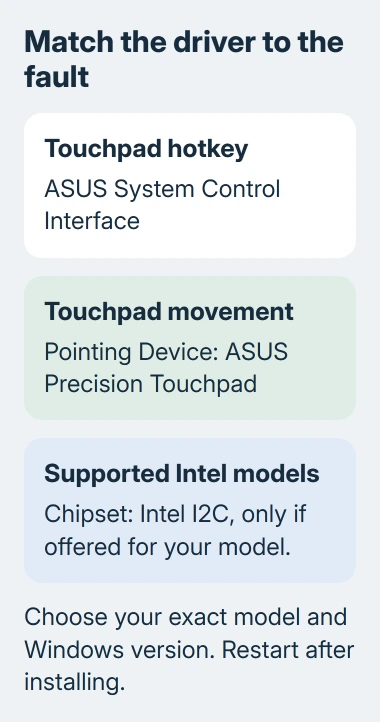
AMD laptops don't use that Intel I2C package. If the ASUS page doesn't offer it for an Intel model, the controller driver may already come with Windows. Don't substitute another laptop's package to fill an empty category.
Install the packages offered for your model, restart, and test movement, a click and scrolling separately.
If the hotkey message returns but the pad still won't respond, the shortcut works again. The touchpad itself still needs attention.
For a fault that started right after installing a driver, open Device Manager, select the affected device's Properties > Driver, and check Roll Back Driver. When available, it restores the earlier driver for comparison.
5. Use the firmware check before requesting repair
Save your work, then shut the laptop down. Keep F2 held while powering the ASUS on. Release the key once firmware setup opens. On a model with pointer support there, test whether the touchpad can move its pointer.
If it works there but stops in Windows, tell support. That points them toward Windows, its settings and drivers. A firmware setup that only accepts keyboard input can't tell you whether the touchpad works.
ASUS's touchpad troubleshooting also includes firmware defaults and a model-specific embedded-controller reset.
Before trying either, get your recovery key for BitLocker and follow your model's instructions. Changing firmware settings can trigger recovery.
If the supported firmware pointer still won't respond, ask an ASUS authorized service center for a touchpad and internal connection assessment.
Report the model, whether a USB mouse works, and whether the touchpad hotkey shows its notification.
For an external mouse, give its maker the second-computer result instead. The general Windows input guide is useful when several pointing devices fail together, but a mouse that fails elsewhere needs its own repair or replacement.
The Short Version
Use the touchpad-symbol key for the built-in pad, then check its Windows switch. Test an external mouse's power, port or pairing separately.
Match ASUS drivers to the exact model, and use a second computer or supported firmware pointer to decide what needs repair.
Checked November 8, 2026.

Isaac Smith is the founder and editor of PC Glance, a website that covers computers, laptops, and technology. He is a tech enthusiast and a computer geek who loves to share his insights and help his readers make smart choices when buying tech gadgets or laptops. He is always curious and updated about the latest tech trends.