
An iPad backlight problem can be a dimness setting, a freeze, or a display fault. For a visible picture, turn brightness up. A black iPad that speaks when touched needs a Screen Curtain check before assuming its display has failed.
The model matters too. iPad Pro models with M4 or M5 use OLED screens without a separate backlight, so a dark screen on those models needs a display check rather than a backlight replacement.
1. Check whether the picture is dim or completely missing
Press the top button to wake your iPad and look at it in ordinary room lighting. Can you read the Lock Screen, see a very dark image, or hear spoken responses while the display stays black? Those results lead to different checks.
For a visible but dim picture, swipe downward from the upper-right edge to open Control Center and raise the brightness slider. Alternatively, open Settings > Display & Brightness and move that slider to the right.
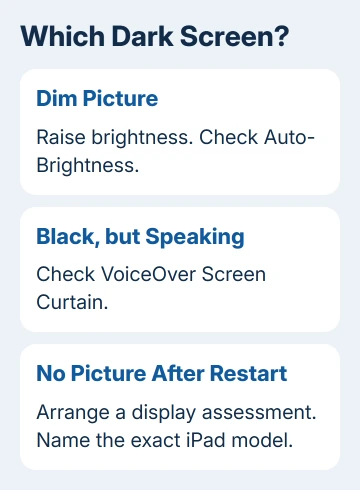
If the screen brightens normally, the brightness control is working. Keep using a comfortable brightness rather than leaving it at maximum to see whether it goes dim again.
If nothing is readable, don't repeatedly tap where you think the settings should be. If VoiceOver is speaking, check Screen Curtain next. Otherwise, try a restart. A dark screen makes accidental actions hard to undo.
2. Check automatic dimming when brightness keeps changing
An iPad normally changes brightness with room lighting. Open Settings > Accessibility > Display & Text Size and find Auto-Brightness. Temporarily switch it off and compare the screen in the same room.
If the brightness now stays steady, Auto-Brightness was changing it. Restore Auto-Brightness afterward if you'd rather have the iPad adjust it; that setting alone doesn't mean the display needs replacing.
Also inspect Reduce White Point on the same page. If it's enabled, it reduces the intensity of bright colors. Turn it off for this comparison if the whole screen looks unusually dim even with the normal brightness slider raised.
Apple's brightness instructions explain the controls and Auto-Brightness location. True Tone and Night Shift change colors; a warmer white isn't the same as a missing picture.
On supported iPad Pro models, Reference Mode also affects the display. If you enabled it for photo or video work, open Settings > Display & Brightness > Advanced and compare with Reference Mode off.
If the iPad is hot, stop demanding tasks, put it in a shaded room, and let it cool naturally. The iPad can dim its screen or turn it black to manage heat. Don't use a freezer or keep raising brightness to fight the temperature protection.
3. Turn off Screen Curtain when VoiceOver still speaks
Screen Curtain intentionally turns the display off while VoiceOver keeps working. A device that reads items aloud as you touch it can therefore appear to have a failed screen even though the black display is an accessibility setting.
Wake the iPad, then tap three times using three fingers together. This turns Screen Curtain on or off while VoiceOver is enabled. Use three fingers together, rather than tapping three different places one at a time.
If VoiceOver and Zoom are both enabled, use four taps with three fingers instead. The combined accessibility settings change the gesture, so three taps aren't the right test in that case.
These are the gestures in the Screen Curtain instructions. If the picture returns, the screen was intentionally hidden; you don't need a backlight repair for that behavior.
If VoiceOver isn't active, skip this gesture. Screen Curtain needs VoiceOver, and tapping a black screen repeatedly won't repair a power or display fault. Continue with the correct restart for your iPad.
4. Force restart the right iPad model
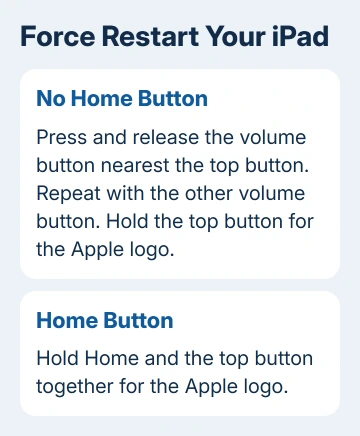
A force restart can clear a frozen display without erasing the iPad. First check for a Home button, because the two designs use different sequences. The wrong button combination won't perform the restart you need.
Without a Home button:
- Of the two volume buttons, choose the one closer to the top button. Press it briefly, then release it.
- Press and release the other volume button.
- Hold the top button down. Let go once an Apple logo shows on the display.
With a Home button: Keep Home pressed while also holding the top button. Release both after the Apple logo appears. A brief display change isn't the finish signal; wait for the logo.
If the iPad seems completely unpowered, use a compatible cable and power adapter. It may need charging for up to an hour. If it can't start, check that it's getting power before deciding the screen has failed.
For a visible logo followed by stuck startup, use the frozen iPad recovery steps. A startup loop needs different help from a running iPad with a missing picture.
5. Match the repair request to the actual display
Find the exact model in Settings > General > About if the picture is usable, or use your purchase information if it isn't. The iPad model guide distinguishes similar generations.
LCD iPads use a backlight; iPad Pro models with M4 or M5 use OLED pixels that emit light. Calling every dark iPad a backlight failure can send a repair discussion toward the wrong part before anyone checks it.
If settings and a restart haven't helped, get persistent dark patches, flickering or a missing picture checked. The symptom alone can't tell you whether the display, connection or board needs work.
I'd avoid opening the iPad just to reseat a display cable. The bonded screen and battery make that a repair job, and a wrong first diagnosis can add damage without restoring the picture.
Ask Apple Support's iPad repair team or a local Apple Authorized Service Provider for a display assessment. Give the model, whether sounds work or the logo appears, and whether it started after the iPad got hot or was damaged.
Request the price in writing, and ask whether service will preserve your data or replace the device. Check the latest available backup before approving a replacement or data erase, especially when the screen is too dark to make a new one.
The Short Version
Raise brightness and check dimming settings or VoiceOver Screen Curtain. Force restart with the correct buttons. Persistent darkness needs display assessment; M4 and M5 iPad Pro screens have no separate backlight.
Checked November 9, 2026.

Isaac Smith is the founder and editor of PC Glance, a website that covers computers, laptops, and technology. He is a tech enthusiast and a computer geek who loves to share his insights and help his readers make smart choices when buying tech gadgets or laptops. He is always curious and updated about the latest tech trends.