
A laptop that won't connect to Wi-Fi while other devices work often needs a fresh saved connection. Forget the network and join again with its current password. For a missing network, check the Wi-Fi switch and supported band instead.
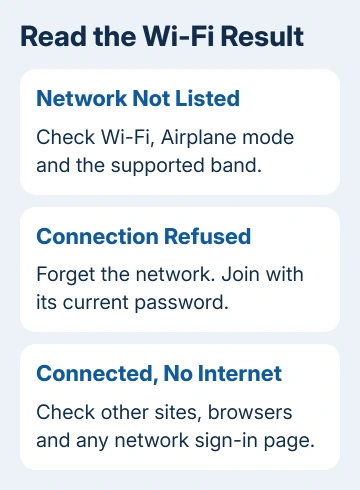
A Connected, no internet message means the laptop joined Wi-Fi but can't get online. Read the exact status first: a rejected connection and a connected-but-offline laptop need different checks.
1. Rejoin the network with its current password
Confirm that another device really has internet through the same Wi-Fi. On a phone, temporarily switch off cellular data and open a new website. Otherwise, cellular service may be supplying the internet instead.
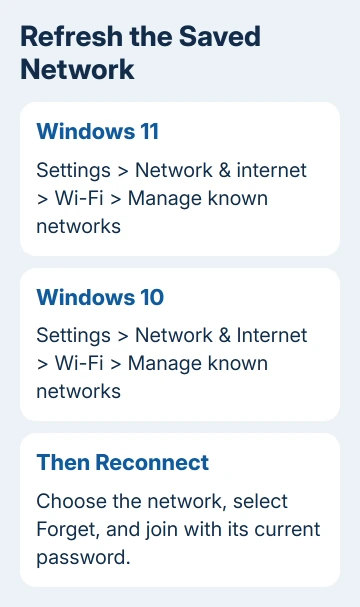
On Windows 11, open Settings > Network & internet > Wi-Fi > Manage known networks. On Windows 10, use Settings > Network & Internet > Wi-Fi > Manage known networks. Find your saved network, then select Forget.
Open the available-network list, pick your home network and type its current Wi-Fi password. Use the wireless password, not the router's separate administrator password. Check capitalization before trying again.
Microsoft says its Wi-Fi connection fixes include refreshing the connection details stored by Windows.
If it joins and opens a website, Windows needed fresh connection details for that network. If Can't connect to this network remains, continue to the band comparison. If the password is refused, verify it with the router owner first.
2. Deal with a missing Wi-Fi switch or network name
In Windows network settings, switch Airplane mode off. Enable Wi-Fi separately. If your laptop has a physical wireless switch or function key, check its model's symbol rather than assuming every manufacturer uses the same key.
If the Wi-Fi setting is missing entirely, open Device Manager > Network adapters. Look for the wireless adapter. If its right-click menu offers Enable device, select it; Disable device means it's already enabled.
A missing adapter or warning symbol needs the Windows Wi-Fi adapter checks. Windows must recognize its wireless hardware before it can join anything.
If neighboring networks appear but yours doesn't, the radio is working well enough to detect Wi-Fi. Move near the router, then check whether your network uses a band the laptop supports.
Older adapters may support 2.4 GHz but not 5 GHz. If the router already provides separate names for those bands, try its 2.4 GHz network. Use the router's instructions if one name covers both bands or their settings need changing.
3. Compare a phone hotspot before resetting the router
Enable your phone's personal hotspot and try joining it from the laptop. Use a compatible band if the phone offers a compatibility setting. This checks whether your laptop can connect to a different network.
If the hotspot works, check the home network's saved connection, band, security and rules for which devices can join. The laptop can connect somewhere, so a missing driver isn't the whole explanation.
Ask the router owner whether this laptop is blocked by a device-access rule or whether the security settings recently changed. Give them the laptop's exact error and the hotspot result rather than asking for a factory reset.
If the laptop can't join either network, focus on its adapter, driver and Windows settings. Restart the laptop through Start > Power > Restart before moving to driver repair. A full restart can clear a connection that's stuck.
I'd make this comparison before restarting a router that other people are using. If a router restart is needed later, tell the other users first because their working connections will stop temporarily too.
4. Follow the connected-but-offline branch when it applies
If Windows shows Connected but websites don't open, try more than one site and another browser. A failure in only Chrome needs different work from a laptop that can't reach anything.
The Chrome connection checks cover that browser-only case. If every browser fails, check a VPN's connection state and any sign-in page required by a hotel, school or public hotspot.
Windows 11's Get Help app includes the Network and Internet troubleshooter. Open Get Help and search for the connection problem. Follow the result it gives rather than immediately copying every network-reset command you find.
On Windows 10, open Settings > Network & Internet > Status > Network troubleshooter. This is the older route; don't look for Windows 11's Advanced network settings page in that version.
A router can accept your Wi-Fi password while failing to provide working internet settings. If the troubleshooter reports an address or gateway problem, note the exact message for the repair technician or network administrator.
5. Repair the driver, then consider a network reset
Before uninstalling the wireless adapter, save the driver matched to your laptop's model number and Windows version. Use another PC and a USB drive if needed. Keep that installer ready in case Windows can't reinstall the driver.
In Device Manager > Network adapters, right-click the wireless adapter and choose Uninstall device. Restart Windows. It will try to reinstall the adapter; use your saved manufacturer installer if the connection remains unavailable.
If those checks fail, use Network reset last. Windows 11 puts it under Settings > Network & internet > Advanced network settings. Windows 10 puts it under Settings > Network & Internet > Status.
Choose Network reset > Reset now, confirm, and let Windows restart. This reinstalls adapters and restores their settings. You may need to reinstall VPN software or reconfigure virtual networking afterward.
Reconnect and check the original network. If it still fails, give the laptop maker your adapter name, Device Manager error, driver version and hotspot result. Ask the maker to check that model's wireless hardware and driver.
A Mac or Chromebook needs its own controls
On a recent Mac, use System Settings > Wi-Fi > Details > Forget This Network, then join again. Older macOS versions put saved networks in System Preferences > Network > Wi-Fi > Advanced.
If the Mac stays offline, use Wi-Fi Recommendations if offered, or hold Option while clicking the Wi-Fi menu and open Wireless Diagnostics. Give its results to Apple Support or the network administrator.
On Chromebook, select the time, then open Settings > Network > Wi-Fi > Known networks. Beside the network, choose More > Forget, then reconnect. Ask the administrator about restrictions on a managed school laptop.
The Short Version
Forget and rejoin the network, check the Wi-Fi switch and band, then compare a hotspot. Separate connection refusal from no internet. Save a replacement driver before removal, and leave Network reset until last.
Checked November 9, 2026.

Isaac Smith is the founder and editor of PC Glance, a website that covers computers, laptops, and technology. He is a tech enthusiast and a computer geek who loves to share his insights and help his readers make smart choices when buying tech gadgets or laptops. He is always curious and updated about the latest tech trends.