
Chrome won't connect to Wi-Fi if the computer is offline, but a browser fault can look the same. Try the website in another browser on that computer. If it loads, check Chrome's extensions and DNS settings before resetting the network.
Chrome uses the computer's existing connection. There is no separate Wi-Fi password to enter in Chrome on Windows or Mac.
Check whether only Chrome has lost access
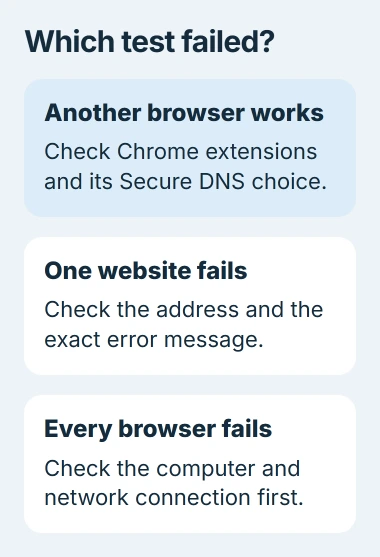
Try two unrelated websites in Chrome, then those same addresses in Edge, Firefox or Safari. Keep the computer on the same network during this comparison so the result tells you something useful.
When every browser fails, use the connected-but-offline checks. Wi-Fi can reach the router even while the router's internet service is unavailable.
Status: Chrome desktop connection and Secure DNS guidance reviewed November 3, 2026. The checks apply to Windows and Mac; no browser or network settings were changed here.
One failing website while others load points toward that address or service. Confirm its spelling and try it again later. If Chrome shows a certificate warning, follow the Chrome certificate-code guide.
A Chromebook has its own Wi-Fi controls in ChromeOS Settings. Its network-joining procedure applies when the laptop itself cannot join, rather than only Chrome failing to open pages.
Restart Chrome and compare an Incognito window
Save unfinished forms first. On Windows, open Chrome's three-dot menu and select Exit. On Mac, choose Chrome > Quit Google Chrome from the menu bar. Reopen it and retry the failing address.
Google says a browser restart belongs in its connection troubleshooting, along with installing an available Chrome update. Follow any pending update's relaunch prompt before continuing.
Open More > New Incognito window and enter the same address. A page that works there gives a reason to check extensions and stored site data in the normal window. It does not identify which one caused the failure.
If Incognito also fails, continue to the DNS check. Do not assume this result proves the router is broken, especially when another browser still works.
Check extensions before deleting browsing data
Open More > Extensions > Manage extensions. Note the extensions currently enabled, switch them off, and retry the page in an ordinary Chrome window.
Google's documented comparison is to enable extensions individually after the page starts working. Reload after each change. If the failure returns with one extension, leave that one disabled and contact its developer.
If disabling extensions changes nothing, restore their previous states. When one website works only in Incognito, remove its stored cookies before considering a wider data deletion.
Cookie removal can end a website's signed-in session. Keep the site's sign-in method available before this step, then retry the page after clearing its cookies.
Check a custom Secure DNS provider
A custom DNS service can fail in Chrome while another browser still loads websites. Open Settings > Privacy and security > Security, then find Use secure DNS in the advanced settings.
Google states in its Secure DNS explanation that automatic mode can fall back to an unencrypted lookup. A chosen custom provider does not get that fallback.
Record the current selection. If a custom provider is selected, change it to the current service provider and reload the failing sites. This tests Chrome's lookup choice without changing the router or Windows adapter settings.
Google adds that turning Secure DNS off can help with lookup errors. That stops encrypting those DNS lookups. If it makes no difference, restore the original choice rather than leaving an unsuccessful change behind.
Managed computers and parental controls can restrict this feature. Ask the administrator about an unavailable control; removing management is not part of this repair.
Send the remaining error to the right support team
Google includes checking whether firewall or antivirus software blocks Chrome. Inspect that product's blocked-app report or ask its support team. Keep protections enabled while obtaining the correct rule or software repair.
If another browser works and Chrome still fails, record its exact error code, version, affected addresses and the Incognito result. Send those details through More > Help > Report an issue, or use the Chrome Help community.
A Chrome settings reset is a later option once its effects have been reviewed. Repeated network resets offer little direction when only one browser is affected.
The Short Version
Compare the same sites in another browser. For a Chrome-only failure, restart it, compare Incognito, check extensions and review a custom Secure DNS provider. Use the remaining error code to guide support or the next repair.

Isaac Smith is the founder and editor of PC Glance, a website that covers computers, laptops, and technology. He is a tech enthusiast and a computer geek who loves to share his insights and help his readers make smart choices when buying tech gadgets or laptops. He is always curious and updated about the latest tech trends.