
An iPad stuck in headphone mode sends playback to a headphone connection instead of its speakers. Remove wired accessories, then check the audio output. Bluetooth headphones still connected nearby can look like the same problem.
Check whether the headphone label disappears when you disconnect accessories. If it stays with nothing attached and Bluetooth off, restart it and inspect the connector before arranging service.
1. Disconnect the accessory that can carry sound
Unplug wired headphones, an audio adapter, and any USB-C or Lightning dock. A hub can provide an audio connection even when no headphones are plugged directly into the iPad. Leave only the iPad for this check.
Start a familiar video or song and raise its volume gradually. Watch whether the volume display still identifies headphones. Sound returning through the speakers after unplugging an accessory points to that connection.
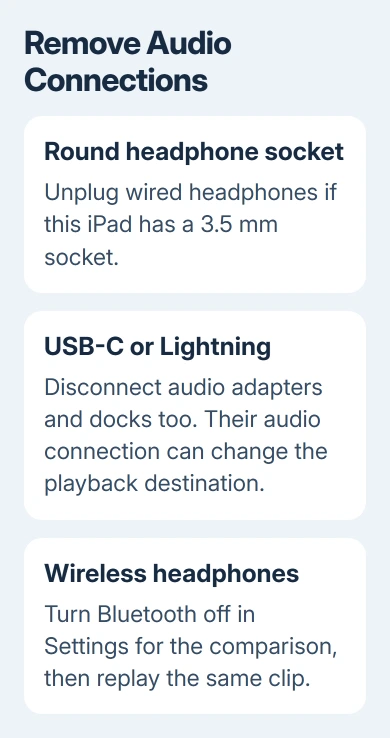
An iPad with a round 3.5 mm headphone socket needs that socket checked. A model without one can still send sound through a USB-C or Lightning audio accessory. Check the connector your model actually has.
Don't change Silent mode just because the headphone symbol is showing. Alert muting and the selected playback connection are separate. If the output still says headphones, check that connection before changing notification settings.
If sound returns, add each accessory back separately. Repeat the same clip after each connection. That identifies which accessory sends playback away from the speakers without replacing several parts at once.
2. Bring wireless playback back to the iPad
Open Control Center by pulling downward from the upper-right screen edge. Open the playback controls, tap the Playback Destination button, and choose the iPad if it appears in the list. Then replay the clip.
The iPad Bluetooth audio instructions explain changing the destination during playback. A paired headset can be connected across the room, so check even if the headset isn't on your desk.
For a clearer comparison, open Settings > Bluetooth and turn Bluetooth off there. Test the same clip again with wired accessories still disconnected. Now you can test playback without a wireless headset taking the sound.
If that restores speaker sound, the iPad wasn't trapped in a wired headphone state. Reconnect the intended Bluetooth accessory later and choose the playback destination you want for each session.
If the headphones label stays, continue with the connector and restart checks. Repeatedly changing pairing settings won't help you understand a label that remains even with Bluetooth disabled.
The general iPad sound guide covers a different result: the headphone indication disappears, but alerts or media still stay silent. Follow that branch when the output has returned to the iPad.
3. Inspect the plug and port without putting tools inside
Look into the headphone socket or charging connector under good light. Check for visible debris, damage, and moisture. Also inspect the accessory's plug for bent parts or dirt before reconnecting it.
Apple says to check debris, cable damage, and loose connections in its headphone troubleshooting. Take off a case obstructing the plug, then connect it normally and unplug it.
Keep needles, metal picks, cleaning liquid, and forced objects out of the socket. Have a blocked or damaged connector checked; pushing debris against the contacts can cause more damage.
If the behavior began immediately after liquid exposure, stop reconnecting accessories and have the iPad checked. Tell the technician about the liquid rather than treating the event as a routine software glitch.
For a dry, undamaged port, compare a second compatible headset or adapter if one is available. If only one accessory causes the behavior, replace or check that accessory before blaming the iPad's speakers.
Sound through a headset confirms that audio reaches the accessory. The built-in speakers could still have a problem. The problem can still involve how the iPad changes back to its built-in speakers.
4. Restart using the controls for your iPad
Disconnect audio accessories before restarting. For models without a Home button, press the top button plus one of the two volume controls. Keep both pressed until a shutdown slider appears. Drag it and wait for shutdown.
For Home-button models, keep the top button pressed to reveal the slider, then drag it. To turn either model back on, press its top button and keep pressing until you see Apple's logo.
Test the same media before reconnecting anything. If the headphone label clears and the speakers play, the restart sent sound back to the speakers. Reconnect the usual accessory afterward to see whether the behavior returns.
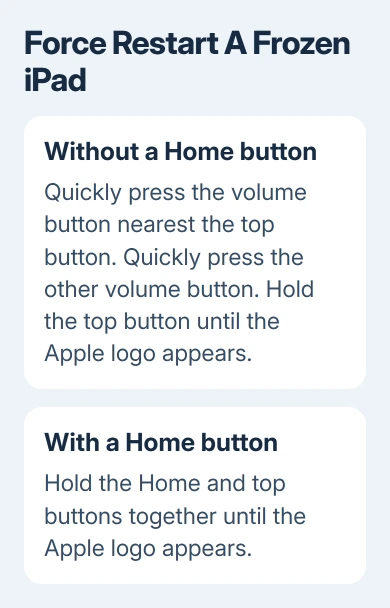
For an unresponsive iPad without a Home button, force restart it: briefly press then release the volume control closest to the top button. Repeat with the other volume control.
Next, keep the top button pressed. Release it when Apple's logo appears. On Home-button hardware, press Home together with the top button and keep both pressed until you see that logo. Use the sequence matching your hardware.
A force restart restarts the device; it isn't an erase command. Use it when the normal shutdown controls won't respond. Repeating it won't help a damaged connector.
Once the iPad works normally enough to update, check Settings > General > Software Update. Install an available update and retest. An update can address software problems, but it can't repair a physically damaged port.
5. Compare the speaker with the headphone indication
Open Settings > Sounds and try the ringtone sound control. Current versions can show a Ringtone slider; older versions may label it Ringtone and Alerts. Listen for sound from the iPad itself.
If an alert plays but videos remain directed to headphones, report that exact difference. It shows the speaker can produce that alert, but the iPad can still have trouble sending media sound to the right output.
If the slider is dimmed or no test sound plays, the speaker service checks point toward a possible service need. Remove any covering over the speakers and inspect their openings too.
For a headset that has its own separate failure, the wired-headphone checks explain connection and accessory comparisons. Don't use a failed headset as the only test of an iPad's audio.
6. Ask for a connector and audio assessment
If the label persists after disconnecting accessories, disabling Bluetooth, and restarting, ask Apple Support for an iPad audio or headphone-connection assessment. I wouldn't start with a factory erase for a connector problem.
Give support the exact iPad model, software version, whether the device has a headphone socket, and when the problem started. Include the alert test result and whether the second accessory changed anything.
Mention a drop, liquid exposure, or visible port damage. Those details help the service provider decide whether to inspect the connector and audio hardware instead of repeating wireless checks you've already tried.
The Short Version
Remove audio accessories, select the iPad as output, and test with Bluetooth off. Inspect the connector, restart the correct model, and compare alert sound. A persistent headphone indication needs an audio and connector assessment.
Checked November 9, 2026.

Isaac Smith is the founder and editor of PC Glance, a website that covers computers, laptops, and technology. He is a tech enthusiast and a computer geek who loves to share his insights and help his readers make smart choices when buying tech gadgets or laptops. He is always curious and updated about the latest tech trends.