
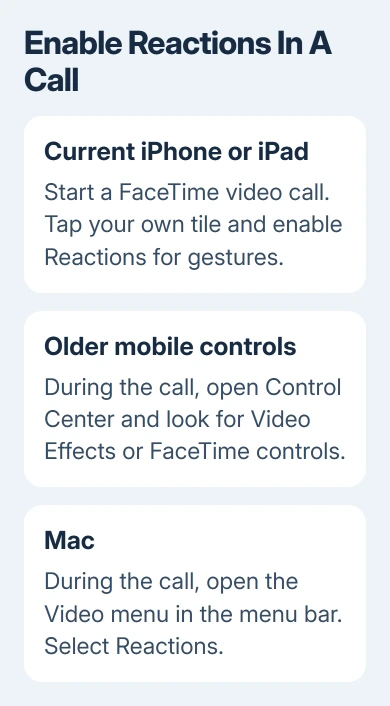
FaceTime reactions turn on during a video call, rather than in the app's main settings. On a current iPhone or iPad, tap your own camera tile and enable Reactions. On a Mac, use Reactions in the menu bar's Video menu.
Hand gestures need supported hardware and an active camera. If you only want to send a heart or balloons once, FaceTime also provides reaction buttons, so you don't have to make the camera recognize your hands.
Start a video call and open your own controls
Join a FaceTime video call and make sure your camera is on. The effects appear around your own camera image. Tapping the other participant's tile won't open your outgoing video effects.
On current iPhone software, tap your tile, then tap Reactions to enable hand-triggered effects. The iPhone video-effects guide shows these in-call controls.
The effect should appear around your camera image when a gesture is recognized. Keep the call connected while checking the control; opening FaceTime before a call doesn't provide the same active-camera menu.
If the camera is paused, use the FaceTime camera control to resume video first. A microphone setting won't restore an outgoing picture, and reaction effects need that video feed.
I'd test with one willing caller before using the gesture in a group. That makes it easy to check both your own preview and what the other person sees without interrupting a larger conversation.
Use the iPhone or iPad route for its software version
The current iPhone and iPad guides put video effects in your own tile during FaceTime. On older releases, open Control Center during the call, open Video Effects or the FaceTime controls, and enable Reactions there.
For Face ID iPhones and all iPads, pull downward starting at the upper-right edge to open Control Center. For Home-button iPhones, pull upward starting at the bottom edge. Effects still depend on the model.
The current iPad instructions refer to Reactions in the effects list and Gestures in their gesture note. Turn on the hand-gesture control shown during the call on your version.
For a supported third-party video-calling app, open Control Center while that app is using the camera, tap the app's controls, and enable Reactions. Don't look for FaceTime's tile menu inside a different app.
Use the iPad FaceTime setup steps if you haven't connected the call yet. Reactions decorate a working video call; they don't activate an account or repair a failed connection.
Check whether the camera and model support gestures
The mobile feature starts with iOS 17 and iPadOS 17. Update a supported device through Settings > General > Software Update if it still runs an earlier version, then use the controls for its installed release.
iPhone hand gestures require iPhone 12 or later. Use the front camera for hand gestures. Switching to the rear camera to show the room changes the camera being used, so switch back before testing gestures.
Apple says supported models include iPad 10th generation, iPad A16, iPad mini 6th generation, mini A17 Pro or later, and Air 4th generation or later in its iPad compatibility table.
It also lists the 11-inch iPad Air M2, M3, and M4; 13-inch iPad Air M2, M3, and M4; 11-inch iPad Pro 3rd generation or later; 12.9-inch iPad Pro 5th generation or later; and all 13-inch iPad Pro models.
Only the front camera supports iPad reactions and gestures. An older iPad running supported software doesn't automatically gain every effect offered by newer hardware. Check the exact model, rather than its screen size alone.
Mac support starts with macOS Sonoma 14. Use Apple silicon, or a Mac running Sonoma or newer with iPhone 12 or later as its Continuity Camera. An Intel Mac's built-in camera alone doesn't meet the requirement.
These reaction requirements differ from the requirements for other effects such as background replacement. A missing Background control doesn't explain a missing Reactions control; check the requirement for the feature you actually want.
Choose Reactions from the Mac Video menu
During the video call, click the Video menu in the macOS menu bar. Select Reactions to turn gesture recognition on. When it's on, your hand movements can trigger effects.
To send an effect directly, expand the Reactions submenu using the disclosure control beside it, then choose a reaction button. The Mac video-effects instructions list both the gesture and button routes.
If the menu belongs to a different camera app, bring the call to the front and check which app is using the camera. Then choose the controls for the call you are trying to change.
For Continuity Camera, confirm the Mac is using the iPhone camera before testing. Having a compatible iPhone nearby doesn't change which camera the call uses.
Hold a gesture until its effect appears
Keep your hands in the camera frame and away from your face. Pause for a moment or two instead of making a quick sign and dropping it. The camera needs a clear view of the shape.
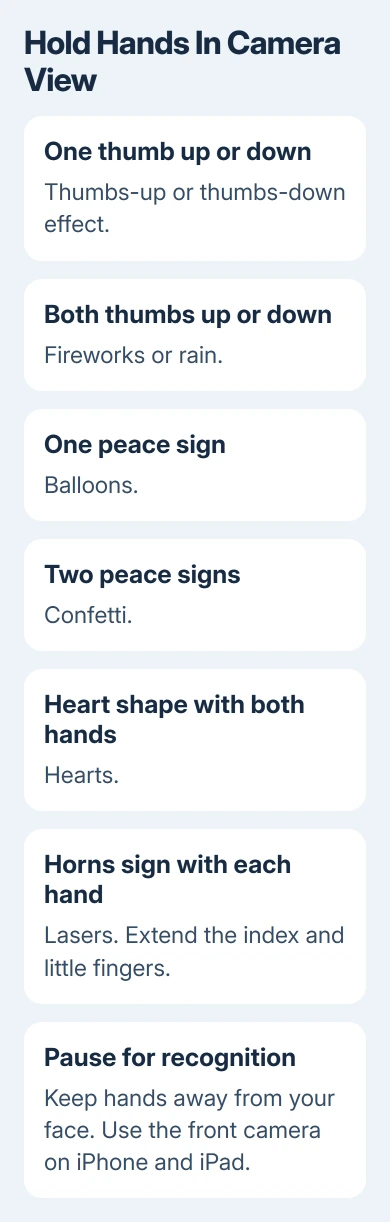
- Hearts: make a heart shape with both hands.
- Balloons: hold up one victory or peace sign.
- Thumbs-up: hold one thumb up.
- Thumbs-down: hold one thumb down.
- Rain: hold both thumbs down.
- Confetti: make a victory sign with each hand.
- Fireworks: hold both thumbs up.
- Lasers: make a horns sign with each hand, with index and little fingers extended.
Try one simple gesture first, such as one thumb up. If that works but a two-handed gesture doesn't, widen the camera view enough to show both hands and hold the complete shape still.
For a single reaction on iPhone or iPad, touch and hold your own tile and tap a reaction icon. This is useful when holding the device makes two-handed gestures awkward.
Turning off gesture recognition doesn't remove FaceTime's manual reaction buttons. Choose a button when you want an effect on purpose without leaving automatic hand recognition enabled throughout the call.
Stop accidental effects or report a missing control
Turn Reactions off in the same active-call controls to stop hand gestures from triggering effects. On the Mac, use the Video menu. On current iPhone or iPad, return to your tile's video effects.
Before a medical appointment or work call, check the actual app's camera controls. Check each video-calling app, even if you've already changed the setting in FaceTime.
If supported hardware lacks the control, update the operating system and the calling app, restart, then check during another active video call. Compare FaceTime with the other app to see whether only one app lacks the control.
Contact Apple Support about missing video reactions with the device model, operating-system version, camera source, and app name. Include whether manual buttons appear and whether the simple thumb gesture works.
The Short Version
Enable Reactions during a video call, check model and camera support, and hold each gesture clearly in view. Use manual reaction buttons for a single effect. Disable gestures before calls where accidental effects would interrupt.
Checked November 9, 2026.

Isaac Smith is the founder and editor of PC Glance, a website that covers computers, laptops, and technology. He is a tech enthusiast and a computer geek who loves to share his insights and help his readers make smart choices when buying tech gadgets or laptops. He is always curious and updated about the latest tech trends.