
A FIFINE microphone that isn't working usually needs its connection, mute and selected input checked first. Connect USB directly and select the mic in sound settings. For XLR, select and adjust the audio interface instead.
On models such as the AM8, the cable you're using changes which controls work. Its USB controls don't work the same way over XLR, so an inactive mute button can be normal while a missing USB device needs a different repair.
1. Match the controls to the connection
Read the model name and check which cable carries the sound. A USB microphone connects to the computer through USB. An XLR microphone connects to an audio interface or mixer, which then connects to the computer.
On the AM8, the RGB lighting, mute button and function controls don't work in XLR mode. Adjust the input gain, mute and monitoring on the interface or mixer. The AM8's USB knobs aren't a way to turn up that XLR recording.
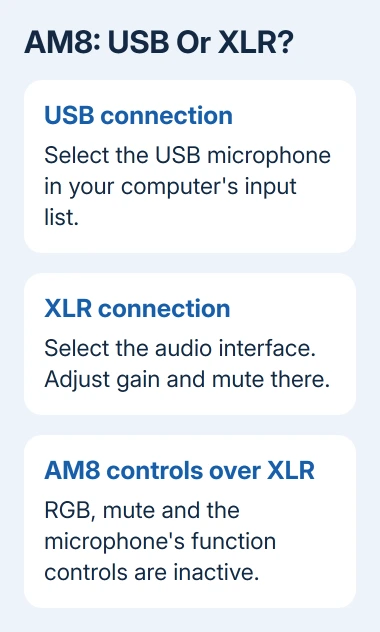
FIFINE's AM8 connection instructions explain that distinction. Those details apply to the AM8; don't assume every FIFINE model has the same buttons or indicator colors.
For USB use, check the microphone's own mute control if the model has one, then turn its input gain up enough to record. A headphone-volume knob changes what you hear through the monitoring socket; it isn't necessarily the recording level.
With XLR, select the interface input in your recording software. Its name can appear instead of FIFINE because the interface handles USB audio. For a USB mic connection, continue with the port checks.
2. Bypass the hub and check the cable
Disconnect the microphone, then plug it into a built-in computer port. Temporarily leave out a dock, extension or hub. On a desktop, try a rear USB port; on a laptop, try another built-in port or a suitable known-working adapter.
If the microphone has a removable USB cable, try a USB data cable you know works. The light tells you the mic has power, but a cable or connector can still fail to carry audio.
The manufacturer's USB driver troubleshooting puts another port, cable and computer before driver work. Most FIFINE USB microphones use the operating system's built-in USB audio driver.
That means a random FIFINE driver download isn't the first thing to install. First watch whether the microphone appears in the sound-input list when you reconnect it. Its name can be FIFINE Microphone or USB Audio Device.
I'd try a direct port and another cable before removing drivers. If the device appears immediately with that change, you have a working recording connection without changing the computer's audio setup.
If it still doesn't appear, try the mic on another computer. If it appears there, check the first computer's port, adapter or software. If neither computer sees it, the cable or microphone is more likely to need repair.
3. Select the input and watch its test respond
On Windows 11, open Settings > System > Sound. Under Input, select the FIFINE USB device, or the interface for XLR. Open its properties and use Start test while speaking, then Stop test and play the sample when offered.
Adjust Input volume if the sample is too quiet. Speak toward the microphone's intended pickup side or end for that model. Moving a headphone slider won't fix a recording made from the wrong microphone.
On Windows 10, use Settings > System > Sound > Input, then choose the device in Choose your input device. Speak while watching Test your microphone. A responding meter shows that Windows is receiving input from that selection.
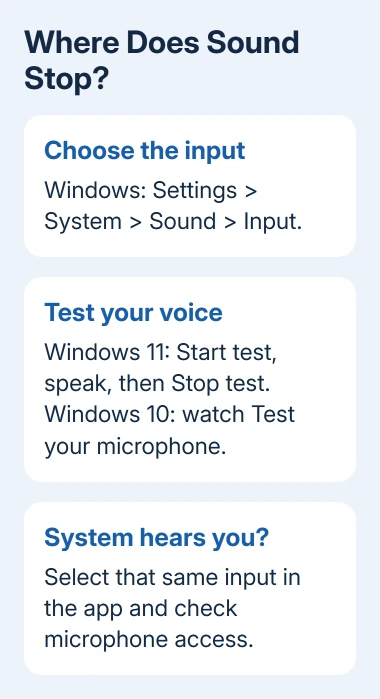
The Windows microphone repair instructions give the version-specific checks. If Windows records your voice but a call stays silent, continue with app input and permission settings.
On Mac, select the USB mic or interface in System Settings > Sound > Input. Speak and watch the level; adjust input volume if available. Older Macs put these controls in System Preferences > Sound > Input.
If the correct device is visible but no meter responds, return to its hardware mute, gain and connection mode. If the system test responds, don't keep swapping cables; check the program that's failing.
4. Give the recording app access and the right source
In Windows 11, open Settings > Privacy & security > Microphone. Turn on Microphone access, then allow app access. For desktop recording and calling programs, also enable the separate switch beginning Let desktop apps.
In Windows 10, the route is Settings > Privacy > Microphone. Check device access and the app and desktop-app access switches there. The separate desktop-app control matters when a program isn't shown among the individual app switches.
On Mac, allow your recording app in System Settings > Privacy & Security > Microphone. Reopen it if prompted. Older Macs have this list in System Preferences > Security & Privacy > Privacy > Microphone.
Open the calling or recording app's own audio settings and select the same microphone or interface that worked in the system test. A program can keep using your laptop's internal mic even after the computer recognizes the USB device.
Make a short recording or use the app's test call. If it works there, check the live call's mute button next. For a browser-based service, the website microphone permission checks explain the extra browser permission involved.
5. Reinstall only the affected USB device if detection fails
On Windows, right-click Start, then select Device Manager. Expand Sound, video and game controllers, find the FIFINE or USB audio entry, right-click it and choose Update driver > Search automatically.
If Windows still isn't detecting the mic properly, use Uninstall device on that microphone entry. Unplug it, restart the computer and reconnect it to a different direct USB port. Windows should load its generic USB audio driver again.
Check the device name carefully before uninstalling. Leave unrelated speakers, laptop audio and other recording devices alone. The general Windows microphone guide covers wider input failures if several microphones are affected.
On Mac, check input selection, app access and another USB port. If neither computer lists the mic with a working data cable, tell FIFINE support the model, whether you're using USB or XLR, and what happened on each computer.
Use the manufacturer's Manual & Technical Support or Contact us page and ask about repair or warranty service. Mention whether the light comes on, whether either computer lists the device and whether the failure happens over USB or XLR.
The Short Version
Check USB versus XLR, hardware mute and a direct data connection. Select the input, test it in system sound settings and then check the app's access. Reinstall the affected Windows USB audio device only after those checks fail.
Checked November 9, 2026.

Isaac Smith is the founder and editor of PC Glance, a website that covers computers, laptops, and technology. He is a tech enthusiast and a computer geek who loves to share his insights and help his readers make smart choices when buying tech gadgets or laptops. He is always curious and updated about the latest tech trends.