
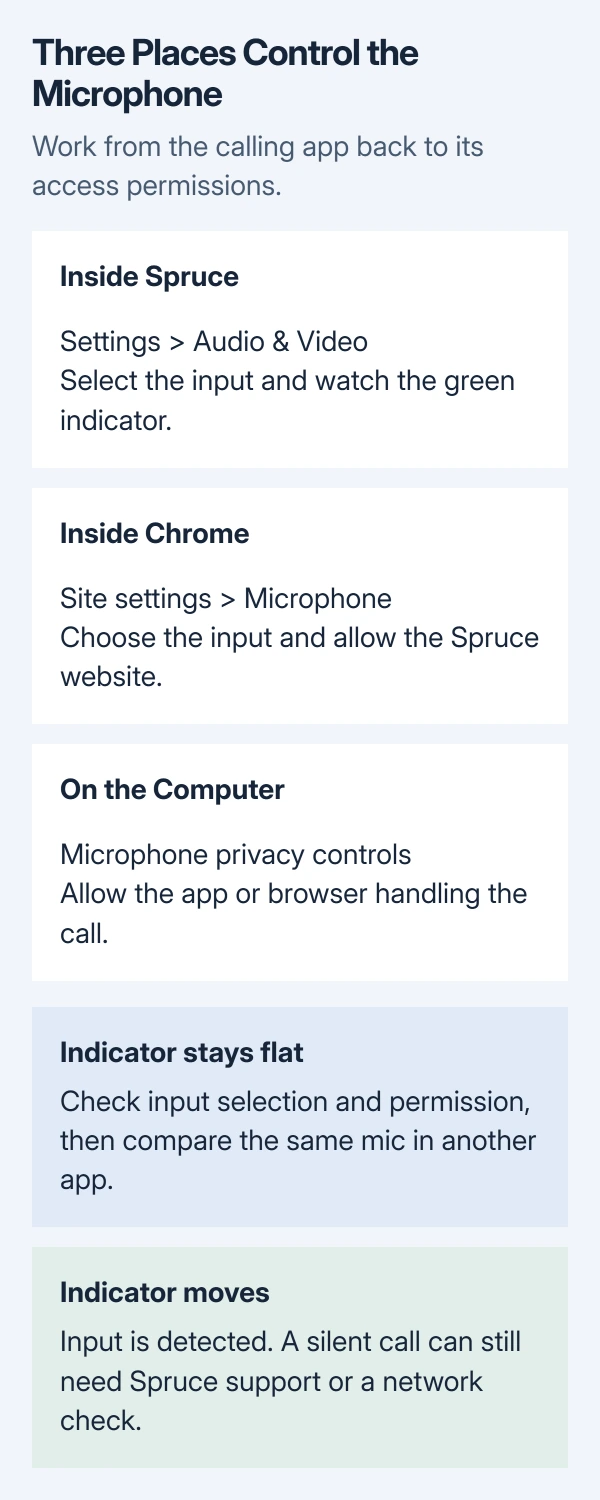
Spruce not accepting the default microphone can come from a different input selected in the app or blocked microphone permission. Open Settings > Audio & Video, choose the intended mic, and speak while watching its green indicator.
These checks cover Spruce calls on a computer, through its desktop app or a browser. A microphone that works in Windows or macOS still needs permission and the correct input selection inside the calling app.
Select the input inside Spruce
Connect the headset or microphone before opening Spruce's audio controls. Check its physical mute switch, and make sure the call itself is not muted.
Spruce's softphone troubleshooting guide documents the app's own microphone selector and green input indicator.
Status: Spruce's computer-call instructions and Google, Microsoft and Apple microphone controls checked October 29, 2026. No call or recording was made.
- Open Spruce's Settings > Audio & Video.
- Choose the microphone you intend to speak into.
- Say a few words and watch for movement in the green mic indicator.
A moving indicator shows that Spruce is detecting input. It does not prove that audio reaches the other caller. If it remains flat, check permissions next; if it moves but calls stay silent, use the call-specific checks later in this guide.
After changing audio devices, restart Spruce as its support page recommends. Keep the same microphone connected during the comparison so the result refers to one device.
Give the Spruce website access in Chrome
Google says Chrome has microphone controls for its default input and each site's permission. Changing only the computer's default does not resolve a blocked site.
Open Chrome > More > Settings > Privacy and security > Site settings > Microphone. Use the device selector to choose the intended microphone.
Check the blocked-site list on that screen. If Spruce appears there, select its entry and change its microphone permission to Allow. Refresh the Spruce page afterward.
If Chrome asks for computer-level permission, follow its Open settings prompt. Restart Chrome if requested. A work-managed browser can have controls set by an administrator, so ask IT when the option cannot be changed.
Allow the app or browser in Windows and macOS
In Windows 11, open Start > Settings > Privacy & security > Microphone. Enable Microphone access. On the same screen, turn on Let apps access your microphone.
For a desktop calling app or browser, also enable the switch beginning Let desktop apps. Microsoft separates this from the Store-app switches; a desktop app need not have its own switch in that list.
Microsoft documents the Windows 10 route, Settings > Privacy > Microphone, on its microphone permission page.
On macOS Ventura or later, quit the affected app. Open Apple menu > System Settings > Privacy & Security > Microphone, enable Spruce or the browser being used, then reopen it.
Apple states the route for macOS Monterey through Mojave in its audio-access instructions: System Preferences > Security & Privacy > Privacy > Microphone.
Permission should match the application handling the call. Allowing the Spruce desktop app does not replace the browser permission when the call is in Chrome.
Separate missing input from a silent call
Compare the same microphone in another recording app. On a PC, the built-in Windows microphone test provides a playback check without placing another call.
If that also fails, continue with the Windows microphone repair steps. A fault across apps needs attention outside Spruce before another app-specific adjustment can help.
If another app hears you, close other programs using audio and retry Spruce. Spruce lists competing audio apps among its checks. A different headset is another comparison, if one is available.
When Spruce's indicator moves but the other caller still hears silence, its guide identifies network restrictions as another possibility. On an office network, have IT review Spruce's network requirements and VPN configuration.
Send Spruce Support the failed call details
Contact Spruce Support through the app if the fault remains. Its guide requests the failed call's Message Link, exact error, date and time, network type, and VPN status.
Include whether the input indicator moved and whether another app recorded the same mic. Those observations distinguish an input-access problem from audio lost during the call.
The Short Version
Choose the microphone in Spruce, then check browser and operating-system permissions. A flat input indicator calls for input checks. A moving indicator with a silent call needs Spruce or network support.

Isaac Smith is the founder and editor of PC Glance, a website that covers computers, laptops, and technology. He is a tech enthusiast and a computer geek who loves to share his insights and help his readers make smart choices when buying tech gadgets or laptops. He is always curious and updated about the latest tech trends.