

Select the words you want to make clickable, press Ctrl + K on Windows or Command + K on Mac, paste the destination, and confirm. Word shows your selected words as the link, while the address stays behind them.
Link to a web page, start an email, or jump to a heading or bookmark in the same document. Decide where the link should go first, so it takes readers to the right place.
Link selected words to a web page
Type a clear label in your document, such as View the project schedule. Select only the words that should become clickable. Keeping surrounding punctuation outside the selection makes the label easier to read.
In desktop Word for Windows, press Ctrl + K, or choose Insert > Link. In the Insert Hyperlink dialog, select Existing File or Web Page if needed, then paste the complete destination into Address.
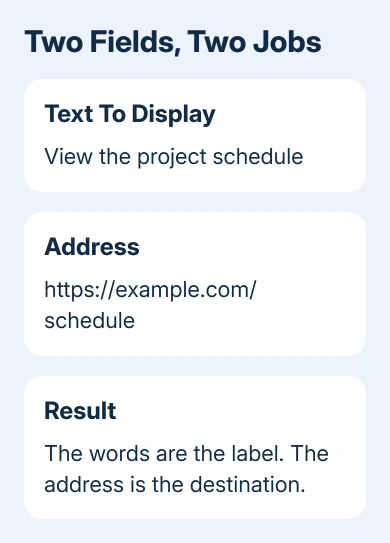
Check Text to display before selecting OK. That field controls the words in the document; Address controls where the reader goes. Changing one doesn't automatically correct an error in the other.
Microsoft says a picture can also carry a link. Select the picture before opening the same command when the image itself needs to be clickable.
For a plain displayed web address, type it and press Space or Enter. Word can convert it automatically. Use the dialog when you want a readable label instead, or when automatic conversion has been turned off.
I'd choose a label that explains the destination, such as the report's name. Several links labeled click here are harder to distinguish when someone is scanning a long document or listening to its links.
Use the Mac or browser link dialog
In Word for Mac, select the text or object and press Command + K. On the Web Page or File tab, enter the destination in Address, check the displayed text and confirm with OK.
In browser Word, switch to editing mode, then select Insert > Link. Enter the visible wording in Display text and the web address in Enter Link, then confirm the insertion.
Being signed in doesn't always mean you can edit the document. If the link command is unavailable, check the document's editing permission before trying a different browser or recreating the file.
To revise an existing browser link, click within it and choose Insert > Link, or right-click it and select Edit Link. Inspect the destination as well as the display text before saving.
If you copied words from another document and their font looks wrong, clean the selected text's formatting as a separate change. The words can look right even when the address behind them is wrong.
Create an email link or point to another file
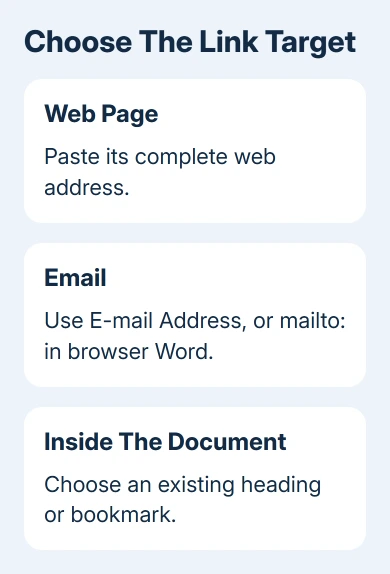
In Windows desktop Word, select the words you want to link and open the link dialog. Choose E-mail Address, enter the recipient and add an optional Subject. Confirm after checking the spelling of the address.
On Mac, use the Email Address tab in the link dialog. Enter the address and optional subject there. Following this kind of link starts a message in the reader's email program; it doesn't send the message automatically.
In browser Word, enter mailto: followed by the address in Enter Link. For example, mailto:team@example.com is an email destination rather than a web page. Replace that example with the address you want readers to contact.
Some email programs or browsers may not recognize a preset subject. Check the recipient in the opened draft instead of relying on every reader seeing the same filled-in message.
For a file link in Windows Word, choose Existing File or Web Page and browse to the intended file. A link points to that file; it doesn't put a copy of the file inside the Word document.
That distinction matters when sharing. A path that opens on your own computer may be unavailable to a colleague. Use a location they can access and test with the intended recipient before relying on the link for important material.
Jump to a heading or bookmark inside the document
For an internal link, mark the place you want to jump to with a heading style or bookmark first. A heading styled through Home > Styles gives Word a recognizable location; making the words large isn't the same thing.
In Windows Word, select the link label, open Ctrl + K, and choose Place in This Document. Select the heading or bookmark you need, then confirm with OK.
For a destination that isn't a heading, select its text or place the cursor there. Choose Insert > Bookmark, type a name beginning with a letter and select Add. Use an underscore instead of a space in the bookmark name.
For example, Pricing_notes can mark a specific paragraph without adding another heading to the report. Return to the label and link it to that bookmark through Place in This Document.
In Word for Mac, open the link dialog and choose This Document. Select the heading or bookmark that identifies the destination, then confirm. Check that the target was created before looking for it in that list.
In browser Word, use Insert > Link > Insert Link and choose Headings and Bookmarks. Select the existing destination and choose Insert. Follow the new link to check where it lands.
For a navigation list, build a table of contents from headings instead of managing a link for each section. Use References > Cross-reference when the reference must update a page number.
Verify the destination in the copy you'll share
Save the file and try the links in the copy you'll share. Desktop Word for Windows normally uses Ctrl + Click to follow a link while editing. Check where each link opens, even if its words look right.
Check internal jumps after moving or deleting their target paragraphs. For shared file links, confirm the recipient has access. If one link can't be edited in the browser, open the same document in desktop Word and inspect it there.
If a new ordinary link still fails, send Microsoft Support a short sample with private information removed, the Word version and the target type. That helps support tell whether the destination is unavailable or Word can't edit the link.
The Short Version
Select the label, open the link dialog and check both the displayed words and the destination. Choose the correct target type for a web page, email, file or internal jump. Test the saved copy before sharing it.
Checked November 9, 2026.

Isaac Smith is the founder and editor of PC Glance, a website that covers computers, laptops, and technology. He is a tech enthusiast and a computer geek who loves to share his insights and help his readers make smart choices when buying tech gadgets or laptops. He is always curious and updated about the latest tech trends.