

Android's Location switch stops apps from getting your phone's device location. Open Settings > Location and turn off Use location, or tap the Location tile in Quick Settings. For just one app, change that app's location permission instead.
To stop sharing your position with a person, end their Location Sharing access. Turning location off pauses fresh device locations, but it doesn't remove an existing share or erase places already saved.
Turn off the phone's Location switch
Open Settings > Location and turn off Use location. Some manufacturers show a main Location switch rather than that exact label. Settings search can find Location when the menus look different.
Google explains how this switch works in its Android location controls. It affects all apps that need the phone's location, rather than just one account or app.
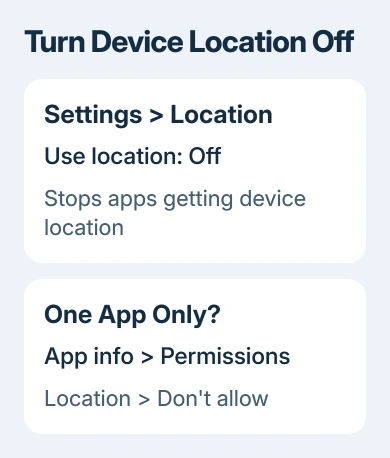
After switching it off, return to the Location page and check that the main control remains off. A map may still show an old dot or an area you opened earlier; that doesn't necessarily mean it's getting your current position.
On a Samsung Galaxy, start with Settings > Location and use its main switch. On Pixel and other phones using Google's layout, look for Use location inside Location.
If your Settings menu differs, search for location and open the device setting rather than a result inside one app. Android versions and manufacturers arrange the surrounding options differently.
Add Location to Quick Settings for occasional use
Expand Quick Settings with two downward swipes starting at the screen edge. Find Location and tap it off. Check the tile's label or state rather than assuming every phone uses the same on and off colors.
If Location isn't present, tap Edit and drag the Location tile into the active tiles. Save the change or leave the editor, following your phone's prompts. Then the switch is available without searching through Settings each time.
This is useful when you want location for a journey but prefer it off afterward. Turning it back on doesn't automatically grant new location permissions to apps that you've denied.
Remember the practical trade-off before a trip: navigation and other location features may stop working properly with device location off. Turn it on again before asking a map to guide you from your current position.
Deny one app without disabling navigation
For an unwanted app, keep the phone's main Location switch on and change the app's permission. I'd choose this route if you only want to block a game or shopping app and Maps still needs to work.
- Press and hold the icon for the app whose access you want to change.
- Tap App info.
- Open Permissions > Location.
- Select Don't allow.
That blocks the app's access to device location even while you're using it. If Location isn't listed, check which permissions the app requests. Changing an unrelated permission won't help with location access.
The alternative route is Settings > Location > App location permissions. Review the apps grouped by access, such as those allowed all the time or only while in use, then select the app you want to change.
If a feature needs location, allowing access only while you're using the app gives it less access than allowing it all the time. Ask every time, or Ask every time or allow when you share on newer software, limits access further.
On Android 12 and later, Use precise location can also appear after access is allowed. Turning that off allows an approximate area instead. It doesn't deny location altogether.
If an app asks for location again after you denied it, decide whether the requested feature needs it. Seeing the permission prompt doesn't mean you've allowed access again.
End a location share with another person
Location Sharing has its own controls. Removing Maps' location permission isn't a reliable replacement for ending the share, because Google Location Sharing is managed across its services.
Open Settings > Location > Location services > Google Location Sharing when available. Open the list of people, find the person whose access should end and tap Stop beside them.
To pause updates from that device without ending the shares, turn off Use Location Sharing on the same page. Your existing shares stay in place and can update again when you turn sharing back on.
In the Maps app, another route is profile picture > Location Sharing, then the person's profile and Stop. Check the sharing list afterward to confirm that person's access has ended.
Our Android location sharing guide explains the difference between a shared map pin and a continuing live share. A pin already sent in a message doesn't disappear when location turns off.
If the phone has several Google accounts, check which account you're sharing from. Changing one account's shares doesn't remove another person's shares on the device.

Know what the off switch leaves in place
Local search results and ads can still estimate your area from your phone's internet address. Turning off device location doesn't make the phone's network connection anonymous or delete information a service already holds.
Timeline has its own history setting. With device location off, new places from that phone won't be saved through location, but old Timeline data isn't erased. Review Timeline separately if you want to remove saved visits.
Earthquake alerts won't work with location off, and locating a lost phone may be affected. Emergency services or your carrier can still send location during an emergency call or text.
Don't use Location Accuracy as a substitute for the main switch. Turning accuracy off changes the sources used to estimate position; it doesn't mean apps can no longer get any location.
Wi-Fi scanning and Bluetooth scanning also have separate controls. On Android 12 and later, they're inside Settings > Location > Location services. On Android 11 and earlier, look directly inside Location.
If the reason for this change is battery life, check Android battery drain too. App activity and other phone settings can matter even with location disabled.
If the main switch can't be changed, contact your phone maker with the model and Android version. For a work-managed phone, ask your administrator whether a device policy controls location before resetting anything.
The Short Version
Use Settings > Location for the whole phone, or App info > Permissions > Location for one app. To end someone's access, stop their Location Sharing entry. Existing history and previously sent locations need separate handling.
Checked November 9, 2026.

Isaac Smith is the founder and editor of PC Glance, a website that covers computers, laptops, and technology. He is a tech enthusiast and a computer geek who loves to share his insights and help his readers make smart choices when buying tech gadgets or laptops. He is always curious and updated about the latest tech trends.