
Android security updates close the flaws behind zero-day warnings. Install the latest system update offered for your phone and restart it, then check the Android security update date instead of relying on the Android version number.
The March 2025 warning concerned two flaws that may have been under limited, targeted exploitation. Get your manufacturer's current patches rather than searching for that old package. This isn't a new November 2026 alert.
Read the security date before choosing an update
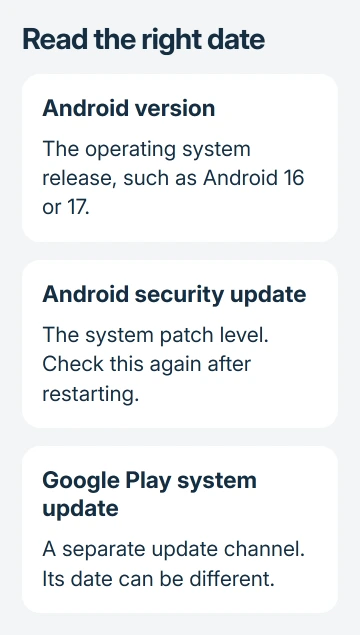
Open Settings > About phone > Android version. Note the Android version and the Android security update date. On a tablet, start with About tablet instead. Each tells you something different about your phone's software.
An Android version such as 16 or 17 describes the operating system release. The security date identifies its patch level. A phone can keep the same Android version while receiving another month's security fixes.
Google says in its March 2025 bulletin that CVE-2024-43093 and CVE-2024-50302 may have faced limited, targeted exploitation. These tracking numbers identify separate flaws; the warning wasn't about attacks against every owner.
That bulletin's complete patch level was March 5, 2025. A current device should be much further along. The November 2026 bulletin uses November 1 and November 5 patch levels, with November 5 covering all applicable issues in that bulletin.
An old date tells you to check for updates. It doesn't tell you that someone has broken into the phone. If an app is behaving strangely, treat that as a separate problem rather than assuming an old patch date explains it.
1. Install the system update through Settings
Use the phone's built-in updater. You don't need an APK (an Android app file) from a message, advertisement or unexpected warning page to install a security patch.
Before starting, connect to Wi-Fi and charge the battery to at least 75%. That's the preparation in the Android update instructions. Keep the charger connected if the update takes a while.
- Open Settings.
- Tap System > Software updates on devices using that menu.
- Read the update status and choose the offered download or installation action.
- Finish any restart requested by the updater.
On a Galaxy phone, use Settings > Software update > Download and install. Some carrier models use different labels. Search Settings for software update when that route isn't present, then use the result inside Settings.
On a Pixel, Android installs the update in the background, but you need to restart to put the changes into use. Seeing that the download finished isn't the final check. Return to the security date once the phone has started again.
If another update appears immediately, read its details and install it too. After months offline, a phone can need several packages to catch up with the current release.
2. Check Google Play system updates separately
The Google Play system update entry handles a separate set of updates. Its date is separate from the system security patch level. Ordinary app updates in the Play Store are a third task.
On versions that list both dates in Settings > About phone > Android version, tap Google Play system update and follow its prompts. Other devices place it under Security & privacy > System & updates or their security update controls.
Use Settings search for Google Play system update if the menu differs. Install an offered update and complete its requested restart. A newer Play system date doesn't mean the manufacturer's full system patch has arrived.
Then open Play Store > profile picture > Manage apps & device and install available app updates. Browser and messaging app fixes belong there, even when your phone's system update screen already reports that it's up to date.
I'd finish these normal updates before changing security settings. Turning protections off won't make a missing manufacturer patch arrive faster, and it adds another problem to sort out.
3. Handle a download that won't finish
Read the updater's actual message. A storage warning needs free space; a download failure needs a working connection or another attempt. Those aren't signs that the security flaw has damaged the updater.
For a space warning, remove downloaded movies or other replaceable files through the phone's storage controls. Check your Android backup coverage before removing anything important. Photos and app data aren't all protected in the same way.
When a download fails partway through, Android can retry automatically during the next few days. Keep the phone charged and connected, then open the next update notification rather than repeatedly starting unrelated downloads.
When Wi-Fi itself is failing, try another trusted connection. On affected Pixels, the Wi-Fi and Bluetooth update guide covers the separate fault where the switches won't turn on.
A factory reset isn't a way to obtain a patch that hasn't been released for your model. It also removes local data, so it shouldn't be the response to an older date by itself.
4. Ask about support when no newer patch is offered
Update schedules differ by manufacturer, model and mobile carrier. The public Android bulletin describes patches available to device makers; it doesn't mean every phone receives an update on the bulletin's publication day.
Record your exact model, build number, security date and carrier. Ask the manufacturer's software support team whether that model still receives security updates and which patch level is currently available in your region.
For a carrier-supplied model, ask the carrier about its release schedule too. Share the updater's exact error, if present, so support can check that release or failure instead of handling a general request to update Android.
If security support has ended, a newer supported phone lets you keep getting patches. An antivirus app can't supply missing system fixes. For a work phone, give IT the dates so they can check the organization's support requirements.
The Short Version
Check the security date, install the system update through Settings and restart. Check Play system and app updates too. If an old patch date won't change, ask the manufacturer or carrier whether your exact model still gets patches.
Checked November 9, 2026.

Isaac Smith is the founder and editor of PC Glance, a website that covers computers, laptops, and technology. He is a tech enthusiast and a computer geek who loves to share his insights and help his readers make smart choices when buying tech gadgets or laptops. He is always curious and updated about the latest tech trends.