
Pixel VIPs depends on updated apps as well as the phone's system software, so an Android update alone may leave the feature missing. Check Play Store updates first, then open Google Contacts > Organize > Pixel VIPs to set it up.
The feature needs a Pixel 6 or later, including Pixel Fold. A missing VIPs entry, a missing home screen widget and a contact card with no location are different problems. Start with the one your phone actually shows.
1. Update the apps that supply Pixel VIPs
Open the Play Store on the Pixel, tap your profile picture, then Manage apps & device. Under Updates available, tap See details and install the offered updates. Update all handles the whole waiting list.
Check the list for Pixel VIPs, Google Contacts, Pixel Weather and WhatsApp if you use it. The card uses information from several apps, so updating those supporting apps matters too.
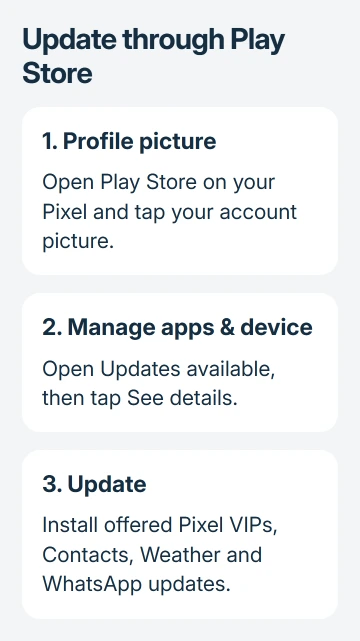
Google says in its Pixel VIPs instructions to keep Contacts, Weather and WhatsApp updated. The Play Store update steps explain where the Update action appears.
An app's Open button means that its listing isn't offering you an update at that moment. It doesn't mean every related app is current. Return to the update list and check the supporting apps as well.
After installations finish, open Contacts again. If the entry appears, continue to setup. If it doesn't, check the phone model and system updates before clearing app data or removing contacts.
I'd keep your contact list intact while doing this. Updating the apps is a much smaller change than deleting saved information, and it can supply what's missing without making you set everything up again.
2. Confirm the Pixel model and system update
Open Settings > About phone and check the model. Pixel VIPs is a Pixel feature, even though the people you add can use either an iPhone or an Android phone. Their device doesn't have to be another Pixel.
A Pixel 5 or an unrelated Android phone doesn't meet the stated Pixel 6-or-later requirement. Installing a Contacts update on that phone won't turn it into a supported Pixel model.
On a supported Pixel, open Settings > System > Software updates and check the system update status. Follow any offered installation and restart prompts, then return to Contacts to check whether setup is available after the restart.
The app update and system update screens answer different questions. The first checks software delivered through the Play Store; the second checks your phone's operating system. Checking one doesn't check the other.
If Pixel VIPs stays missing after the updates, record the model, Android version and Contacts version for Pixel support. Erasing the phone isn't a sensible next step for a missing menu entry.
3. Add people through Contacts before choosing a widget
Open Google Contacts, tap Organize at the bottom right and choose Pixel VIPs. Select suggested contacts or tap Add to find other people, then grant the permissions requested for the features you want.
The current limit is 16 people. Older descriptions mentioned a smaller group, so use the limit in the current setup rather than assuming that an old four-person limit still applies.
Choose one person first and check their details. A contact with the wrong phone number or an old email address can give the card the wrong information even though VIPs itself is working.
Adding a person to VIPs also adds them to favorite contacts. Favorites can bypass Do Not Disturb, so review your interruption preferences if the point of that mode is to keep certain times quiet.
If calls still don't alert you after checking those preferences, the Pixel call vibration guide covers the separate phone alert settings. VIP membership doesn't replace those controls.
4. Put the Contacts widget on the home screen
Press and hold an unused home screen space until its menu opens. Select Widgets, expand Contacts and place the widget in available space. Choose it from this home screen menu rather than the Play Store's app list.
The VIPs setup entry and the widget are related but separate. Seeing a person in Contacts doesn't put a new panel on the home screen automatically. Add the widget after choosing the people it should show.
Open the widget to check the selected person's card. Swipe between VIPs or use its floating toolbar when available. Check that the right contact appears before changing settings for individual card features.
If a widget exists but disappears after restarting, follow the Pixel widget recovery steps. A launcher fault needs different checks from VIP contact setup.
To change the group later, open the widget's Settings > Manage your VIPs. The same management control is available from the VIPs overlay menu or the person's VIP tag in Contacts.
5. Fix missing location or conversation details
A working VIP card doesn't automatically reveal someone's location. That person must share their location with you through Google Maps, and the email address used for that sharing needs to be saved in their contact details.
Adding their email alone doesn't start sharing. Ask the person to check in Maps that they're sharing with you, then confirm the contact uses the matching email. The card's location features also need location permissions to work.
For missing conversation details, check the service involved. VIPs can show the latest interaction from Google Messages or WhatsApp. Updating one app won't supply a conversation that belongs to another account or contact.
WhatsApp calls a linked secondary phone, tablet or computer a Companion Mode device. That device may not support WhatsApp notification priority. Check the main phone before changing contact settings on a companion device.
On the main device, try one of these contact-sync fixes: WhatsApp > Settings > Privacy > Contacts, then turn off WhatsApp contacts; or open the affected chat, tap the name, choose More > Edit, then turn off Sync contact to phone.
Choose the change that matches your case, restart the phone and check notification priority again. These steps target priority, so don't apply them to a completely missing VIPs setup menu.
If the feature still fails, contact Pixel support with the missing screen or card feature, model and app versions. State whether Contacts setup works and whether only the home screen widget or one type of information is affected.
The Short Version
Update VIPs and its supporting apps, then open Contacts > Organize > Pixel VIPs on a supported Pixel. Add the widget separately. For missing location, check Maps sharing. For WhatsApp priority, check the main device and contact sync.
Checked November 9, 2026.

Isaac Smith is the founder and editor of PC Glance, a website that covers computers, laptops, and technology. He is a tech enthusiast and a computer geek who loves to share his insights and help his readers make smart choices when buying tech gadgets or laptops. He is always curious and updated about the latest tech trends.