
The Setting Up Your Apple ID screen can stall during account sign-in. Check the connection and Apple's service status first. Restart if the account screen is frozen; you can finish sign-in later when setup offers that choice.
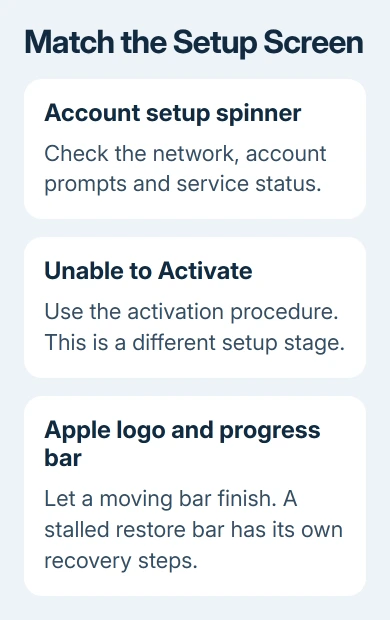
Newer setup screens use the name Apple Account instead of Apple ID. An account spinner, an activation error and a progress bar beneath the Apple logo need different steps. Match the screen before restarting.
1. Match the screen before choosing a fix
An account setup message appears after you enter or transfer account details. It isn't the same as Unable to Activate, which is about activating the phone, or iPhone Locked to Owner, which requires the linked owner's account.
A moving progress bar under the Apple logo can be part of a software update or data restore. Leave that process connected to power. Don't treat it as a frozen account spinner just because the setup isn't finished yet.
Answer any waiting verification-code or password prompt first. Check the trusted device already used for this account. A pending approval needs that response, rather than another password attempt on the new phone.
For an actual error saying verification failed, use the Apple ID verification checks. Keep the exact error wording; a rejected sign-in gives support different information from a screen that simply stops responding.
No universal account-spinner time limit is given in the setup instructions. A short pause doesn't mean damage. While setup still responds, deal with connection checks and account prompts before interrupting it.
2. Check Wi-Fi and the account services
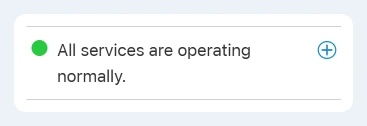
On another device, open Apple System Status and check Apple Account and relevant iCloud services. Check iOS Device Activation too if your screen specifically reports an activation problem.
During a reported service incident, wait before retrying. Restoring won't repair an outage. When the affected services appear available, check the phone's connection next; that page can't check your Wi-Fi connection.
Use reliable Wi-Fi with working internet access. Hotel, workplace and public networks can require a welcome-page sign-in before allowing traffic. A different trusted network can avoid that extra requirement during setup.
If setup lets you return to Wi-Fi selection, choose the working network there. If the screen is completely frozen and offers no controls, restart using the next section, then change the network when setup returns to that choice.
For a message that the activation server can't be reached, Apple's activation steps favor reliable Wi-Fi, a restart and retrying after a short wait. Those steps address activation errors; they won't fix every account spinner.
3. Restart a frozen setup screen correctly
Try a normal restart while the power-off slider responds. For Face ID models, press and hold Side together with Volume Up or Volume Down to bring up the sliders. Home-button models use their Side or Top power button.
Drag the power slider and let shutdown finish. Turn the phone on again by holding its power button. Resume setup and check whether you can get past the account step. Restarting keeps your existing data.
If the screen won't respond, use a force restart. The button sequence depends on the model, so a Home button alone doesn't tell you which sequence to use.
- iPhone 8 or later, including iPhone SE 2nd and 3rd generation: press and release Volume Up, do the same with Volume Down, then hold Side. Release when the Apple logo becomes visible.
- iPhone 7 or 7 Plus: keep Side and Volume Down pressed together. Let go when the display shows the Apple logo.
- iPhone 6s or earlier, including iPhone SE 1st generation: press Home together with the power button (Side or Top). Hold both buttons. When the Apple logo becomes visible, release them.
Use this for a frozen account screen, not to interrupt a progress bar that's still moving. If the phone returns to setup, see whether sign-in resumes, an approval prompt appears or the account screen offers another choice.
4. Finish account sign-in later when setup offers it
At account sign-in, tap Forgot password or don't have an Apple Account?. Apple's setup instructions explain the later-setup option available from that route.
Choose the later-setup option when it appears, confirm the choice and finish the remaining setup screens. This is useful when the optional account sign-in stage is blocking access to the phone. It doesn't bypass Activation Lock.
The option isn't a button hidden inside every frozen screen. If setup doesn't return to an account page with that choice, don't keep tapping the spinner looking for it. Once it restarts, match its screen to the relevant section here.
From the Home Screen after setup, open Settings and tap the account sign-in prompt at the top. Enter the same account credentials, complete any verification, and let the services you choose begin syncing.
Account-linked apps, purchases and iCloud data won't all be available while signed out. I'd keep using the existing account; creating a second one to pass setup won't bring across your original purchases or backup.
If you were moving from an old iPhone, keep that phone and its data intact. Our direct iPhone transfer guide explains transfer choices, but changing transfer methods isn't the first fix for an account prompt.
5. Use the progress-bar procedure only for that screen
After migration or backup restoration, a progress bar may appear beneath the Apple logo. Check whether it moves. For this particular screen, Apple's procedure uses a bar that hasn't moved for at least one hour as the threshold.
That timing applies to the Apple-logo restore or migration screen on iOS 13 and later. It doesn't tell you how long Setting Up Your Apple ID should take, so keep the two screens separate.
For that stalled bar, connect a computer to the iPhone with a data cable. Use Finder on macOS Catalina or later, iTunes on older macOS, or Apple Devices or current iTunes on Windows. Put the phone into recovery mode while connected.
Recovery uses the same model groups and button sequences, but continue pressing past the Apple logo until the recovery screen appears. Select Update first when the computer offers Update or Restore.
Update attempts to reinstall iOS while keeping personal data. Restore erases the phone, so take time to decide before choosing it. If Update fails, give Apple Support the computer's exact error before proceeding.
Ask for help with the exact stage that fails
Ask Apple Support for setup or account sign-in help if restarting and a working network leave the same stage frozen. Give the model, known software version, screen wording and whether setup offers to let you sign in later.
Mention any transfer, restore or approval involved. For Activation Lock, have the previous owner release the device, or ask about Apple's proof-of-purchase support process. Repeating setup won't remove that lock.
The Short Version
Check which setup screen is stuck, then check the network and service status. Restart a frozen account screen and finish sign-in later if setup offers that choice. A stalled Apple-logo progress bar has its own recovery Update procedure.
Checked November 9, 2026.

Isaac Smith is the founder and editor of PC Glance, a website that covers computers, laptops, and technology. He is a tech enthusiast and a computer geek who loves to share his insights and help his readers make smart choices when buying tech gadgets or laptops. He is always curious and updated about the latest tech trends.