
A Lenovo laptop running Windows shuts down through Start > Power > Shut down. Save your work first and leave the lid open while Windows finishes, since a dark screen or a closed lid doesn't mean the laptop is off.
A quick press of the physical power button often puts a laptop to sleep. Holding it down forces power off when the computer has stopped responding, so use that method only when it's frozen.
Use the Windows shutdown command first
Save open documents, then let active file transfers finish. Close apps that are still editing, uploading or exporting something important. That lets them finish normally instead of asking you to save during shutdown.
On Windows 11, select Start, usually near the middle of the taskbar. Select the Power button in the Start menu and choose Shut down. A left-aligned taskbar changes where Start sits, not the command you need.
On Windows 10, select Start at the left of the taskbar, then Power > Shut down. The same command works across Lenovo ThinkPad, IdeaPad, Yoga, Legion and LOQ laptops that run these Windows versions.
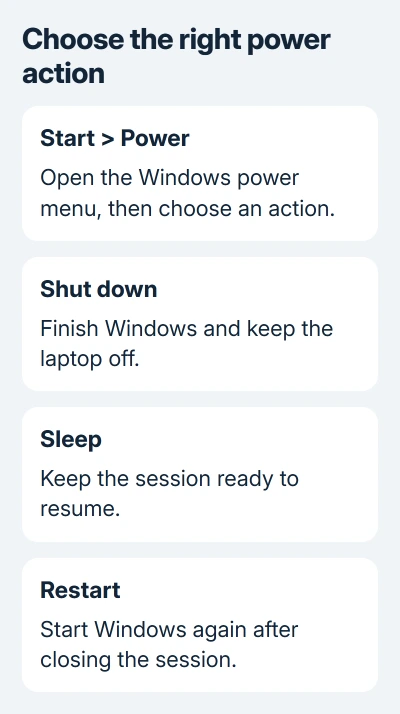
These are the Windows shutdown steps. Sleep keeps the session ready to resume; Restart turns Windows back on afterward. Pick Shut down when you want the laptop to stay off.
Watch for a message saying an app is preventing shutdown. Choose Cancel, save the work in that app and try the shutdown command again. Forcing past that message can discard the document you were trying to protect.
When Windows finishes, the screen goes dark and the laptop stops running. A charging indicator can remain lit while the adapter is connected, so that light alone doesn't mean Windows is still running. Your model's guide explains its lights.
Shut down without using the touchpad
If Windows is still responding, press Windows+D to select the desktop. Press Alt+F4, choose Shut down in the dialog and confirm with Enter. Check the selected choice in that window before pressing Enter.
Alt+F4 normally closes the active app. Selecting the desktop first makes it open the shutdown window instead. If it closes an app window, save your work and try again after selecting the desktop.
Another keyboard route on Windows 10 and 11 is Windows+X. Use the menu's Shut down or sign out entry and choose Shut down. Arrow keys and Enter can select the entries when the pointer isn't usable.
Some Lenovo keyboards assign media or hardware actions to the top-row keys. If Alt+F4 changes a hardware setting rather than opening the dialog, use Fn+Alt+F4, or take the Windows+X route instead.
The keyboard method is useful for a failed pointer, but it still needs Windows to respond. If the whole machine ignores keys as well as touchpad movement, use the frozen-computer section after checking for an update screen.
Make a short power-button press shut down
Open Control Panel > System and Security > Power Options. Select Choose what the power buttons do, then find the row for a short power-button press.
Set that action to Shut down under On battery and Plugged in, if you want both situations to behave alike. Select Save changes. If those options are locked, open the unavailable-settings link if Windows offers it.
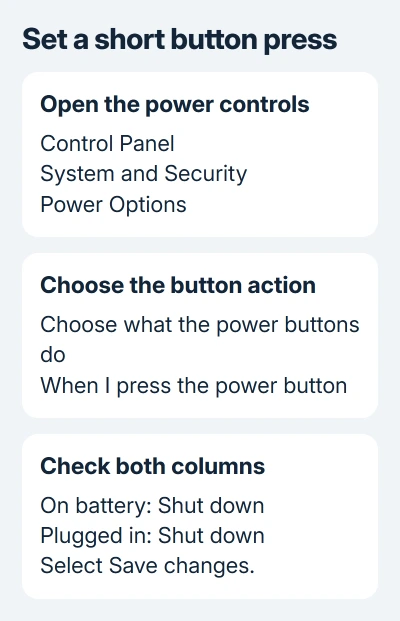
Save your work and briefly press the button to test it. Windows should begin closing apps normally. With this setting saved, a brief press is enough.
I'd keep the default sleep action until you've decided how you use the laptop. A quick button press during a short break shouldn't unexpectedly close your session just because the power settings were changed while troubleshooting.
Closing the lid has its own action on that settings page. Changing the button's action doesn't change the When I close the lid choice. Check the correct row when the laptop sleeps after you close it.
If the options are locked on a Lenovo managed by your organization, ask IT to check the power-button policy. Don't change unrelated power settings to work around an option the organization controls.
Give updates and blocked apps time to finish
When the Power menu offers Update and shut down, that command installs pending updates before switching off. Keep the adapter connected and let Windows finish the update rather than interrupting it when the display changes.
An update progress message is different from a frozen desktop. Don't use a forced power-off while firmware or a BIOS update is being installed. The software controlling startup needs to finish its work without losing power.
For a machine that turns off but immediately comes back on, note whether you selected Restart, Update and restart or Shut down. Then check whether a dock or connected accessory is involved before assuming the button is faulty.
When the aim is to refresh Windows after a driver or software change, use Restart rather than treating shutdown as a reboot. With Fast startup, shutting down and restarting can refresh Windows differently.
If shutdown keeps hanging on one app, save its work and close it before shutting down. Tell support if it gets stuck at the same stage each time. That gives them a program or update to check, rather than a vague report of a power problem.
Force power off only when Windows won't respond
For a completely unresponsive laptop, press and hold the physical power button until the computer turns off. This loses unsaved work. Release it after the machine stops rather than repeatedly pressing it while Windows is still responding.
Lenovo's guide describes emergency steps by model. Some have a reset hole or removable battery; others use a built-in battery and a specific button procedure. There isn't one button-hold duration for every Lenovo.
Use the guide for the exact model before putting anything into a hole in the case. A Novo button used for startup or recovery isn't automatically an emergency power-reset control. The label and manual need to identify it.
If the laptop won't start again after forced shutdown, follow the Lenovo power checks. Checking why it won't start is a separate task from choosing how to shut it down.
For repeated freezes or a power button that doesn't turn the machine off, contact Lenovo through its model-specific support page. Give the model, Windows version, dock and last screen shown. Ask for its emergency shutdown procedure.
The Short Version
Save work, then choose Start, Power, Shut down. The desktop's Alt+F4 dialog offers a keyboard route. Set the short-press action to your preference; a sustained button hold is for an unresponsive machine.
Checked November 10, 2026.

Isaac Smith is the founder and editor of PC Glance, a website that covers computers, laptops, and technology. He is a tech enthusiast and a computer geek who loves to share his insights and help his readers make smart choices when buying tech gadgets or laptops. He is always curious and updated about the latest tech trends.