
Open Insert > Cover Page in desktop Word for a designed title page before your report. Choose a layout and replace its sample text. In Word for the web, make a plain text cover and separate it with a page break.
Choose the route that matches the file you need: the desktop gallery supplies a designed cover, while a simple text page is easier to build without gallery controls. Either way, your report's opening text should start on the next page.
Add a gallery cover in Word for Windows
Save the document before changing its layout. Open the Insert tab and find Cover Page in the Pages group. Select a design from the gallery; Word adds a first page with spaces for the title and other details.
Pick a design that fits your information. A short title doesn't need several unused description boxes. Leave enough room for the title, author, date, and required organization details to read comfortably.
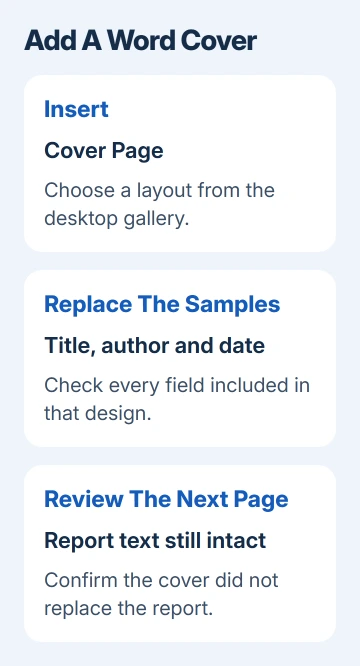
Click a sample area, such as the title, and type your own wording. Work through every visible field instead of replacing only the largest heading. Check the author, subtitle, date, company, and any smaller text included by that design.
Microsoft recommends selecting a gallery cover and replacing its sample areas in the cover-page instructions. This works in desktop Microsoft 365, Word 2024, and Word 2021.
Scroll to the next page and confirm your original text is still there. A cover should introduce that text, not overwrite it. If you notice an accidental edit, undo that change before adding more formatting.
Use the Mac gallery and check the page view
In Word for Mac, open Insert > Cover Page and select the layout. Click each sample area to enter your own details. The Windows instruction's Pages group isn't a separate step you need to find on the Mac.
Use View > Print Layout to judge the page as a page. That view makes it easier to check spacing and see where the cover ends and the report begins.
Read a long title at its final size. If it wraps awkwardly, shorten the title or choose a simpler gallery design. Shrinking every line until the page fits can make the cover harder to read than the report itself.
I'd finish the wording before adjusting decorative details. A design that fits a five-word sample title can look very different when you replace it with a full project name and a long organization name.
If the report will be printed, check the print preview as well. Confirm that the cover occupies one page and that the first body paragraph starts where you expect. Use the document's intended paper size during this review.
Build a plain title page without the gallery
For a basic cover in Word for the web, place the cursor at the very beginning of the document. Type the title and the required details, using a separate paragraph for each item. Put those details in the order your document needs.
Select the cover paragraphs and choose Home > Center if the required format uses centered text. Make the title larger, keeping author and date smaller and consistent. Left alignment is fine when your template requires it.
After the final cover detail, place the cursor where the report should begin and choose Insert > Page Break. That sends the following text onto a new page without filling the cover with empty paragraphs.
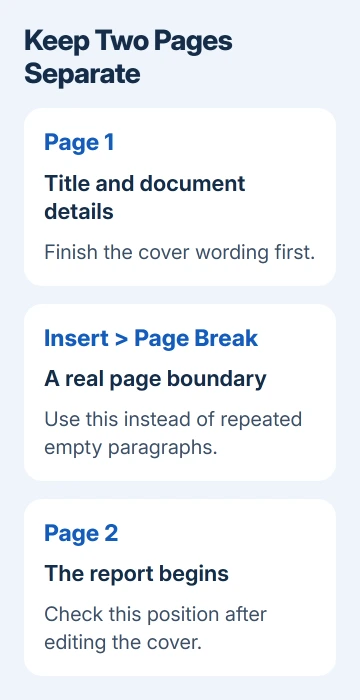
The break keeps the report separate as you edit the cover. Empty paragraphs can shift the report's opening when the title grows or its font changes. Use the page break to keep that separation instead of adding more blank lines.
A manually typed first page isn't a gallery cover. Remove Cover Page won't delete ordinary title paragraphs. To remove that plain cover, select the content you added and remove its page break as needed.
For a required college or workplace format, follow that template's rules for wording and placement. The built-in gallery supplies a design; it doesn't check an institution's title-page requirements for you.
Replace or remove an existing designed cover
Inserting a different gallery cover normally replaces the gallery cover already in the document. Choose the new design, then review every field again. Don't assume a changed layout has kept all the details in the right positions.
Covers made in an older Word version are an exception. Delete that earlier cover manually before inserting a new one from the gallery. Otherwise, you can end up with both covers in the document.
On Windows, use Insert > Cover Page > Remove Current Cover Page to remove a gallery cover. On Mac, the removal command is Remove Cover Page inside the Cover Page menu. Check that the report now starts on the intended page.
If removing a cover leaves a blank page, show the document's formatting marks and check the remaining break or empty paragraph. Our blank Word page guide explains how to tell those marks apart before deleting them.
Avoid selecting the whole document to remove a cover. Select just the first page's content, or use the gallery's removal command. Before trying a very different report design, save another copy of your file.
Hide the cover's number and check the finished file
If an ordinary title page displays a header or page number, open the header or footer and enable Different First Page. Remove the first-page item as needed. That setting separates the cover's header and footer from the following pages.
For page two to show 1, open Insert > Page Number > Format Page Numbers and set Start at to 0. Hide the first number so the next page shows 1. Check numbering settings too if your document has separately numbered sections.
For a repeating document title, Word's header controls explain where that content belongs. Keep the cover's title as page content instead of placing the entire cover inside a repeating header.
Read the completed cover and the first body page together before sharing. Check names, date, title wrapping, page order, and any sample wording left in the chosen design. Save the edited Word file after those checks.
If Cover Page is missing in desktop Word, tell Office support your version, Windows or Mac, and whether editing is enabled. If a required template's fields won't change, ask its author which fields you can edit.
The Short Version
Use Insert > Cover Page in desktop Word, choose a design, and replace every sample field. In the browser, build a plain title page and separate it from the report with a page break. Review the first-page header and numbering before sharing.
Checked November 10, 2026.

Isaac Smith is the founder and editor of PC Glance, a website that covers computers, laptops, and technology. He is a tech enthusiast and a computer geek who loves to share his insights and help his readers make smart choices when buying tech gadgets or laptops. He is always curious and updated about the latest tech trends.