
An animated GIF goes into an Outlook email through Insert > Pictures. Click the spot for the animation, choose the saved GIF and insert it into the message body instead of attaching it as a separate file.
The button you click to finish inserting it differs between the web version and the two Windows Outlook apps. A GIF that appears but doesn't move needs a playback check, which is separate from getting the picture into the email.
Choose the GIF file and its place in the message
Save the animated GIF you want to use somewhere you can find it, such as your Pictures folder. Use the actual image file, not a screenshot of an animation. A screenshot captures a single frame and won't become animated when inserted.
Open the saved file in an app or browser that plays GIFs and check that it moves. Then you'll know whether the file works if Outlook later shows a still picture. A file can end in .gif and still contain only one frame.
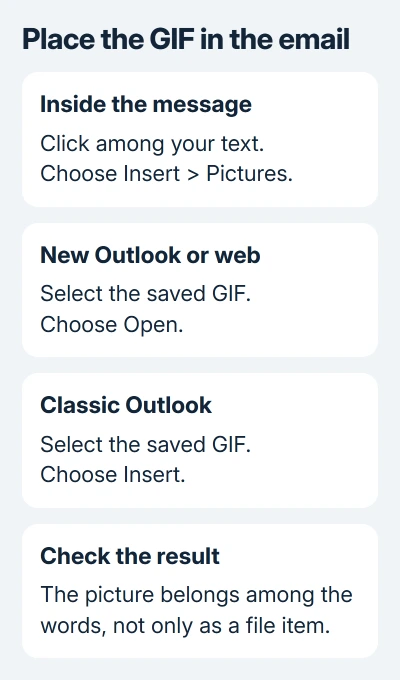
Start a new message or reply and click within the body at the point where the image belongs. Add a short sentence introducing it if the animation needs context. The picture goes where you've placed the cursor.
I'd use the saved-file route first. It lets you check the exact animation before inserting it and avoids confusing a copied web preview with the GIF itself. A full test email can then show how the received message behaves.
For a simple symbol rather than an animation, the Outlook emoji steps use a different control. An emoji doesn't need an image file or animation playback support.
Insert it in new Outlook for Windows
In new Outlook, create the message and place the cursor in its body. Select Insert > Pictures on the ribbon. Browse to your saved GIF, select it and choose Open.
The picture should appear at that cursor position, surrounded by your message text. If it appears only as a separate file item, remove that attachment and return to the picture insertion command.
Microsoft says its picture insertion controls let you display a picture inside the message instead of attaching it. If the file is attached but isn't in the message text, insert it as a picture instead.
Resize the inserted image using a corner handle, keeping its proportions. A face, label or product shouldn't look stretched. Click away from the picture afterward and check that the nearby text still fits comfortably.
Making the picture look smaller in the message doesn't reduce the original file's size. If a large animation makes the email difficult to send, choose a smaller GIF or prepare a lighter version before inserting it again.
Insert from classic Outlook's ribbon
In the classic Windows app, open the message, click in the body and choose Insert > Pictures. Select the GIF from your computer or the available file location, then choose Insert rather than Open.
Drag one of its corner handles if it needs to fit the message width. Keep any essential wording in the email's text too. The recipient's email app and animation settings can affect how they see the picture.
If graphic commands aren't available, check the message format. On Format Text, choose HTML, then return to the body and try Insert again. Plain text messages can't display pictures among the text.
Microsoft 365 also offers animated GIFs through Online Pictures in supported classic Outlook installations. The saved GIF method is easier to follow when a search tool, provider or add-in isn't available in your particular setup.
Don't install a GIF add-in just to send one file you already have. Inserting the picture is enough. An add-in is a separate choice for browsing a provider's library, so check whether it's available and what access it asks for.
For an entire message that must travel as a file, use the Outlook email attachment procedure. That sends the email itself as a file, rather than putting a picture inside it.
Place the animation in Outlook on the web
In the browser version of Outlook (including Outlook.com), open a new message, reply or forward. Click where the GIF belongs, select Insert > Pictures, choose the saved GIF and select Open.
Attachments appear separately from the message text. An inserted picture sits where you placed the cursor and can be seen without opening the file as an attachment. Check which result you have before sending.
Drag its corner handles to change the displayed size. The web version also offers formatting options when you right-click the image. Keep it small enough to sit comfortably beside the text.
Send a copy to yourself and open the received message. Check how it looks and plays in the received copy as well as the draft. The editor and the received message can display it differently.
The browser route also works on a Mac. Select your saved GIF from its file picker, then check the received message in the same way.
When the GIF stays still
First compare the original saved GIF with the received email. If the file itself doesn't animate, replace it with the animated version. If it moves outside Outlook, check the viewing app and its animation settings next.
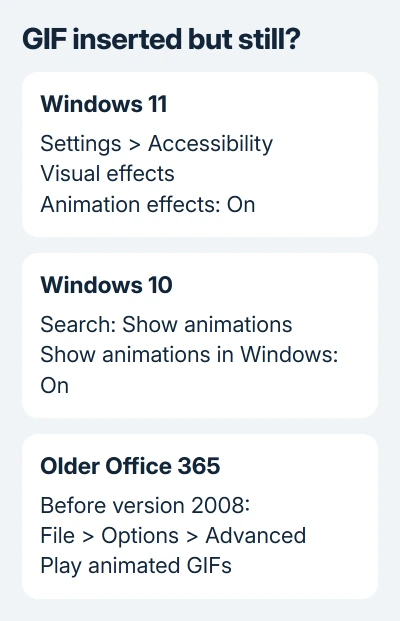
On Windows 11, open Settings > Accessibility > Visual effects and switch Animation effects on. Reopen the message to check playback. This changes Windows motion effects too, so keep your preferred accessibility setting in mind.
On Windows 10, search Start for Show animations. Open the result and turn on Show animations in Windows under Simplify and personalize Windows. This is the Windows control used by newer Microsoft 365 versions.
For Outlook for Office 365 before version 2008, open File > Options > Advanced. Under Display, enable Play animated GIFs. That option belongs to those older Outlook versions; use the Windows setting for newer versions.
If the received GIF stays still, try it in browser Outlook. If it moves there, that points to a playback problem in the other app, rather than a missing picture. Ask which email app your recipient uses if their result differs.
If Outlook still won't play it, use Help in the affected app to contact support. Include the Outlook version, Windows version and whether the same saved GIF animates outside Outlook and in the received web message.
The Short Version
Insert the saved GIF through Pictures with the cursor in the message body. Choose Open in the newer app or browser; the classic app uses Insert. Test a received copy and check Windows animation settings if the GIF stays still.
Checked November 10, 2026.

Isaac Smith is the founder and editor of PC Glance, a website that covers computers, laptops, and technology. He is a tech enthusiast and a computer geek who loves to share his insights and help his readers make smart choices when buying tech gadgets or laptops. He is always curious and updated about the latest tech trends.