
Missing SMS on Android often comes down to the mobile line or the default messaging app. Check signal and Airplane mode first, then make sure the app you're opening is the one selected to receive texts.
Missing every text calls for different checks than missing one sender's messages or just alerts. After a phone change, also check iMessage or RCS. RCS is internet-based messaging, and its registration can remain tied to the previous setup.
1. Check whether texts arrive without an alert
Open your messaging app and look for a recent conversation. Have another person send a new, plain SMS to your number with that conversation open. Use a short sentence without a picture or group recipients.
If it appears, your phone receives texts. Open Settings > Apps, select your messaging app, then open Notifications and allow notifications. Check the conversation's own notification setting if only that person's messages arrive silently.
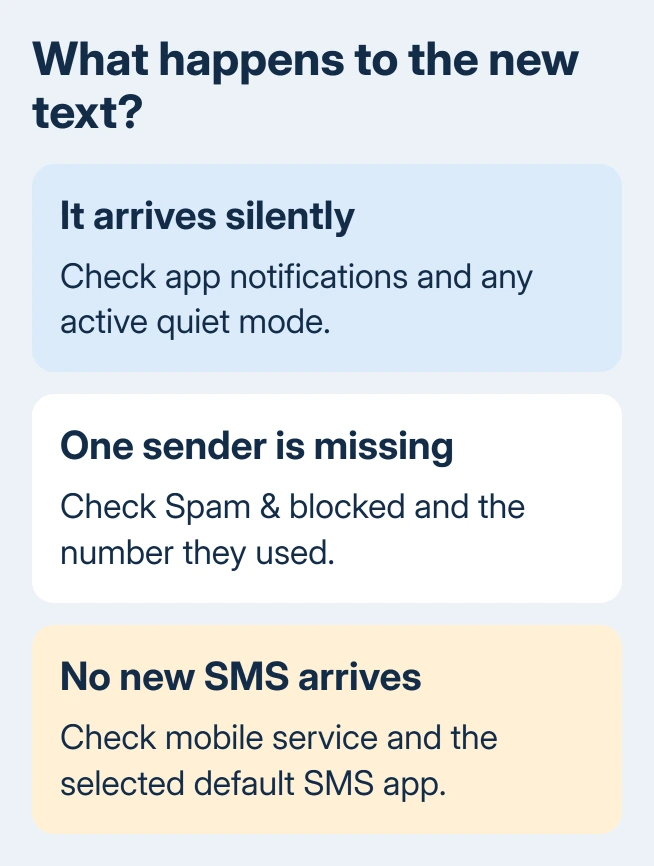
When several apps are silent, check whether a mode or Do Not Disturb is enabled. A silent phone doesn't necessarily have a broken text service. Keep reception and notification checks separate so you don't reset a working connection.
If the fresh message never appears, continue with the mobile line. For older conversations that disappeared rather than new texts that won't arrive, use the Android message recovery options.
2. Restore service on the number receiving the text
Turn Airplane mode off in Quick Settings. Look at the signal indicator. Check for No service, or a message limiting the phone to emergency calls. Browsing over Wi-Fi doesn't check SMS reception on your mobile line.
Restart the phone, then try another incoming text. On a dual-SIM phone, check that the line carrying the number your sender used is enabled. Choosing a different default for outgoing texts doesn't change the number they sent to.
On a Pixel, look under Settings > Network & internet > SIMs. On a Galaxy, use Settings > Connections > SIM manager. Labels vary by manufacturer. Check the number and whether the line is on rather than switching both lines at random.
For a physical SIM, check that it's seated correctly using the phone's own removal instructions. Don't delete an eSIM as a reception test. Getting it back can require your carrier to issue another activation.
Google says to follow its message troubleshooting steps and check signal, carrier support, and plan or credit balance. If calls fail too, request a line check from the carrier before changing app settings.
3. Select the app that should receive SMS
Open Settings > Apps > Default apps > SMS app on a Pixel or a phone with that Settings layout. On a Galaxy, the route is usually Settings > Apps > Choose default apps > SMS app. Select the messaging app you intend to use.
Google Messages and Samsung Messages aren't the same app, even when their names both appear as Messages. Match the icon to the app you normally open. An SMS backup tool can also have become the default during a restore.
After selecting it, open that app and send another test message from the other phone. New texts should now arrive in that app. Changing this selection can't recover permanently deleted conversations.
If this started after restoring a backup, finish the SMS Backup & Restore procedure by returning your regular messaging app to the default. I'd check this before clearing anything; it's easy to miss after a phone transfer.
4. Check the sender's number and blocked conversation
When only one sender's texts fail, open Google Messages > profile picture > Spam & blocked. Some versions put this under More options. Select the conversation and tap Unblock if it was blocked by mistake.
The conversation returns to the Home screen when unblocked. Request a fresh text from them. Messages sent while blocked won't necessarily be delivered afterward.
Compare the mobile number they used with your current number. Also check their saved contact on your phone, including the country code when needed. A recent number change or duplicate contact can send a reply to the wrong destination.
If personal texts arrive but bank codes don't, ask the bank whether it sent the code to the correct number. Then ask your carrier to check short-code or business-message filtering. Don't keep requesting codes while working with an old one.
5. Remove the old phone's messaging registration
After an iPhone-to-Android move, messages from iPhone contacts can still be routed through iMessage. On the old iPhone, open Settings > Apps > Messages and switch off iMessage. Older iOS versions put Messages directly in Settings.
Also turn off FaceTime under Settings > Apps > FaceTime, or Settings > FaceTime on older software. Without the old phone, use Apple's online iMessage deregistration form with your current number.
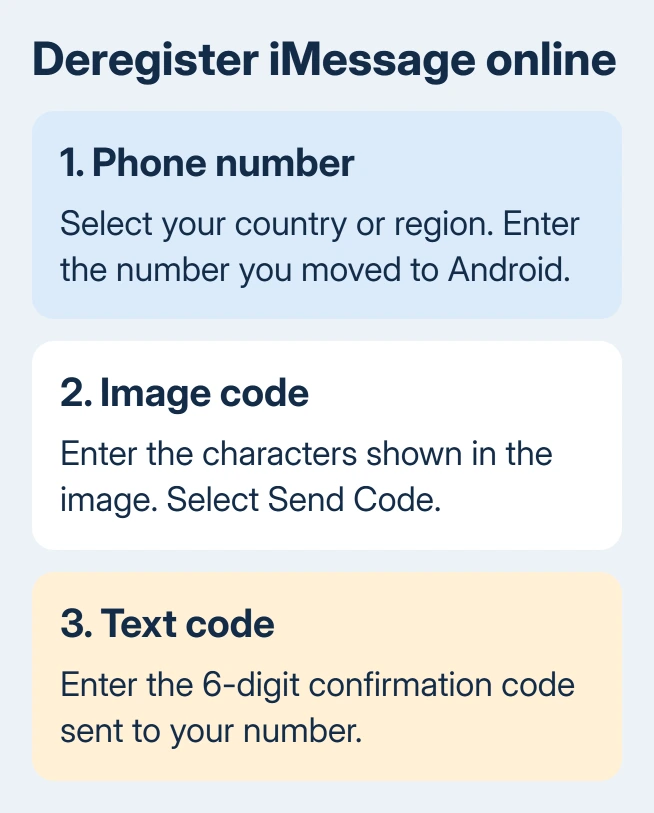
Complete the image-code check, then request the text code. If ordinary SMS can't arrive, have the carrier restore reception first. Deregistering tells iMessage to stop handling your number; it doesn't activate an inactive SIM.
After changing Android phones or messaging apps, old RCS registration can cause a similar gap. If you still have the previous phone, open Google Messages > profile picture > Messages settings > RCS chats there and turn RCS off.
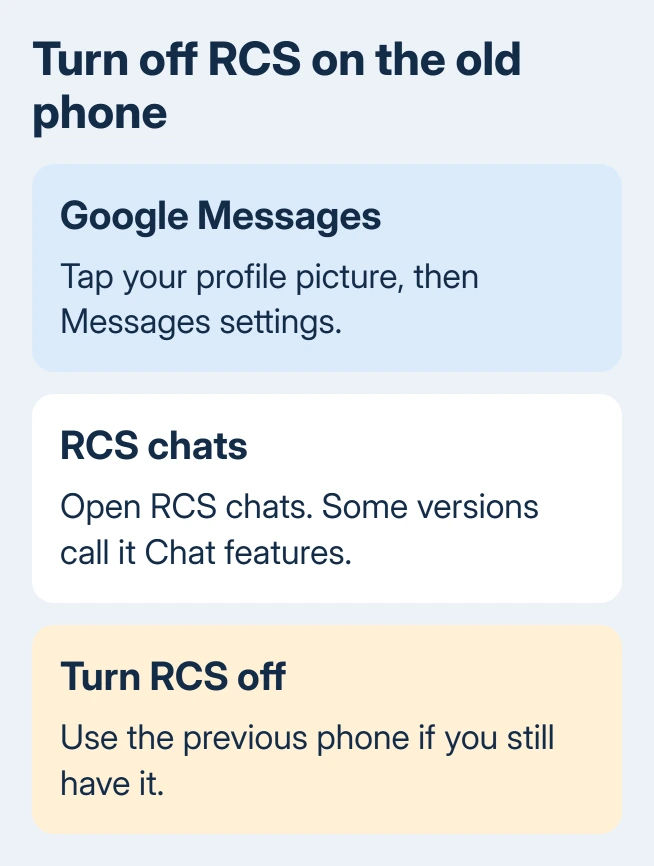
Without that phone, deactivate RCS remotely by verifying your number with its text code. Leaving RCS off for 30 days removes you from RCS group chats.
For some app versions, the menu is called Chat features. Test new incoming messages after the change. If plain SMS still fails from every sender, ask your carrier to check it instead of repeatedly switching RCS on and off.
6. Update the app and clear its temporary files
Open Google Play, find your messaging app and install an available update. If the app warns that storage is too full to receive messages, free space through the phone's Storage settings and try again.
On a Galaxy, Samsung's text-message checks include Settings > Apps > Messages > Storage > Clear cache. Select the entry with your messaging app's icon. Clear cache removes temporary files.
Leave Clear data or Clear storage alone during this check. Those are different controls. Reopen the app after clearing its cache and ask for a new text so you're checking current delivery.
7. Give the carrier a specific delivery failure
If new SMS still doesn't arrive, contact the carrier's messaging or technical support team. Provide the receiving number, two recent failed-message times, the senders' networks if known, and whether outgoing texts and calls work.
Mention a recent number transfer, new SIM or eSIM activation. Ask them to check incoming SMS routing, whether the line is set up correctly, and message blocks. Save important messages before considering a reset that support recommends.
The Short Version
Check whether messages are missing or just arriving silently. Check service, the SMS app and blocked senders, then old messaging registrations after a phone change. Report persistent failures to the carrier with recent delivery examples.
Checked November 10, 2026.

Isaac Smith is the founder and editor of PC Glance, a website that covers computers, laptops, and technology. He is a tech enthusiast and a computer geek who loves to share his insights and help his readers make smart choices when buying tech gadgets or laptops. He is always curious and updated about the latest tech trends.