
The latest Windows update issues depend on the version and KB number installed on your PC. Check those before removing an update.
A failed installation needs different repairs from a new fault after installation, and a newer update may already contain the fix.
As checked November 10, 2026, the Windows 11 26H2 release-health page lists fixes for Remote Desktop error 0xC000000D and a black desktop in certain virtual sessions. Neither description means every updated home laptop has that fault.
1. Record the update and the symptom together
Press Windows+R, type winver and press Enter. Write down the Windows version and full OS build. The version, such as 25H2 or 26H2, identifies the release; the build shows which updates are installed.
In Windows 11, open Settings > Windows Update > Update history. In Windows 10, use Settings > Update & Security > Windows Update > View update history. Copy the KB number and installation date from the relevant entry.
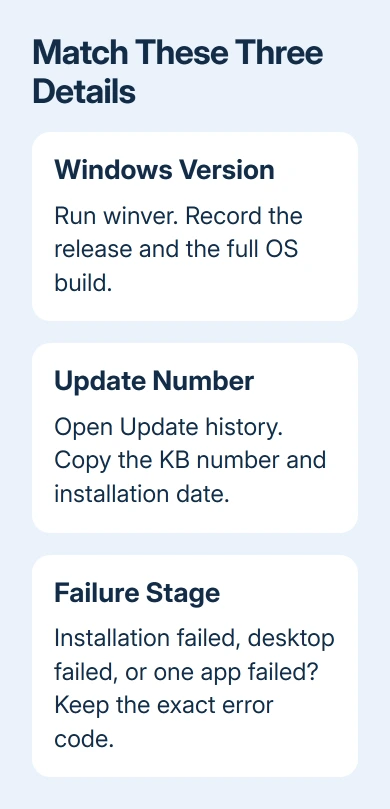
Write down what actually stopped working. Include an error code, whether the update installed successfully, and whether the fault begins before sign-in, after sign-in or inside one app. A date alone doesn't identify the cause.
If installation failed and the old desktop still works, follow the Windows Update error-code checks.
That's a different job from reversing a successfully installed update that changed how an app behaves.
An entry marked successfully installed doesn't mean every feature works. Equally, a problem first noticed after a restart can involve a driver or app installed at the same time.
Use both the KB number and your symptom when checking the official issue description.
2. Match your release to the current issue entry
Open Windows release health and choose the known-issues page for the version shown by winver.
Use the matching Windows 10 or Windows 11 page, rather than assuming the newest Windows 11 list applies.
Read Affected platforms, the originating update and Resolution inside the relevant issue. Those fields tell you whether the fault covers your release and whether a later update repairs it.
An issue marked resolved can still affect a PC missing that repair.
The Windows 11 26H2 page checked for this article was last updated October 28, 2026. It listed the two resolved cases described next. Check the live page again before acting, since a new release can change the available fix.
Don't select a download just because its KB appears in a search result. A KB for another Windows release isn't an interchangeable repair. Start with your PC's Windows Update settings to find updates that apply to it.
For broader Windows 11 25H2 faults, the 25H2 issue guide covers its separate Remote Desktop, audio and sign-in cases.
Keep using the exact Windows version when looking for a repair; the latest update means different things on different PCs.
3. Apply the current fix for Remote Desktop error 0xC000000D
This case affects non-administrator users connecting to remote hosts with Administrator protection enabled. It can report error 0xC000000D and say the token passed to the function is invalid.
It mainly affects remote computers managed by an organization.
For a remote host running Windows 11 26H2, the repair is KB5127936, released October 28, 2026, or later. Have its administrator open Settings > Windows Update > Check for updates, install the offered repair and restart the host.
Microsoft says the 26H2 issue also affects other listed Windows releases. Match the host's installed version before choosing a package.
Try connecting with the same user account after updating. A successful connection without that token error confirms the symptom has cleared. A different error, such as an unreachable host, needs its own network or Remote Desktop checks.
If your organization can't install the fix yet, ask IT about the temporary workaround: changing the Administrator protection policy as described in the linked instructions. Leave that change to the administrator.
Changing security policy on a personal client won't repair a separately managed remote host.
4. Treat a black desktop as this issue only when it matches
The listed 26H2 black-screen issue occurs after sign-in, primarily on Azure Virtual Desktop hosts using FSLogix, the profile-management software used in those sessions.
Some existing profiles are more affected, and Windows Explorer can fail to start.
For that case, KB5127648, released October 13, 2026, and later updates contain the repair. On a managed virtual desktop, give IT the host's release, build and the fact that the black screen occurs after sign-in.
Before that repair is installed, the documented temporary action is Ctrl+Shift+Esc > Run new task, enter explorer.exe, then select OK. It starts the desktop session manually.
Reaching the desktop this way doesn't install the lasting fix.
A home laptop that is dark before the manufacturer's logo doesn't match this description. Neither does a monitor reporting no signal. Describe the stage accurately before uninstalling an update for an unrelated screen problem.
5. Remove an update only when rollback fits the fault
I'd check for the replacement fix before uninstalling a security update. Removing one can remove protection along with the change you're trying to reverse. If the current notes recommend another repair, follow that resolution first.
To remove a particular recent update, follow the supported uninstall route.
Not every update can be uninstalled, so a missing removal option isn't itself another fault.
In Windows 11, open Settings > Windows Update > Update history > Uninstall updates. Select the particular update and choose Uninstall if offered. On Windows 10, open View update history > Uninstall updates from Windows Update.
When Windows won't start, recovery has a separate route: Troubleshoot > Advanced options > Uninstall Updates. An encrypted drive may request its BitLocker key, so get that key ready before entering recovery.
Choose the update type that matches the change you're trying to undo.
Afterward, try the same task and note the result. If it still fails, don't keep removing older updates at random. Give support the symptom, installed build and result after removal to help them decide what to try next.
Get help with the build and the failure stage
Open Get Help and describe the exact update fault, including the KB, winver details and error code. For a work-managed PC, send those details to IT and ask whether a safeguard, managed update schedule or known issue applies.
For a failure inside one app, include its name and version too. Repairing that app may be a better fit than changing Windows.
Describe the original problem too, so support can judge whether the update is actually involved.
The Short Version
Match the Windows version, OS build, KB and symptom before choosing a repair. Check the live release-health entry for a newer fix.
The listed 26H2 Remote Desktop and virtual-desktop faults have specific repairs; uninstall only when the matched situation calls for it.
Checked November 10, 2026.

Isaac Smith is the founder and editor of PC Glance, a website that covers computers, laptops, and technology. He is a tech enthusiast and a computer geek who loves to share his insights and help his readers make smart choices when buying tech gadgets or laptops. He is always curious and updated about the latest tech trends.