

For Samsung Game Booster to turn on Wi-Fi automatically, set a game-opening action in Modes and Routines. For Wi-Fi at familiar locations, use Intelligent Wi-Fi. These controls are separate from Game Booster's performance settings.
On One UI 7, Game mode in Modes and Routines handles options previously associated with Priority mode. Decide whether Wi-Fi should turn on when you open a game or arrive somewhere before changing settings.
Choose between opening a game and arriving somewhere
A routine that runs when a game opens is useful when you normally leave Wi-Fi off, then want it enabled for selected games. It can act whenever that app opens, including away from home. The phone still needs a reachable network it can join.
Intelligent Wi-Fi works around frequently used locations. It isn't watching for one game to launch. Choose this when the goal is returning to home Wi-Fi without opening Settings each time you arrive.
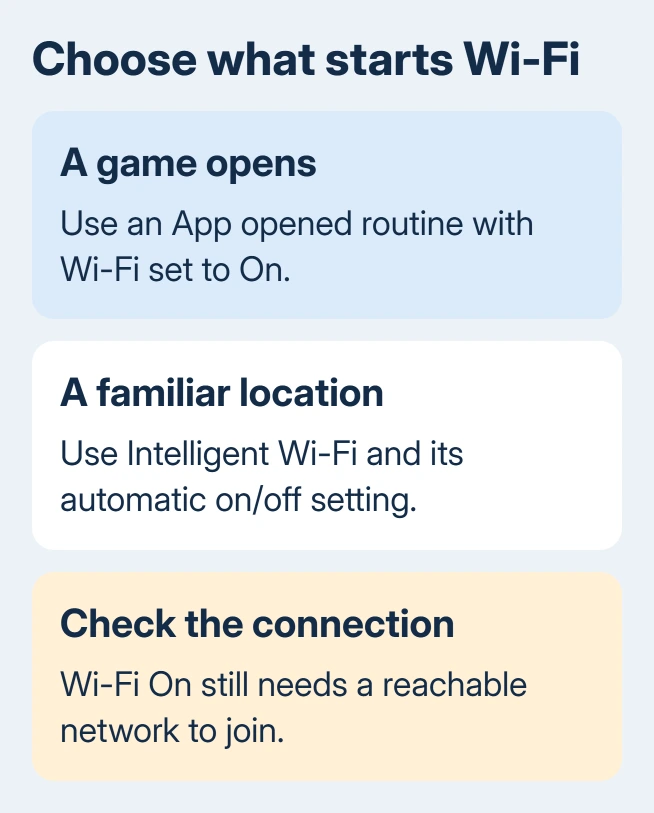
Enabling Wi-Fi and joining a network are separate events. A saved network in range can connect automatically; a new network can still need its password. Turning Wi-Fi on doesn't create internet service.
Before building the routine, turn Wi-Fi on manually and join the intended network once. Open the game and check that its online part works. That way, you know the connection works before asking a routine to turn it on.
Build a routine for the games you choose
Open Settings > Modes and Routines, then select Routines. Tap the plus button to create a routine. Some versions show Create routine instead. Make sure you're editing a routine rather than a preset mode.
Under If, select App opened, choose the game or games and tap Done. Select the actual game, rather than only Gaming Hub, if you want the action when the game itself opens.
Under Then, choose Connections > Wi-Fi, select On and confirm. Tap Save, give the routine a recognizable name such as Game Wi-Fi, and finish with Done when offered.
Samsung's routine instructions explain the If trigger, Then action and save flow. Check which triggers and actions your Galaxy version offers. If Wi-Fi isn't offered, don't substitute a mobile-data action.
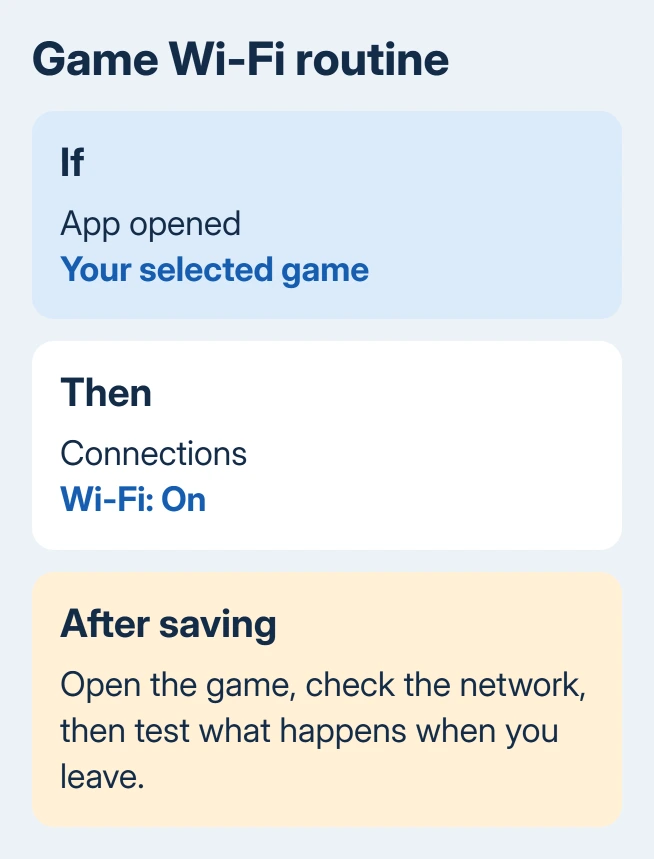
Leave the routine screen and open a selected game with Wi-Fi initially off. Check the Wi-Fi control in Quick Settings after the game launches. Then check the network name, since Wi-Fi can be on without connecting to a network.
Close the game and check what happens again. Routines can reverse their actions when the condition ends. Review any When routine ends controls shown on your version, rather than assuming Wi-Fi will stay on after you stop playing.
Use Game mode when you also want gaming restrictions
For One UI 7's gaming mode, open Settings > Modes and Routines > Game on the Modes tab. Select when the mode should turn on automatically, then continue with Next.
Review Do not disturb, choose the other actions you want, then finish with Done. Check the finished mode before using it. A mode can change notification behavior as well as connection settings.
The Game Booster changes for One UI 7 move the old Priority mode's call and notification controls into Modes and Routines. Performance optimization remains a separate choice.
For Wi-Fi alone, I'd use the simpler app-opening routine. It makes the trigger and action easy to read without configuring a whole gaming mode. Use Game mode when you also want its extra actions.
Avoid adding the same Wi-Fi action to several routines and a Game mode at once. If Wi-Fi changes unexpectedly afterward, having one saved automation makes it much easier to check what caused the change.
Turn Wi-Fi on automatically at familiar locations
Open Settings > Connections > Wi-Fi and turn Wi-Fi on. Tap More options, the three dots, then Intelligent Wi-Fi. Enable Turn Wi-Fi on/off automatically if your phone offers it.
This option controls Wi-Fi at frequently used locations. The US connection guide says this needs a SIM, and options can vary with your model and carrier. A missing switch on a tablet or another Galaxy isn't a reason to reset it.
Open the switch's details if available and review the networks or choices shown. Leave Wi-Fi available long enough to confirm the intended familiar network connects. This location-based control isn't an immediate launch command for a game.
If the saved network needs checking, use the Android Wi-Fi password controls. Keep the network saved while you look up its password. Forgetting it means you'll need to enter that password again before testing the routine.
Switching to a cellular connection has a different job: it uses your SIM connection when Wi-Fi is unstable. Switch to better Wi-Fi networks is another separate control for moving between Wi-Fi connections.
Find the older Bixby Routines route
Older supported Galaxy software can call the feature Bixby Routines. Look under Settings > Advanced features > Bixby Routines, then open Add routine. Choose the If condition and a Then action that enables Wi-Fi.
That interface can finish with Next, a name, then Done rather than the modern Save sequence. Follow the labels on your phone. Bixby Routines normally restores the previous settings after its trigger ends.
The automation feature is separate from spoken requests in the Bixby assistant. Changing the Side button's assistant shortcut doesn't create, remove or configure a game-opening routine.
If neither Modes and Routines nor Bixby Routines is present, check the model's supported features and available software updates. Menu names differ by generation, and not every Galaxy has the same automation controls.
Correct a routine that doesn't produce the intended result
Open the saved routine and inspect its selected app. A shortcut, cloud-game app and locally installed game can be different entries. Edit the condition to match the app you're actually launching, then run the same test again.
If Wi-Fi turns on but the game stays offline, try another app on that network. A Wi-Fi icon alone doesn't show that the router has internet access. Repair the connection before changing the routine's trigger again.
If the routine still doesn't work, report it to Samsung support through Samsung Members. Include the model, One UI version, If and Then entries, and whether manual Wi-Fi works. Attach a screenshot of the routine.
The Short Version
Choose an App opened routine for selected games or Intelligent Wi-Fi for familiar places. Check the network and what happens when the game closes. Older phones may use Bixby Routines with different save controls.
Checked November 10, 2026.

Isaac Smith is the founder and editor of PC Glance, a website that covers computers, laptops, and technology. He is a tech enthusiast and a computer geek who loves to share his insights and help his readers make smart choices when buying tech gadgets or laptops. He is always curious and updated about the latest tech trends.