
Chrome's Your connection to this site is not secure warning appears when a site doesn't support secure HTTPS. Try its correct HTTPS address first. If it won't open, the owner needs to fix the site's connection.
The Not secure label and a warning before opening HTTP can both mean the connection isn't encrypted. Your connection is not private means a secure connection failed instead. Read its error code before choosing a fix.
1. Read the warning and the address together
Click the address bar so you can inspect the full address. Look at whether it begins with http:// or https://, and read the site name carefully for misspellings. A familiar logo on the page doesn't verify the address.
For an already open page, click the site information icon to the left of the address. Chrome explains the connection there. Google's connection security guide distinguishes an unsecured connection from a site flagged as dangerous.
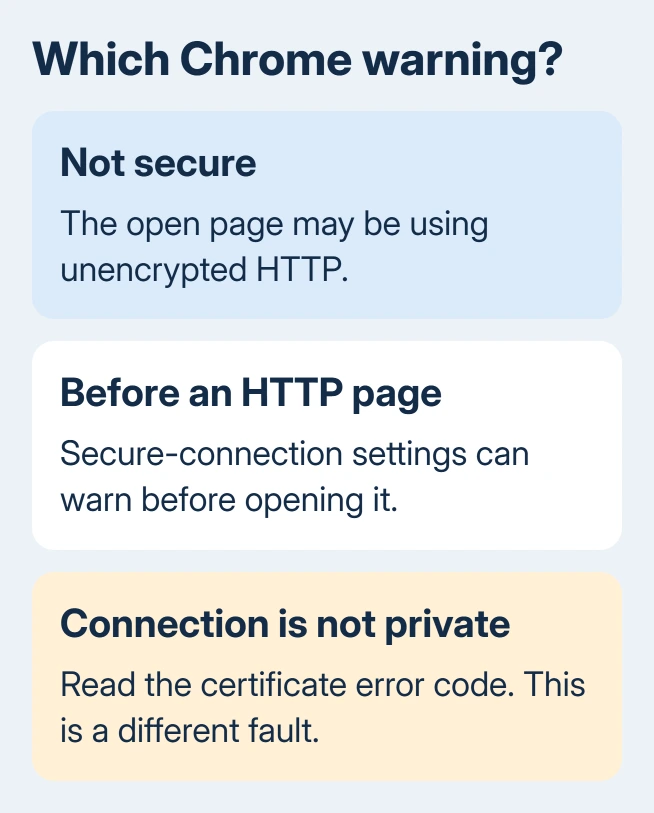
HTTP traffic can travel without encryption, so others may see or change it. With HTTPS, information travels encrypted from Chrome to the server and back. A normal-looking page can still use insecure HTTP.
The full-page Your connection is not private message is different. Copy its code, often beginning NET::ERR_CERT, and use the Chrome certificate-error checks. A wrong clock can affect certificates; it doesn't add encryption to HTTP.
A red Dangerous warning concerns a site flagged by Safe Browsing. Leave that page. Don't treat it as an ordinary HTTP connection warning and work through the same access choices.
2. Try the correct HTTPS address
If the address starts with http://, change only that beginning to https:// and press Enter. Keep the site name and page path intact. This tests whether the same server offers a secure version of the page.
If it opens, inspect the address again and check the site information panel. Update the bookmark or shortcut that brought you to HTTP. Otherwise the old link can keep sending you back to the insecure address.
If the secure address fails or redirects back to HTTP, stop trying variations of the name. Open the organization through a known bookmark, its official app or an address you've verified separately, especially for sign-in or payment.
Do not enter passwords, payment details or private information while the connection remains insecure. Switching from public Wi-Fi to home Wi-Fi doesn't turn an HTTP connection into HTTPS.
If HTTPS produces a certificate error, use the error-code route in the first section. For HTTPS to work, the server must offer a secure connection and Chrome must accept its certificate.
3. Check why Chrome warns before the page opens
With Always use secure connections enabled, Chrome tries HTTPS and can warn before visiting a site that doesn't support it. That's different from a previously loaded HTTP page showing a small address-bar label.
On a computer, open More > Settings > Privacy and security > Security. Under Secure connections, inspect Always use secure connections. Read the selected option before changing anything.
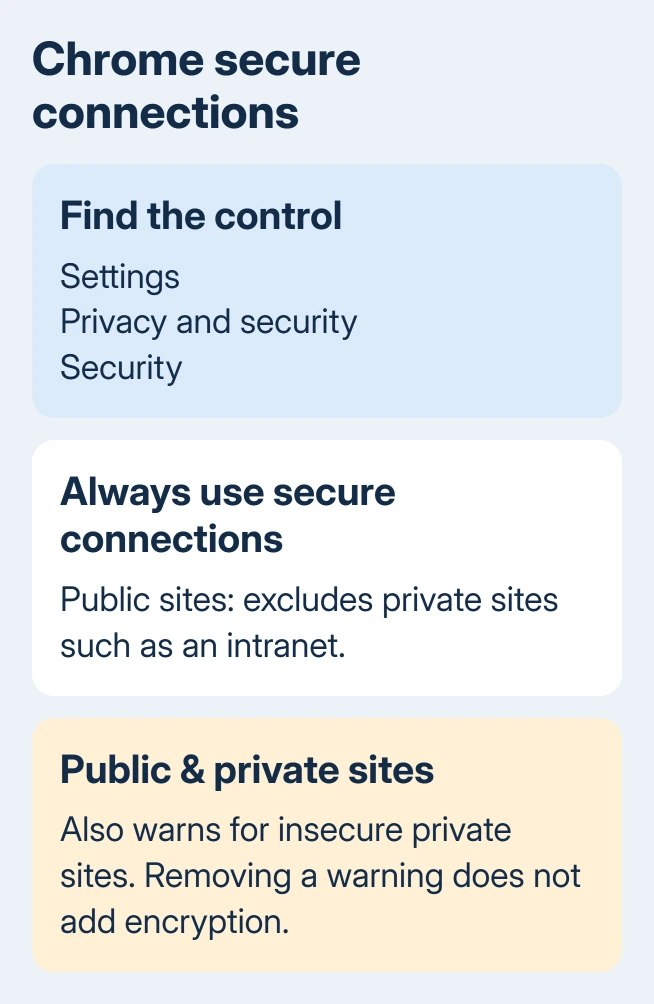
The two choices are Warns you for insecure public sites and Warns you for insecure public & private sites. The public-only choice excludes private sites such as a company's intranet; the other includes them.
Keep those choices in mind when opening a home router or workplace service. A private address can explain why a different warning choice affects it. It doesn't mean the connection has become encrypted when the warning disappears.
Google's secure connection settings describe both choices. Your workplace or school administrator can control these browser settings. Ask IT to check the service and policy when the controls aren't editable.
If Chrome keeps rewriting an HTTP address before you reach your device, the HTTP-to-HTTPS redirect guide covers remembered redirects and site rules. An HTTP page that stays open with Not secure has a different connection problem.
4. Handle an old local device without changing every site
An older router, printer or storage appliance can have a local web interface without modern HTTPS support. Check your local network and the address in the model's instructions before deciding how to reach it.
Check the device maker's instructions for a supported secure management address or firmware update. A newer firmware release can change available management options, but don't assume every old product can gain HTTPS through an update.
I'd check the model's supported management method before switching off browser warnings globally. You need to know which device you're reaching and whether it offers encryption, even if you can make the label disappear.
For workplace equipment, send the address and exact warning to IT. Ask whether there is an HTTPS hostname or approved management route. Changing certificate trust or installing a file from the warning page isn't a general repair for HTTP.
5. Fix the server when the website belongs to you
The lasting repair for a public HTTP site is working HTTPS. Ask the hosting provider or site administrator to enable a valid certificate for the exact hostname and make the secure pages load correctly.
Check the main name and any www version visitors use. A secure home page doesn't fix a warning on another hostname or page. Give support the complete failing address so they check the destination visitors actually reach.
After HTTPS works, update old links and redirect HTTP traffic to the secure version. Check the final address and connection information in Chrome. The label changes with the connection; hiding it doesn't fix encryption.
If the page uses HTTPS but an individual file download is blocked, that file can have its own insecure URL. Use the insecure-download explanation to tell that warning apart from a problem with the page's connection.
6. Send the site owner the details needed to repair it
For someone else's site, report the complete URL, exact warning and whether the HTTPS version opens. Ask for a working secure link. A screenshot with personal information removed can help distinguish the label from a certificate error.
Clearing cookies, reinstalling Chrome or restarting the router won't add HTTPS to a server that doesn't provide it. Use those fixes for the problems they address. Resetting a working browser won't repair the site's connection.
For an account or financial service, use its official support channel or app until a secure connection is available. If a managed browser warns on an internal service, ask IT to check its HTTPS configuration and browser policy together.
The Short Version
Match the warning to the full address. Try HTTPS and replace old HTTP bookmarks when it works. The owner must fix an HTTP-only site. Handle certificate and dangerous-site warnings separately, and keep private information off insecure pages.
Checked November 10, 2026.

Isaac Smith is the founder and editor of PC Glance, a website that covers computers, laptops, and technology. He is a tech enthusiast and a computer geek who loves to share his insights and help his readers make smart choices when buying tech gadgets or laptops. He is always curious and updated about the latest tech trends.