
Yes, restart your PC after an NVIDIA driver update when the installer asks, and after a clean installation. Wait for installation to finish first. Without a restart prompt, a reboot before your next game is still a sensible check.
A brief black screen during installation isn't a request to turn the computer off. Check whether the installer is still working, has finished successfully or says something failed before choosing your next step.
Finish the installation before restarting
Leave the NVIDIA installer open until it shows each component's result. A download reaching 100 percent doesn't mean installation has finished. Downloading gets the package onto your PC; installation changes the software Windows uses.
The display can blink or temporarily change resolution while that software is replaced. Wait for the installer to show its completion screen. Don't press the case's reset button just because the picture changes.
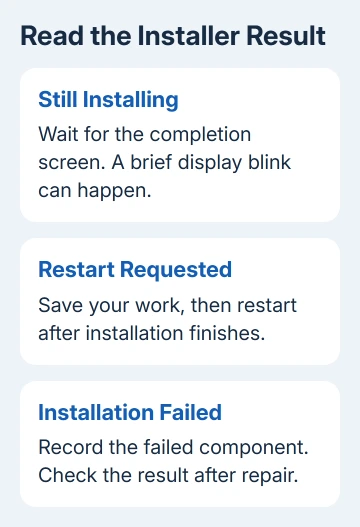
When a Restart now option appears, save your open work and use it. When the installer asks for a restart, it still needs that step to finish the job. Closing its window doesn't take care of it.
If installation failed, write down which component failed. Restarting is a useful first recovery step, but a failed Graphics Driver entry still needs attention. The NVIDIA app opening doesn't mean the driver installed successfully.
I'd finish this during a break before a game, rather than leave a requested restart waiting until the next crash. Then you can try the game knowing the installation has finished and see whether the new driver works properly.
Use Windows Restart when the installer has finished
For Windows 10 and 11, open Start, select Power, then choose Restart. Save documents first and let any Windows update already underway finish. The computer should return to the normal sign-in screen.
Choose Restart instead of putting the PC to sleep or closing a laptop lid. Those actions pause your session instead of restarting Windows as the installer requested. Shutting down and starting later adds an unnecessary extra step.
After signing back in, open the game or program that prompted the driver update. Use the same display and usual settings for that first check. A working desktop alone doesn't answer whether the original game problem is fixed.
If a game was open during installation, close it and launch it again after restarting. A game left running during the driver change won't give you the same check as one you've just opened with the installation finished.
For the Windows controls themselves, the power options instructions cover shutting down, sleeping and restarting. None of these steps requires unplugging the PC or removing its battery.
Treat a clean installation as a separate case
An ordinary update and Perform a clean installation aren't the same choice. The clean-install option is in the manual installer's Custom (Advanced) route. Use it for repairs, rather than choosing it for every update.
NVIDIA says to reboot at the end of its manual clean-install procedure. If you chose a clean installation, restart even if you expected to carry on using the PC without a break.
Close open applications before running the installer, including browsers, video players, games and graphics monitoring or tuning tools. If installation has failed, prepare that way before trying the manual package.
Wait until Windows Update has finished installing its own updates before starting another driver installation. Two installers running at once can interfere with the driver setup. If it fails, it's also harder to tell what went wrong.
A clean installation can reset driver settings and profiles. Check any custom settings you rely on afterward. It doesn't mean reinstalling Windows, deleting games or clearing every folder with NVIDIA in its name.
Check which driver Windows actually lists
Right-click Start, open Device Manager, and expand Display adapters. Open your NVIDIA adapter's Properties, select Driver, and note the version and date. Check the NVIDIA entry on a laptop that also lists Intel or AMD graphics.
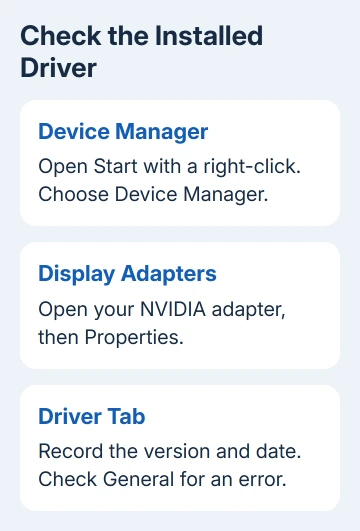
Compare it with the package you intended to install. Windows and the NVIDIA app can present version numbers differently, so check the release details before assuming a longer Windows version number means a different release.
An error icon, missing NVIDIA adapter or Microsoft Basic Display Adapter needs a closer look. Open General in the device's Properties and record its status. Give support that message rather than saying the update didn't stick.
Don't uninstall the integrated graphics entry simply because your laptop has two adapters. Both can belong to its normal display setup. The question is whether the NVIDIA driver installed and whether the program now works.
If the update caused trouble, the graphics-driver repair steps cover updating and rolling back the driver. Check the installer's result before trying the same package again. If the new driver caused the fault, use the rollback steps.
Follow the remaining symptom instead of repeating restarts
A successful installation followed by a working game needs no further repair. Keep using the PC normally. The update doesn't need a fresh restart for every game launch to take effect.
If the display remains black, use the Windows black-screen checks. Note whether the manufacturer's startup logo appears and whether the screen goes black only when Windows loads.
For repeated installation failures, contact NVIDIA Support through the page linked earlier. Include the GPU model, Windows version, package version, failed component and whether this was an ordinary update or clean installation.
If a laptop's display fails after the generic driver, send its full model name to the manufacturer. Ask which graphics package supports its display setup. A driver restart question shouldn't turn into random BIOS changes or a Windows reset.
The Short Version
Let installation finish, then honor its restart request. A clean installation ends with a reboot. After an ordinary update without a prompt, restart before testing the game; sleep and closing the lid don't replace it.
Checked November 10, 2026.

Isaac Smith is the founder and editor of PC Glance, a website that covers computers, laptops, and technology. He is a tech enthusiast and a computer geek who loves to share his insights and help his readers make smart choices when buying tech gadgets or laptops. He is always curious and updated about the latest tech trends.