

The official Claude for Outlook add-in summarizes threads, drafts replies and helps schedule meetings. Install Anthropic's Marketplace listing, open an email in Outlook, and use its Claude button to sign in.
It's currently a beta for paid Claude plans. Check the mailbox requirements first: installing Outlook on a computer doesn't mean every account inside it can use the add-in.
Check the account before installing
Exchange Online through Microsoft 365 is required. It works in browser Outlook, new or classic Windows Outlook with a Microsoft 365 subscription, and subscription Outlook on Mac.
Outlook on iPhone and Android, on-premises Exchange mailboxes, and Outlook 2016 or 2019 perpetual or volume-licensed editions aren't supported. Adding a Gmail account to the Outlook app doesn't turn that mailbox into Exchange Online.
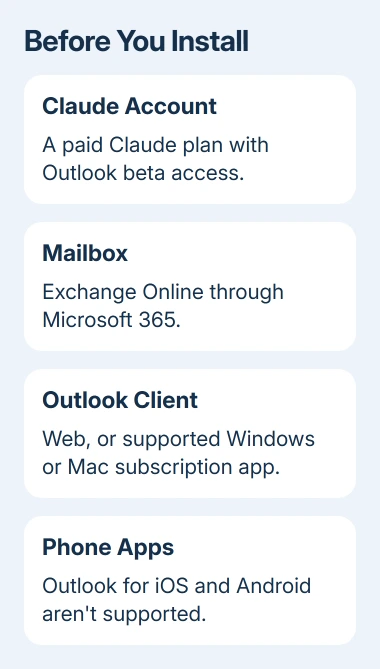
Use the Claude account with your paid plan when signing in. You'll sign in separately to your Outlook mailbox and your Claude account. A Microsoft 365 subscription alone doesn't supply a paid Claude plan.
Anthropic's Outlook setup instructions list Pro, Max, Team and Enterprise access and the supported clients. For a work mailbox, check your organization's approval for using the add-in with work email before starting.
I'd confirm those account requirements before troubleshooting an absent button. Reinstalling the same add-in won't change an unsupported mailbox or phone app.
Install the official Marketplace listing
Open the Claude for Outlook listing. Check that its publisher is Claude by Anthropic for Office, then select Get it now and follow the account and installation prompts.
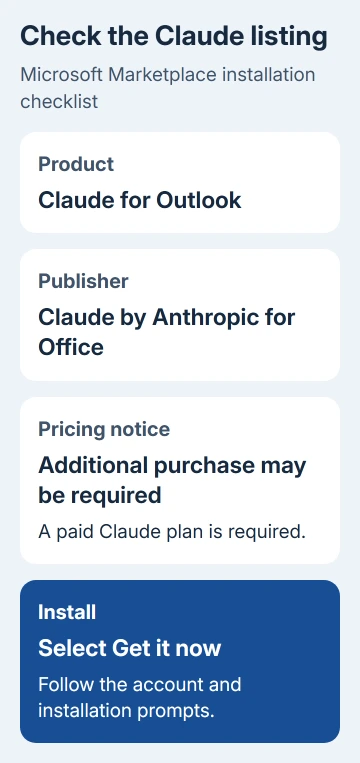
Complete installation for the Microsoft account that owns the mailbox you intend to use. If your browser is signed into another work account, check the displayed identity before continuing.
Installing for one mailbox won't put the button in an unrelated mailbox.
In new Outlook, the built-in store is also available through More apps > Add apps. Search for Claude for Outlook, open its details and review the permissions before choosing Add.
Classic Outlook for Windows uses Home > All Apps to reach the store in current versions. Older builds can label that button Get Add-ins. These are web add-ins, so the COM Add-ins dialog isn't the installation route for this product.
On Mac or the web, use the official listing and then open the supported Outlook client for that mailbox. Microsoft's Outlook add-in instructions cover the store and message-level Apps controls.
If installation is blocked by an organization notice, save its exact wording. Ask IT to approve or deploy the official add-in for your mailbox.
Don't substitute an unofficial extension just because it also has Claude in its name.
Open Claude from an email
Open Outlook and select an email. Choose Claude in the message ribbon, then sign in with your Claude credentials. The task pane should open beside the message, where you can ask about that conversation.
If the button is missing, look in Apps or More apps while the email is open. The setup instructions also give a reading-pane route: open its overflow menu, choose Customize actions, and check Claude under Apps.
Pinning the task pane keeps it open as you move between messages. Check the selected message before making a request, especially after changing folders. Start with a short conversation whose contents you recognize.
Ask for a summary of the decision and any unanswered questions. The summary's citations should open the source messages in Outlook. Follow those citations to compare names, dates and commitments before relying on the result.
If Outlook itself won't open, the Outlook startup checks address that separate failure. The add-in needs a working supported client and an internet connection.
Draft a reply and review it in Outlook
Tell Claude who the reply is for, what you want it to say and what you're agreeing to. For example, ask Claude to draft a reply accepting the proposed date while requesting the missing attachment.
Claude places the draft in Outlook's compose pane with the recipients, subject and body. It stays unsent until you select Send.
Review the recipient list as carefully as the wording, particularly when the conversation has several participants.
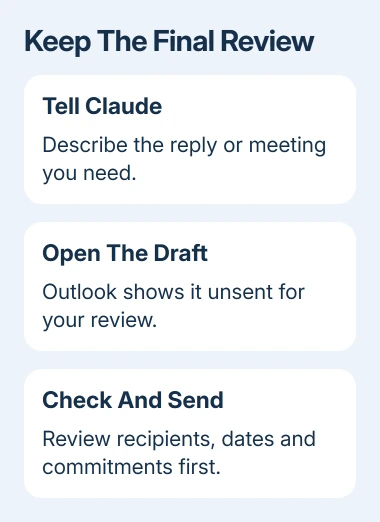
Check dates and amounts against the actual thread. Read quoted or attached information before approving a promise based on it. A polished sentence can still say something you didn't intend to agree to.
The add-in leaves off the closing so Outlook can append your configured signature. If your signature is missing or duplicated, check the signature settings for your Outlook version before adding the same closing to every request.
Use attachments and meeting requests within their limits
Claude reads .docx and .xlsx attachments on the open message. For a PDF, save and upload it through the sidebar; PDFs aren't currently read inline. PowerPoint attachments use the cross-app workflow.
For scheduling, ask for a meeting length, attendees and a date range. Claude checks free/busy information for calendars you can see and prepares an Outlook invite. Review its time zone, attendees and agenda before sending it.
The add-in can only use calendars your account already has access to. Ask attendees for their availability or ask them to share their calendar through your organization's normal process.
All-day events aren't supported by the current scheduling feature. Create those directly in Outlook. Keep a normal email or calendar workflow available while using a beta, especially for an urgent invitation.
When approval or the button still blocks setup
An administrator can deploy the add-in through Microsoft 365 admin center > Settings > Integrated apps. The official setup page also includes the Microsoft Graph admin-consent steps, which grant the mailbox access needed by the service.
Send IT the official documentation and exact approval message. If store access is disabled, ask IT to use the documented manifest-installation route rather than changing organization policy yourself.
If you can't sign in or the pane won't load after IT deploys the add-in, contact Claude support with the Outlook platform and version, mailbox type, Claude plan and exact error.
If an add-in deployed by your organization doesn't appear, ask IT to check that it was assigned to your account.
The Short Version
Confirm that your Exchange Online mailbox and paid Claude plan are supported, install the official Marketplace add-in, and open it from an email.
Start with a thread summary, then review every reply draft and meeting invitation in Outlook before sending.
Checked November 10, 2026.

Isaac Smith is the founder and editor of PC Glance, a website that covers computers, laptops, and technology. He is a tech enthusiast and a computer geek who loves to share his insights and help his readers make smart choices when buying tech gadgets or laptops. He is always curious and updated about the latest tech trends.