
AirPods show their battery levels on your iPhone when they're awake and connected. Open their case or take the earphones out, then check their Bluetooth details in Settings. For a quicker everyday view, add the Batteries widget.
The earphones and case have separate batteries. A full battery in one part doesn't mean every part is charged, and the case's colored light gives less detail than the percentage on your phone.
Check the charge through Settings
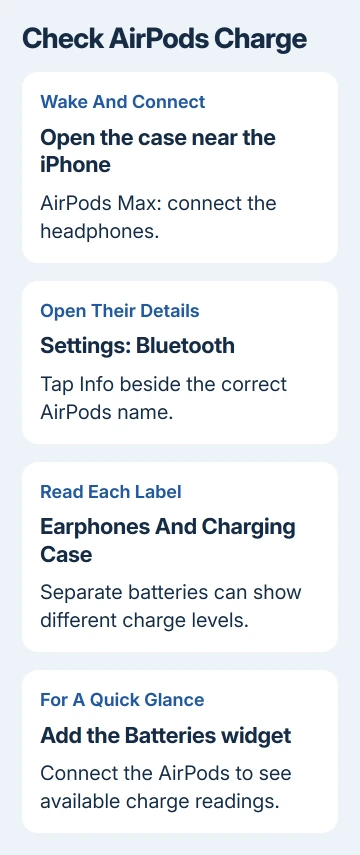
Keep the AirPods near the iPhone and open the case lid or take the earphones out. Turn on Bluetooth on the iPhone paired with these AirPods. A closed case isn't the best starting point for a fresh reading.
Open Settings > Bluetooth, locate your AirPods, and open their details using the Info button beside the name. Check the charge information shown for the connected earphones and case.
Apple says to use this Settings route in its charge-status instructions. On current iOS, connected AirPods can also appear by name near the top of Settings, giving you another route into their controls.
If several pairs are listed, match the name to the pair you're using. Checking an old saved pair won't show the charge of the AirPods in your ears. Make sure that pair is connected, rather than just saved in the list.
AirPods Max don't have an earbud charging case, so don't expect a separate case battery reading. Check the headphones' charge rather than treating their Smart Case as another powered accessory.
Add the Batteries widget for regular checks
The iPhone's Batteries widget can show the phone and connected accessories, including AirPods. Use it when you want to see the charge without opening Bluetooth settings each time.
- Press an unused Home Screen area and keep holding until its icons jiggle.
- On current iOS, tap Edit > Add Widget. On older versions, tap the Add control in the upper corner.
- Search for Batteries and select it.
- Swipe through the widget sizes. Choose one with room for the devices you want to see.
- Tap Add Widget, place it where you want, then tap Done.
Connect the AirPods and check the widget again. A larger widget is useful when the iPhone, a watch and earphones are all competing for space in the same small panel.
I'd use the widget for everyday checks and Settings when something looks wrong. If the case icon is missing, open the case before assuming its battery has failed.
The widget shows accessories that can report their charge. It doesn't list every Bluetooth device you've saved on the phone. Reconnect the pair you want to check instead of expecting every old device to remain visible.
Read the earphones and charging case separately
AirPods can show a combined earphone reading or separate left and right values, depending on their state and charge. Look at the labels beside the readings rather than assuming the first percentage belongs to the case.
To read the charging case level, open it near the phone with the AirPods available. If the case doesn't appear in the widget, use the Settings route to check the information currently available for the pair.
One earphone can have less charge than the other. For example, using a single AirPod uses its battery while its partner remains in the case. Compare the individual readings when one stops playing earlier than expected.
If one earphone repeatedly stays low after being returned to the case, follow our AirPod charging checks. That guide addresses contact and charging problems rather than simply showing the battery display.
Check the earphones' percentage separately from the case's. A charged case can refill them, but the earphones must actually be seated and charging for that to happen.
Understand what the case light is telling you
With the AirPods in the case, the status light shows the earphones' charge state. With the AirPods out, it shows the case's charge state. This is why the same case can show a different color after you remove the earphones.
Green means fully charged. Amber means the remaining charge is short of a full charge. Use the iPhone when you need a number; the light isn't a percentage display and can't tell you an exact amount of listening time.
Some newer models with current firmware also show brief amber pulses or flashes for particular charge conditions. Don't judge a brief animation by the rules for a steady light alone. Check the phone's battery display for the actual reading.
The light is on the front of many cases, including AirPods 3 and later and AirPods Pro cases. On the Lightning Charging Case for AirPods 1 and 2, it's inside, between the spaces for the earphones.
If no light appears and the phone shows no charge information, charge the case and try again. A case with no usable power can't give you the same behavior as one that wakes normally when opened.
Use charge alerts on supported models
Low-charge notifications appear on the iPhone at 20, 10 and 5 percent. The earphones also play a tone at 10 percent and another shortly before shutting off. Those alerts are reminders, not a substitute for checking before a long call.
Charging Notifications are a separate feature for supported models, including AirPods Pro 2, AirPods 4 with ANC, AirPods Pro 3 and the supported AirPods 5 wireless-case model. They require current firmware and iOS 26 or later.
Wear your AirPods, then connect them with the iPhone. Open Settings > your AirPods > Battery, then enable Charging Notifications if the option is available. An older model won't gain that setting by adding a widget.
Optimized Battery Charging can delay a full charge on supported earphones to reduce time spent fully charged. A pause near 80 percent can be intentional. Check that setting before treating every pause as a faulty charging case.
When the iPhone won't show a reading
Check Bluetooth and open the case again beside the phone. Try the Settings details view as well as the widget. If the earphones aren't connecting at all, fix the connection before relying on their battery display.
Our AirPods reset instructions separate the model-specific reset methods. Use that route for a persistent pairing problem after the simple connection and charging checks, rather than resetting a working pair just for a widget.
If a charged pair connects and plays but its battery readings stay missing or look wrong, ask Apple Support about AirPods charge reporting. Give the model, iPhone's iOS version and whether Settings and Batteries show the same result.
The Short Version
Wake and connect the AirPods, then open Settings > Bluetooth and their Info details. Add Batteries for quick checks. Read the earphones and case separately, and use the percentage rather than the case light for an exact charge level.
Checked November 10, 2026.

Isaac Smith is the founder and editor of PC Glance, a website that covers computers, laptops, and technology. He is a tech enthusiast and a computer geek who loves to share his insights and help his readers make smart choices when buying tech gadgets or laptops. He is always curious and updated about the latest tech trends.