
On iOS 26, find blocked numbers in Settings > Privacy & Security > Blocked Contacts. iOS 18 keeps the list in Settings > Apps > Phone > Blocked Contacts. The menu moved between versions, so the route depends on your iOS version.
This list shows contacts you've blocked, including phone numbers and email addresses. It doesn't list every call that a spam filter silenced, and it doesn't contain a readable archive of blocked messages.
Open the blocked list for your iOS version
Check Settings > General > About > iOS Version if you're unsure which layout your phone uses. Then use the matching route rather than switching unrelated call settings to make an older instruction fit.
On iOS 26 and current software, open Settings, choose Privacy & Security, then tap Blocked Contacts. This is the shared place to manage blocked contacts rather than a separate list hidden only in Phone settings.
Apple says you can manage blocked contacts from this screen, including removing individual entries. Open the list to review it; you don't need to tap Edit merely to see which entries are there.
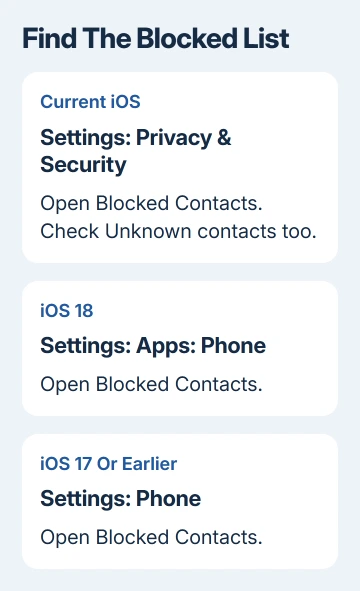
On iOS 18, open Settings > Apps > Phone > Blocked Contacts. The Apps section is part of the route on this version. A guide that says to look for Phone directly in Settings is using an earlier layout.
For iOS 17 and earlier, use Settings > Phone > Blocked Contacts. These older versions also let you manage blocks through apps such as Messages and FaceTime. Phone is a simple place to start when you're looking for a number.
For the broader settings move introduced with iOS 18, our guide to finding app settings on iPhone explains why Phone and Messages appear inside Apps on that version.
Check both saved contacts and unknown entries
The list can show a saved contact's name instead of the number you're looking for. Compare the contact's actual phone numbers and email addresses when the name alone doesn't explain why the entry is blocked.
On the current blocked-contact screen, unknown entries can be grouped under Unknown contacts. Open that group when the number wasn't saved in your address book. An empty named-contact section doesn't mean the entire list is empty.
Check the full number, including the country code, against the call or message you're checking. A familiar final few digits aren't enough to identify an entry safely, especially in a long list.
I'd check the contact card before unblocking a name I recognized. A shared phone number or email address can explain why blocking one contact affects another, and removing the wrong entry can let an unwanted caller through again.
The list shows the blocks you've saved. It isn't a history showing which caller tried to reach you at a particular time. Use recent calls to check an incoming call, then compare its exact number with the blocked entries.
Unblock only the entry you want to remove
On the current Blocked Contacts screen, tap Edit. If the number is under Unknown contacts, open that group and tap Edit there. Find the specific entry before using its delete control.
Tap the delete button beside that contact, then tap Unblock to confirm. Leave editing mode and confirm the blocked list no longer contains that entry. Once you remove the block, that number or address can contact you again.
On older iOS, open the version's Blocked Contacts list through Phone settings, then use Edit and the removal control to unblock the intended entry. Review the name and number before confirming.
Unblocking doesn't turn the list into an inbox. Messages that weren't delivered during the block don't appear as a batch afterward. For that separate question, our guide to viewing blocked iPhone messages explains the limit.
If a contact seems to remain blocked, check whether they use another number or email that's still listed. Work through the addresses that belong to that person rather than clearing unrelated entries from the list.
Add a block from the list or the original call
On current iOS, open Settings > Privacy & Security > Blocked Contacts, tap Add Blocked Contact, enter the contact you want to block, then confirm with Block Contact.
For a recent caller, open Phone > Recents. In the current layout, open the number or contact; in Classic view, tap its Info button. Scroll through the details and choose Block Caller.
In Messages, select the conversation, then tap its contact heading. Scroll to Block Caller. Look in that contact's details for the control, rather than in the conversation list.
After adding a block, return to Blocked Contacts and confirm the intended entry is present. You can check the block there without asking the person to send a test message or repeatedly calling your own phone.
The blocked person doesn't receive a notification that you blocked them. They can still leave voicemail, though you won't receive a voicemail notification from that blocked caller. A voicemail alone doesn't mean the entry vanished.
Tell a blocked contact from a silenced caller
A number can be absent from Blocked Contacts while its calls are still silenced. Focus settings, unknown-caller controls and carrier spam services act differently from an individual contact block.
If you're trying to let a legitimate caller through and their number isn't listed, review those controls next. Don't keep adding and removing a contact that was never blocked; follow what the incoming call actually does.
Messages also filters unfamiliar senders. A chat filed under unknown senders hasn't necessarily been blocked. Check the filtered lists when a delivered message isn't in your usual conversation view.
Other calling and messaging apps can have their own blocked lists. A number in a messaging app's blocked list may need changing inside that app. The iPhone's system list isn't a complete directory of every app's privacy settings.
When a listed block still doesn't behave as expected
Write down the exact incoming address or number, then compare that exact address against the stored entry. The same person may use another number; a stored block can't identify every new address as that caller.
If the number matches exactly but its calls still ring through, ask Apple Support about a call getting past a stored block. Give the iOS version, whether Settings retains the block, and whether the attempt was a call, message or voicemail.
For suspected spoofed calls, ask your carrier about its spam and caller-ID protections. They can help with the numbers shown by the calling network. An unwanted call doesn't always mean you've missed an iPhone setting.
The Short Version
Use Privacy & Security > Blocked Contacts on current iOS, Apps > Phone > Blocked Contacts on iOS 18, or Phone > Blocked Contacts on earlier versions. Check unknown entries too, then edit only the number or address you intend to unblock.
Checked November 10, 2026.

Isaac Smith is the founder and editor of PC Glance, a website that covers computers, laptops, and technology. He is a tech enthusiast and a computer geek who loves to share his insights and help his readers make smart choices when buying tech gadgets or laptops. He is always curious and updated about the latest tech trends.