
An Acer monitor with no light or startup logo needs a power check first. Reseat its lead, try a working outlet and reset its power. A No Signal message confirms power is reaching the screen; check the video connection next.
Those two cases can both look like a dead screen from across the desk. Check for a light, a brief backlight flash or a menu before adjusting Windows or replacing a video lead.
1. Check the monitor's own power button and light
Find the monitor's Power button. Depending on the model, it can be under the bottom edge, on the side or on the rear. Use the model's control labels rather than assuming a nearby joystick is only a menu control.
Press the Power button and watch the screen and indicator. Some models need a press lasting two or three seconds. Turning on the PC doesn't necessarily turn on a monitor that was switched off separately.
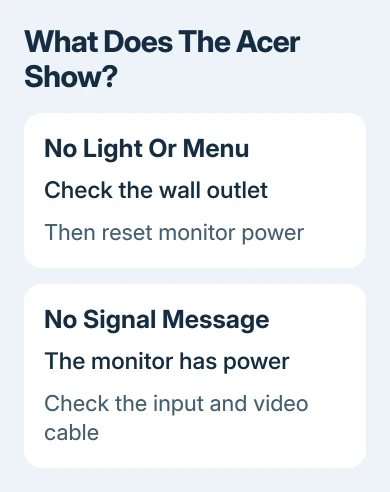
Look for a startup logo, an indicator turning on or a momentary screen glow. Try the menu button too. An on-screen menu means the panel can display something independently of the computer's desktop.
Don't treat one LED color as a rule for every Acer model. A light can indicate standby rather than a working video connection. First, check whether the monitor shows any sign of power at all.
If a message appears, continue with the powered-screen section later in this guide. With no light, menu or screen glow, work through the electrical checks first.
2. Reseat the power lead and bypass the power strip
Unplug the monitor from the outlet. Check the lead where it enters the monitor, and reseat it firmly. A plug may appear connected without being fully seated.
For a monitor with an external power brick, check both sides of the brick too. The wall lead and the low-voltage lead to the display are separate connections, and either can be loose.
Connect the monitor to a wall socket you know works. Bypass a power strip, extension lead or surge protector so its switch and sockets aren't part of the test.
Try a lamp or phone charger in the same outlet if you're unsure it works. If that device also fails, move to another outlet before blaming the monitor. The PC beside it can have power even if this particular socket doesn't work.
After reconnecting, press the monitor's Power button again. If it now starts, the power connection or socket needed attention. Reconnect other desk equipment only after the monitor works on its own.
Stop using a lead or adapter with visible damage, a burning smell or crackling. Replace the damaged part or arrange service instead of trying to power it on again.
3. Perform the monitor's power reset
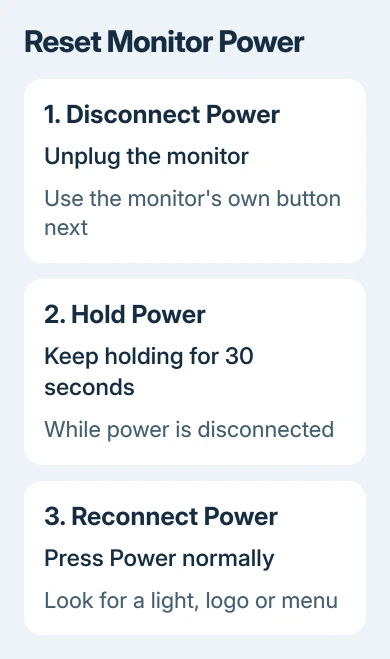
For displays that won't start, Acer recommends an unplugged power reset in its monitor power procedure. Use the monitor's button for this, not the computer's Power button.
- Disconnect power from the monitor.
- Hold the monitor's Power button for 30 seconds while it is disconnected.
- Reconnect the monitor to power.
- Press Power normally and check for its light, startup logo or menu.
This lets the monitor start fresh and can clear a temporary problem with its power state. It doesn't reinstall the graphics driver or change files on the PC, so a Windows reset isn't needed for this check.
Some battery-equipped Acer monitors have a battery reset pinhole near the power port. Use that only if the manual for your exact model identifies it. Not every ordinary desktop monitor has this control.
If the screen returns, use it normally and note whether the fault comes back after sleep or after switching off. A display that repeatedly loses power still needs its lead, adapter or hardware checked.
4. Try a compatible power lead or adapter
If the monitor still shows no sign of life, try a compatible replacement power cable when you have one available. Test the cable and adapter separately to see which replacement restores power.
A detachable mains lead and an external power adapter aren't the same thing. Check the electrical ratings when choosing an adapter; fitting into the socket doesn't make it the correct power supply.
Match the original adapter's specified voltage and current, as well as the connector and other electrical requirements for the exact model. If the label is unclear, ask Acer for the approved adapter part number.
I'd check a borrowed compatible lead before ordering parts. If you don't already have a suitable adapter, compare the cost with the monitor's warranty or return options before buying one just to test.
If the monitor starts only with the replacement, you've found which part needs replacing. Keep the failing cable or adapter out of use, and replace it with an approved compatible part.
5. Follow the video route if the screen has power
A No Signal message means the display is on but isn't receiving usable video. Select the input matching the connected socket, reseat the video lead and try a direct connection without a dock or adapter.
Our Acer No Signal checks cover that route in detail. Those checks include the graphics card's output on desktop PCs, where plugging into the wrong socket can leave a working monitor without a picture.
If possible, try the Acer on a second computer or another display on the original PC. If the second computer gives you a picture, check the original PC and video connection. The monitor can power on and display an image.
For a powered display with a Windows-only black screen, Windows blank-screen troubleshooting includes the graphics reset shortcut Windows + Ctrl + Shift + B.
Use that shortcut only when Windows is running. It can make a beep or screen flicker while resetting the graphics driver, but it can't supply power to a monitor whose own electronics aren't starting.
An Input Not Supported warning also means the screen has power. Follow the Acer video mode guide rather than continuing to swap power parts.
Arrange service when the electrical checks fail
With no light, menu or screen glow after these checks, contact Acer Technical Support for monitor power repair or warranty service. Have the model, serial number, proof of purchase and any external adapter details ready.
Explain that the outlet works, the power lead is seated and the disconnected 30-second reset didn't restore power. Mention any compatible replacement you tried. Those details help support avoid sending you through the same checks again.
Leave the monitor casing closed. An internal power fault that won't clear needs service. If the display is new and still eligible for a return, you may prefer to return it to the seller.
The Short Version
No light or menu: check the button, lead and wall outlet, then disconnect power and hold Power for 30 seconds. Try a compatible power part or arrange service. No Signal or a visible menu means you should check the video connection.
Checked November 9, 2026.

Isaac Smith is the founder and editor of PC Glance, a website that covers computers, laptops, and technology. He is a tech enthusiast and a computer geek who loves to share his insights and help his readers make smart choices when buying tech gadgets or laptops. He is always curious and updated about the latest tech trends.