
You run Apple's createinstallmedia command to make a macOS USB installer. The drive erases and the files copy. Then Terminal sits on Making disk bootable for an hour without moving.
I would try one command in a second Terminal window before buying anything. If it fails, suspect the stick. Two owners finished on a different one with the same installer.
The Ventura question about this step on Ask Different has 17,164 views, and a 2013 Mavericks question about the same step has 32,395.
Where the installer stalls
Apple's steps erase your drive first, "using the appropriate format: Mac OS Extended (Journaled)". The fresh volume then mounts again. The installer copies itself across, then makes the drive bootable, the step where yours stalls.
An owner's fix stops Spotlight indexing that fresh volume partway through the run. A reader replied, "This should be the answer".
Why indexing would hold up the last step is my guess, not Apple's. The fix is quick to try either way.
Ours: none. No Mac and no installer were run for this page, so the steps carry the names of the people who reported them.
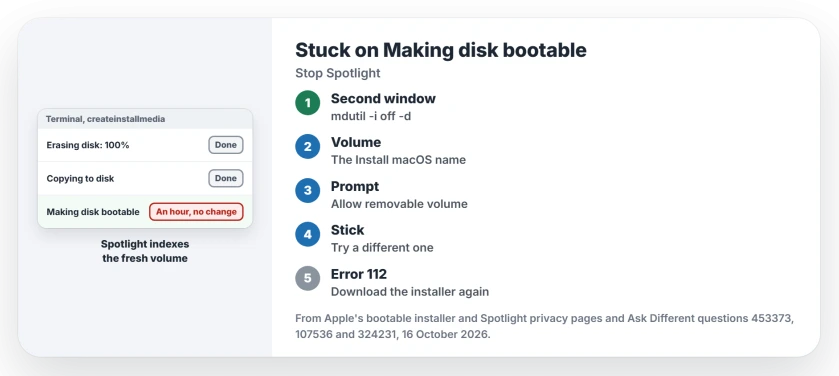
Status: Apple's bootable installer page (published 14 September 2026) compared on 16 October 2026 with three Ask Different questions from 2013 to 2024.
Turn off Spotlight on the stick
Start the command as Apple shows it. Wait until the erase finishes and your drive shows up again, renamed after the installer, such as Install macOS Tahoe.
Then open a second Terminal window and turn off indexing for that volume, using the name your drive now shows.
mdutil -i off -d /Volumes/Install\ macOS\ TahoeLeave the first window alone while it finishes. The owner's words for what happens next: "Then it will start working".
Apple's settings route to keep Spotlight off a disk is Spotlight, then Search Privacy, where you can add a disk to the list. I found no owner who used it mid-run. Treat the command as the tested route.
Did Terminal ask for permission?
One prompt is easy to miss. Apple says that if Terminal asks to access files on a removable volume, you should "click OK to allow Terminal to proceed".
A dialog hidden behind Terminal or Finder windows can leave the command waiting while nothing in Terminal explains the pause. Check for one before you give up.
Try a different USB stick
An owner stuck with a SanDisk 128GB Ultra Fit switched to an ADATA 16GB USB 3.0 stick. The whole run "finished within 20 minutes", with progress visible as it went.
In 2014, another owner hit errors on one 16GB stick. A different stick worked with the same installer. Apple says a 32GB stick is plenty for any macOS installer, so a bigger one buys you nothing.
One owner reported success after erasing with Master Boot Record instead of GUID Partition Map. Even they called it illogical. Apple's steps let the installer pick the format, so I would change the stick before trying that.
Error 112 points at the installer
The Mavericks asker got further. Making disk bootable ended with error 112, saying the installer's disk image could not be mounted, and their fix was to delete the installer and download it again.
Apple gives the same advice when the installer is not valid: delete it, repair your startup disk and download again. That message has its own page with the exact wording.
If you are making the stick to go back a version, downgrading from macOS 27 covers the install that follows.
Why does it say APFS disks may not be used?
A 2018 owner saw "APFS disks may not be used as bootable install media". The top answer: erase it as Mac OS Extended. Apple's own fallback says the same when Terminal cannot erase the stick.
Is another volume called Untitled?
Apple asks you to name the drive MyVolume for a reason: one owner pointed the command at Untitled while an empty Untitled volume already sat on their internal disk.
Run ls /Volumes to see every name. Another owner with the same clash renamed the stick, and in their words, "it worked".
The Short Version
- Making disk bootable can sit for an hour with no progress shown.
- In a second Terminal window, turn off Spotlight indexing on the installer volume with mdutil. One owner's fix, endorsed by a reader.
- Allow Terminal to access the removable volume if a prompt appears, even one hiding behind other windows.
- Still stuck? Use a different USB stick; 32GB is enough for any macOS installer.
- Error 112 at this step means a damaged installer, so delete it and download it again.
Where to Next
Spotlight, the stick, or a hidden prompt: which one freed your installer? Leave me a comment and I will reorder the steps by what readers report.

Isaac Smith is the founder and editor of PC Glance, a website that covers computers, laptops, and technology. He is a tech enthusiast and a computer geek who loves to share his insights and help his readers make smart choices when buying tech gadgets or laptops. He is always curious and updated about the latest tech trends.