

You open Event Viewer and find a red line saying the device \Device\Harddisk1\DR1 has a bad block. Which drive is Harddisk1?
I would match that number to a drive before running any repair. On this laptop it named a disk that was no longer plugged in.
The Super User question asking which drive that is has 181,288 views since January 2013, and a Microsoft Q&A thread quoting that exact line is marked 90+.
The number is the disk number
Windows prints these lines from one message file. Ours: it holds "has a bad block" after the device name, and "The driver detected a controller error on" a device. Only the device name changes.
The number after Harddisk is the disk number Windows gives the drive. The accepted Super User answer puts it this way: "The DeviceId corresponds to the N in the" Harddisk path. Harddisk1 means Disk 1, and the DR part names that same disk.
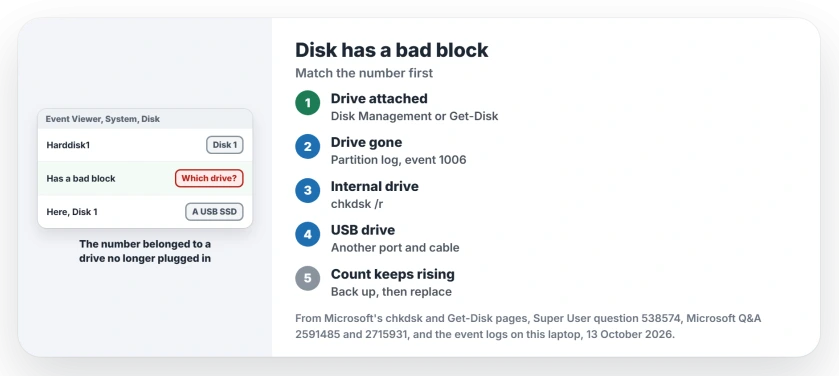
Status: Windows 11 25H2, read 13 October 2026. Harddisk1 is Disk 1, often a USB drive. Match it first, then chkdsk /r. Repeating events mean back up and replace.
Ours, and it explains the confusion in that question. This laptop has one internal drive, Disk 0. Yet its System log holds 74 events from 4 October saying an IO operation for Disk 1 "failed due to a hardware error".
Two more on 6 October say an operation on Disk 1 "was retried". Disk 1 was a USB drive. The asker of that 2013 question had the same puzzle, writing "the computer has no other disk that I know of".
1. Match the number while the drive is attached
Press Windows+X and open Disk Management. Each drive is labeled Disk 0, Disk 1 and so on, down the left side. Read what not to touch in Disk Management before you click anything there.
Reported by an owner in 2016, who did exactly that: "you can look up the number of the disk in Disk Management". It showed them the event was about their main drive.
PowerShell gives you the same match in one line. Microsoft says Get-Disk "gets one or more Disk objects visible to the operating system". Ours: it ran here without admin.
Get-Disk | Select Number,FriendlyName,BusType,SizeThe Super User answer used Get-PhysicalDisk instead, whose DeviceId column gives the same number. It also lists disks hidden inside Storage Spaces.
When the drive is gone, the log kept its name
Removable drives take the next free number, so your Disk 1 can be a different device every week. Windows records which one it was.
On your PC, open Event Viewer, Applications and Services Logs, Microsoft, Windows, Partition, Diagnostic. Event 1006 is written when a disk arrives, leaves or changes. It lists the disk number, model, serial number and bus type.
Ours: read without admin, it named this laptop's Disk 1 on 6 October as a Toshiba THNSNJ512GDNU, a 512 GB SSD on bus type 7. In Microsoft's list of storage bus types, 7 is USB.
On 4 October the Disk 1 records carried no model and a size of zero. That night's failing device never identified itself.
2. Then test the drive it names
If your drive is internal, run chkdsk with /r from an administrator Command Prompt. Microsoft's chkdsk page says /r adds a check of the surface, "with the additional analysis of physical disk errors".
Expect it to ask for a restart when the drive is C. A clean result does not always end it. One owner said "I ran CHKDSK on all partitions of this disk, to no avail: it couldn't find any bad block anywhere".
Then read your drive's own health. An SSD reports wear and spare blocks, and Windows shows them for NVMe drives.
An adviser on Q&A suggested the next step for a hard drive: "run the drive manufacturer's own diagnostic test (it's on their website)".
If your drive sits in a USB box, the box and cable join the suspects. Controller errors and retries on a USB disk can come from the port or the box, so try another port and cable first.
One owner's brand-new 3 TB external drive passed Seagate's own test and a second scanner, yet Windows logged bad blocks after a surface scan, and the "system marks all free clusters as bad". They saw it on three Windows 7 PCs.
Should you replace the drive?
One event after a yanked stick means little. A growing count on the same disk is the warning sign. One reply on Q&A, marked helpful by 10+ people, put it simply: "What is a problem is if you continue to get bad blocks over a relatively short period of time".
An adviser on another thread said to watch a drive with fresh bad sectors: "The sensible approach is to run chkdsk every one or two days for a week or so. If additional bad clusters keep appearing replace the hard drive".
I would back up your files before anything else. A drive that logs bad blocks today can stop reading tomorrow, and the copy costs you an hour.
The Short Version
- Harddisk1 and DR1 mean Disk 1, matched in Disk Management or Get-Disk.
- Drive no longer attached? The Partition Diagnostic log, event 1006, names it.
- Internal drive: chkdsk /r, then the drive's health readout.
- USB drive: another port and cable before blaming the disk.
- Bad blocks that keep coming: back up and replace.
Where to Next
Which drive did your Harddisk number turn out to be? Write it in the comments, internal or USB, and I will keep a tally here.

Isaac Smith is the founder and editor of PC Glance, a website that covers computers, laptops, and technology. He is a tech enthusiast and a computer geek who loves to share his insights and help his readers make smart choices when buying tech gadgets or laptops. He is always curious and updated about the latest tech trends.