
A green, red or blue frame on a Huawei phone screen can come from an accessibility setting or a developer option. Match the frame's behavior before changing a setting.
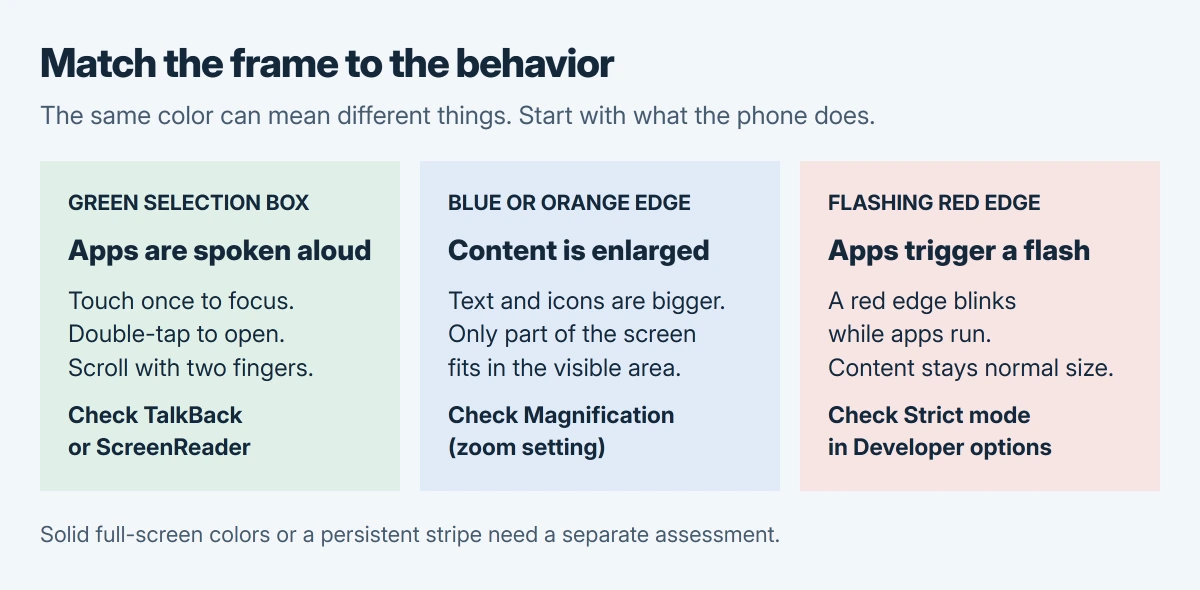
Spoken app names point to TalkBack, an enlarged screen points to magnification, and a flashing red edge points to Strict mode.
These checks cover frames around content. A display filled with solid colors, a permanent stripe or a screen that will not start needs a different assessment.
Match the frame to the phone's behavior
Watch what happens when an app icon is touched. A green selection box with spoken feedback and an extra tap needed to open the app matches Huawei's description of TalkBack or ScreenReader.
A blue or orange edge with enlarged content matches magnification. The frame remedies documented by the vendor identify a flashing red edge as Strict mode enabled.
Status: Huawei and Google guidance checked October 28, 2026. Setting names vary by model and software. No Huawei handset was operated or repaired.
The behavior matters more than color alone. A fixed pale patch has a separate phone white-spot check; the switches in this guide do not repair a physical patch.
Green box and spoken feedback: turn off the screen reader
Leave spoken feedback active when it is needed to navigate. Use the gestures documented by Google: touch once to focus an item, then double-tap to activate it. Scroll with two fingers.
- Open Settings using those gestures.
- Search for TalkBack or ScreenReader, whichever the phone offers.
- Open that result and switch the feature off. Complete any confirmation using the same focus-and-double-tap gesture.
Single taps should then open apps normally, without the spoken selection feedback. If navigation still requires a double-tap, the screen reader has not been switched off; return to its setting.
The volume-button shortcut is another route when configured. Hold Volume up and Volume down together for 3 seconds, then listen for confirmation. If it does nothing, use Settings; shortcut availability varies.
Google says the shortcut can be disabled separately in its TalkBack turn-off instructions. Review that shortcut if the screen reader keeps being activated accidentally.
Blue or orange frame with zoom: leave magnification
Tap the screen three times in succession to return enlarged content to its previous size. Huawei documents this gesture for its magnification feature. Check that the text and icons return to their normal scale.
Then search Settings for Magnification gestures and turn it off if zoom is unwanted. On models using the newer label, look under Settings > Accessibility features > Accessibility > Magnification.
Huawei's accessibility instructions use the Magnification label. Its older frame article uses Magnification gestures, so a different label does not mean the feature is absent.
If the content never enlarged, do not keep triple-tapping. The symptom does not match this branch; check the frame's other behavior or ask Huawei to identify it.
Flashing red edge: disable Strict mode
Search Settings for Strict mode enabled and switch it off. If the option is hidden, Huawei documents searching for Build number, tapping it seven times, and entering the lock-screen password if requested.
After developer access is enabled, return to Settings and search for Strict mode enabled again. Change that switch only. Reopen an app that previously triggered the flash and check whether the red edge has stopped.
This removes the developer warning display. It does not establish that an app's separate slowness has been repaired. If the switch was already off, do not change unrelated developer options to chase the same color.
Ask Huawei when the matching setting does not resolve it
Record the model, software version, frame color and whether the phone speaks, zooms or flashes. Take a photo with another device so support can see the exact pattern.
Huawei recommends backing up data and taking the phone and proof of purchase to a service center if the issue remains. While access still works, copy important phone photos to a PC before handing it in.
A persistent full-screen color change falls outside Huawei's frame-specific instructions. Ask support for the correct procedure for that model before erasing the phone or authorizing a screen replacement.
The Short Version
- Green selection box, speech and double-tap controls: check TalkBack or ScreenReader.
- Blue or orange frame with enlarged content: check magnification.
- Flashing red edge while apps run: check Strict mode enabled.
- If the behavior does not match, give Huawei the exact model and a photo of the symptom.

Isaac Smith is the founder and editor of PC Glance, a website that covers computers, laptops, and technology. He is a tech enthusiast and a computer geek who loves to share his insights and help his readers make smart choices when buying tech gadgets or laptops. He is always curious and updated about the latest tech trends.