
KB5075912 is the February 2026 Windows 10 update, and newer cumulative updates include its fixes. If it keeps failing, check your Windows edition and update eligibility, then use the latest applicable update.
Keep the error code too. The same KB number can appear when an update doesn't apply to your PC, its download fails or Windows files are damaged. Each problem needs a different next step.
1. Check whether Windows already has a newer update
Press Windows + R, enter winver, and press Enter. Note the version and copy the complete OS build shown in the dialog. Next, open Settings > Update & Security > Windows Update > View update history.
Look for successful Quality Updates as well as the failed entry. A failed attempt stays in history after a later update installs, so the old red entry may remain even though the problem is fixed.
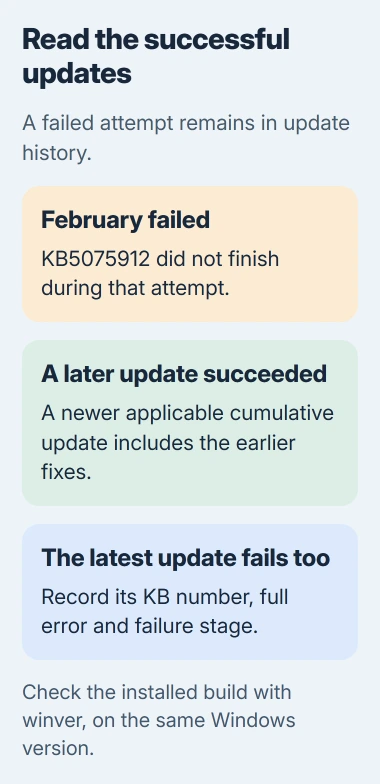
The February update brings Windows 10 22H2 to 19045.6937 and the eligible 21H2 edition to 19044.6937. Compare the full build number for your Windows version, including the digits before the period.
Microsoft says its March cumulative update includes the fixes from KB5075912. Later cumulative updates continue that update chain.
If a newer security update for your PC installed and Windows Update shows no current failure, you can stop trying to reinstall February's package. If the current update fails too, keep its KB number and error code for the next checks.
2. Match the Windows edition and ESU coverage
KB5075912 applies to Windows 10 ESU and Windows 10 Enterprise LTSC 2021. It isn't a Windows 11 package. A PC running ordinary Windows 10 Home or Pro 21H2 doesn't qualify as Enterprise LTSC 2021.
Open Settings > System > About and read Windows specifications. Check the edition and version together. Under Device specifications, System type identifies whether the installed operating system is 32-bit or 64-bit.
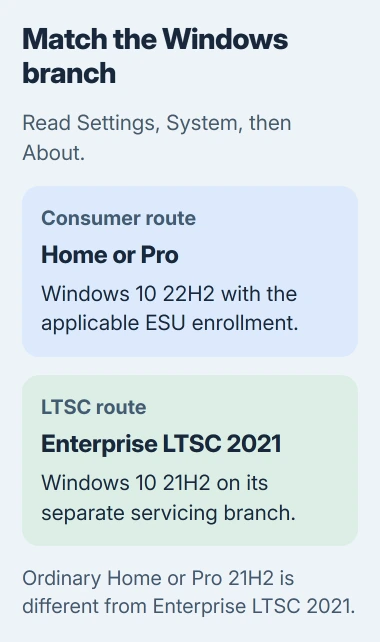
On a personal Home or Pro PC, ESU requires Windows 10 22H2. ESU means Extended Security Updates, the program that supplies security updates after ordinary Windows 10 support ended.
Check enrollment at Settings > Update & Security > Windows Update. An eligible personal PC can show Enroll now when enrollment is still needed. Follow the displayed account and enrollment prompts before checking for security updates again.
The consumer ESU requirements differ from the business requirements. For a PC on a work domain or managed by an organization, ask the administrator about updates and licensing.
An update reset or download repair can't change your Windows edition, enroll you in ESU or add a missing license. Check those requirements before trying to repair Windows Update.
If your PC runs an older Windows 10 version, check whether it qualifies for the update first. Review the Windows upgrade choices if moving to Windows 11 would give that hardware better support.
3. Finish a pending restart and retry the current update
Save your work and choose Start > Power > Restart. After signing in, open the Windows Update page and select Check for updates there. Let an already pending installation finish before starting another installer.
Check that the PC can get online and that its Windows drive isn't nearly full. Open File Explorer > This PC to review storage, then use Storage settings to clear space when needed.
Keep your laptop plugged in during installation. The restart stage can take longer than the download, so give it time to finish when the percentage pauses.
If the update fails again, copy the complete 0x… error code. Note whether it fails while downloading, installing in Settings or undoing changes after a restart. That tells support where the update stopped.
If the installer says the update isn't applicable, recheck your Windows edition, 32-bit or 64-bit system type, and installed build. For a download that never moves, use the stalled-update checks instead.
4. Run the Windows Update troubleshooter
On Windows 10, open Settings > Update & Security > Troubleshoot > Additional troubleshooters. Select Windows Update, then Run the troubleshooter, if that control is available on your installation.
Follow the troubleshooter's instructions and restart if asked. Some installations open Get Help instead. Use the Windows Update troubleshooter offered there instead of downloading an old diagnostic tool from another site.
Return to Windows Update after the repair and retry your PC's current cumulative update. The troubleshooter may fix a problem without completing the update's installation.
If your organization controls updates, send the error to IT. Its update service may need to approve or send the package before your PC can install it; retrying on the PC won't change that.
5. Repair system files when applicable updates still fail
Type cmd into Start search. Right-click Command Prompt, then select Run as administrator. Run the following command, then wait for it to complete:
DISM.exe /Online /Cleanup-image /RestorehealthDISM fixes Windows' own repair files. Once it finishes successfully, run the system-file scan:
sfc /scannowWait until verification finishes before closing the window. The system-file repair procedure uses this order so SFC can work with the repaired source files.
Restart after repairs, then retry the security update. If DISM fails, save its error first. Missing repair files need a different fix from an update that won't download.
6. Check old-image prerequisites before escalating
Some very old Windows installations need other updates first. The KB5075912 installation notes list them for specific cases, rather than every PC with a failed February update.
For installation through WSUS (an organization's update service) or a standalone Catalog package, install KB5005260 first if KB5003173 or a later cumulative update is missing.
Offline Windows images, the files used to set up Windows, have a separate requirement. If the image lacks KB5028244 or later, it needs KB5031539 first.
I'd leave those cases to the administrator maintaining that installation. A normally updated personal PC shouldn't work backward through years of packages just because February appears in its failure history.
If the current update still fails, send support your Windows edition, build from winver, ESU status, failing KB and error code. Say whether work manages updates. Back up important files before agreeing to a repair installation.
The Short Version
Successful newer cumulative updates include February's fixes. Verify your edition and update eligibility before troubleshooting the current package. Finish restarts, then repair system files if installation still fails.
Checked November 5, 2026.

Isaac Smith is the founder and editor of PC Glance, a website that covers computers, laptops, and technology. He is a tech enthusiast and a computer geek who loves to share his insights and help his readers make smart choices when buying tech gadgets or laptops. He is always curious and updated about the latest tech trends.