
A Lenovo touchpad that stopped moving the pointer may have been switched off with a keyboard shortcut or the Windows Touchpad toggle. Check those controls first, then update the identified touchpad driver if the pad stays unresponsive.
The shortcut varies between Lenovo models. A ThinkPad's red TrackPoint, a touchscreen, and the touchpad also have separate controls, so a working red pointing stick doesn't mean the touchpad itself is enabled.
1. Turn the touchpad on using the correct control
Look for a keyboard key marked with a touchpad symbol. Use the shortcut given in your model's user guide; depending on its hotkey setup, that can involve the key alone or a combination with Fn.
Don't assume that every Lenovo uses F6. The E41-50's hotkey documentation includes a touchpad control, while recent guides for models such as the ThinkPad P1 Gen 8 mention Fn+M on some Lenovo computers.
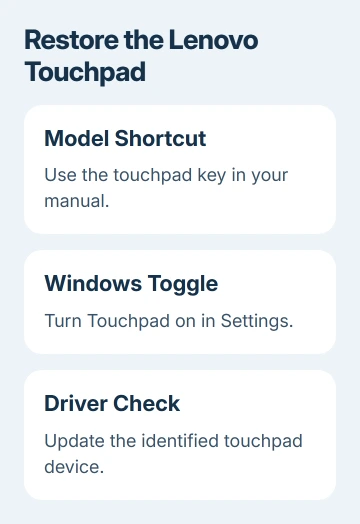
Try the documented control once and move a finger across the pad. If the pointer moves again, the pad was disabled and you can stop there. Once the shortcut has fixed it, you don't need to change drivers.
If a USB mouse is available, connect it while you work. Without one, press the Windows key, type touchpad settings, and press Enter. Press Tab until the switch is selected, then press Space to change it.
Watch the highlighted control before pressing Space. Tab lets you reach the setting without a working pointer, but check that the highlight is on the switch you want.
2. Check Windows Touchpad settings
In Windows 11, open Settings > Bluetooth & devices > Touchpad and turn Touchpad on. In Windows 10, use Settings > Devices > Touchpad. Look for the switch labeled Touchpad.
Where available, expand the Touchpad settings and enable Leave touchpad on when a mouse is connected if you want both devices working. Test with any USB mouse receiver disconnected too, including a receiver left in a dock.
That tells you whether connecting a mouse is switching off the touchpad. If the touchpad starts when the receiver is removed, keep the setting that allows simultaneous use instead of treating the pad as broken.
Don't confuse Touchpad with Touch keyboard, the virtual screen touchpad, or touchscreen settings. They can appear in search results even though they control a different input method.
On ThinkPads with a red pointing stick, the TrackPoint settings are separate. A TrackPoint that still moves the pointer gives you a way to work, but changing its sensitivity won't turn the flat touchpad back on.
If the Touchpad page is missing altogether, move to the driver checks. Check which device Windows detects rather than continuing to look for a switch that isn't there.
3. Separate a dead pad from a gesture problem
Move one finger across the pad and try a click. If the pointer moves normally but two-finger scrolling doesn't, the device isn't completely unresponsive. Open the Touchpad page's Scroll & zoom section.
Where offered, enable Drag two fingers to scroll. Test it on a long page or document, then try a second app. If scrolling fails in just one program, check that program before reinstalling the touchpad driver.
For taps that don't register while pointer movement works, expand Taps and inspect the offered tap controls and sensitivity. Change the control associated with the action that's failing, then repeat that same action.
Some ThinkPads have separate TrackPoint buttons; other clicks happen on the touch surface itself. Tell support exactly which button or gesture fails. The repair advice depends on which input device fails.
If a recent Windows change affected mouse-connected behavior, check that option again after applying updates. Keep the keyboard shortcut specific to your Lenovo model.
4. Restart and update the touchpad driver
Save your work and choose Start > Power > Restart. After signing in, try the touchpad before reopening all your apps. Try it now to see whether restarting Windows cleared the problem.
The touchpad's driver is the software that lets it communicate with Windows. Get available updates through Windows Update, including any requested restart.
Windows 11 keeps updates under Settings > Windows Update. Windows 10 uses Settings > Update & Security > Windows Update.
Microsoft recommends Windows Update first in its touchpad driver instructions. Those instructions also cover updating the touchpad through Device Manager.
Press the Windows key, type Device Manager, and open it. Expand Human Interface Devices to look for the pad. Another possible category is Mice and other pointing devices. Its displayed name depends on the hardware and installed driver.
Right-click the identified touchpad and choose Update driver, then follow the prompts. With a keyboard, select the device and press Shift+F10 to open its context menu.
I'd confirm the device name before changing anything in this window. A generic Human Interface Device entry can describe something other than the touchpad, and a laptop may list several input devices.
5. Roll back a recent driver or reinstall the identified pad
If the failure began immediately after a touchpad-driver update, open the touchpad's Properties > Driver tab in Device Manager. When Roll Back Driver is available, select it. Complete its dialog, then restart Windows.
A dimmed rollback button means that route isn't available for this device. It isn't a reason to download an older driver from an unrelated laptop's page. Lenovo models can use different input hardware despite similar names.
If updating doesn't help, try reinstalling the touchpad through Device Manager. Select the identified touchpad, choose Uninstall device, and restart Windows so it can attempt to reinstall the device.
Keep another input method available before uninstalling it. If you can't confidently identify the touchpad entry, stop at that point and have Lenovo Support review your model and the listed devices.
Test pointer movement and scrolling after Windows returns. If the touchpad doesn't reappear, tell support exactly which device was removed and whether Device Manager now shows an error or an unrecognized device.
6. Give Lenovo the model and the remaining symptom
For a pad still missing or unresponsive after these checks, use Lenovo Support's Contact Us route for your laptop. Provide the full model or machine type, Windows version, and when the problem began.
Say whether the keyboard control, Windows toggle, restart, driver update, rollback, or reinstall changed anything. Include whether a USB mouse and TrackPoint still work. That helps support choose between a driver fix and a hardware repair.
If the whole computer isn't starting, use the Lenovo startup checks first. A touchpad setting can't help while the machine hasn't reached a usable Windows session.
The Short Version
Check the model's keyboard control and Windows touchpad switches. Diagnose scrolling separately when pointer movement still works. Update the touchpad driver, then consider rollback, reinstall, or Lenovo service as appropriate.
Checked November 8, 2026.

Isaac Smith is the founder and editor of PC Glance, a website that covers computers, laptops, and technology. He is a tech enthusiast and a computer geek who loves to share his insights and help his readers make smart choices when buying tech gadgets or laptops. He is always curious and updated about the latest tech trends.