

Excel VBA selects columns that aren't next to each other with a comma-separated address such as A:A,C:C,F:F, or with Application.Union. Use one combined range and call Select once.
Selecting each column separately leaves only the last selection active.
The examples here use desktop Excel for Windows or Mac. Excel for the web can open a workbook containing VBA, but it can't create, edit, or run those macros. Open the file in desktop Excel before following the code.
Choose separate columns with commas
To select columns on the worksheet you have open, use this line:
Range("A:A,C:C,F:F").SelectIt selects complete columns A, C, and F, leaving B, D, and E out. The commas join separate areas. A colon between column letters, as in A:F, includes every column from A through F.
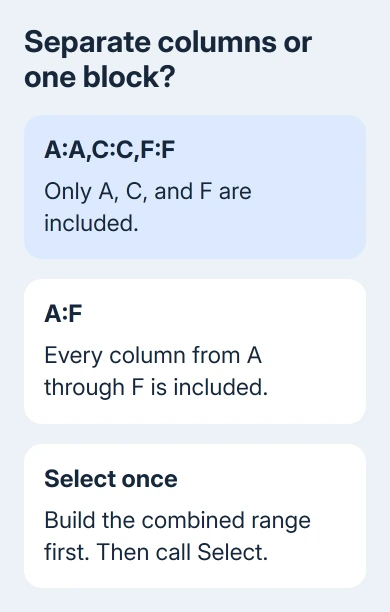
Microsoft's Union reference shows the difference between separate range addresses and a continuous range.
Keep the commas inside the quotes when you put the addresses in one Range expression.
Don't write three separate Select lines for A, C, and F. Each call changes the selection rather than adding its column to the previous call. That's why a macro can run without an error but leave only F highlighted.
For a workbook that just needs headings visible during scrolling, freezing the top row and first column is a separate task. Selecting several columns doesn't freeze them.
Put the selection in a complete macro
Use a spare workbook with a worksheet named Data for this example.
If Developer is hidden on Windows, enable it at File > Options > Customize Ribbon > Main Tabs > Developer. On Mac, use Excel > Preferences > Ribbon & Toolbar > Main Tabs > Developer.
In desktop Excel, open Developer > Visual Basic, then choose Insert > Module in the editor. Paste the complete macro into that module.
Sub SelectSeparateColumns()
    Dim ws As Worksheet
    Set ws = ThisWorkbook.Worksheets("Data")

    ThisWorkbook.Activate
    ws.Activate
    ws.Range("A:A,C:C,F:F").Select
End Sub
Change Data to the exact tab name in your workbook. Put the cursor inside the procedure and run it from the editor's Run > Run Sub/UserForm command. Switch back to the worksheet and inspect its highlighted column headings.
ThisWorkbook means the workbook holding this code. It keeps the macro pointed at that workbook even if you have another one open. This example belongs in the target workbook, rather than a personal macro workbook.
The ws.Activate line brings that worksheet forward because Excel must display the sheet you're asking it to select cells on. Keeping ws. on the Range expression also makes the intended sheet clear.
To keep the VBA code, save an Excel Macro-Enabled Workbook (.xlsm). Use only code you trust; don't lower Excel's security settings to run a workbook from an unknown sender.
Build the same selection with Union
Use Union when your code already has separate ranges or builds them as it runs. It joins them into one Range object, which can contain several areas that don't touch on the same worksheet.
Sub SelectColumnsWithUnion()
    Dim ws As Worksheet
    Dim chosen As Range
    Set ws = ThisWorkbook.Worksheets("Data")

    Set chosen = Application.Union( _
        ws.Columns("A"), _
        ws.Columns("C"), _
        ws.Columns("F"))

    ThisWorkbook.Activate
    ws.Activate
    chosen.Select
End Sub
The underscore at each continued line belongs in the code. It tells VBA that the expression continues on the next line. Copy the whole procedure rather than only the middle three column references.
All three columns here come from ws. Don't combine a column from Data with another from a different worksheet. A worksheet selection can't span separate sheets through this Union call.
I'd use the short comma-separated address for a fixed list. Union is useful when the columns come from variables or several parts of a longer macro. Both examples finish with one combined selection.
Limit the selection to your data rows
Whole-column selections include every row in those columns. If the next operation should affect only a small data block, include row numbers in the addresses instead. This example selects rows 2 through 60 in three separate columns:
Sub SelectDataOnly()
    Dim ws As Worksheet
    Set ws = ThisWorkbook.Worksheets("Data")

    ThisWorkbook.Activate
    ws.Activate
    ws.Range("A2:A60,C2:C60,F2:F60").Select
End Sub
Replace 60 with the last row you actually need. Row 1 remains unselected, which is useful when it contains headers. Check both the top and bottom of the selection before running a later command that changes cells.
This changes the size of the selection, not the column order. Writing F before A in an address isn't a method for rearranging the worksheet or defining the output order of an export.
When the goal is a calculation, you may not need Select at all. The Excel division guide shows how ordinary cell references calculate results without highlighting whole input columns.
Apply formatting without changing the active selection
If your macro only needs to format those cells, work directly on the range. This version makes the cells at those addresses bold without moving the cursor or making you switch to the Data worksheet:
Sub BoldSeparateDataColumns()
    Dim ws As Worksheet
    Set ws = ThisWorkbook.Worksheets("Data")

    ws.Range("A2:A60,C2:C60,F2:F60").Font.Bold = True
End Sub
Use Select when a person needs to see the highlighted columns next. Change the range's property directly when the macro already knows what to do, as the bold example does. That way, formatting doesn't depend on which cells are highlighted.
This example doesn't move data or copy it elsewhere. If your next command rejects a multiple-area range, check which kinds of ranges that command accepts rather than assuming every Excel operation accepts disconnected columns.
Correct a failed selection before extending the macro
Subscript out of range: check the workbook and the worksheet tab name supplied to Worksheets. Correct a misspelled name or code stored in the wrong workbook first; changing the range address won't fix either problem.
Select method of Range class failed: make sure you've switched to the right worksheet for the Select examples. For formatting code, use the direct range expression instead of adding selection steps it doesn't need.
The wrong columns highlight: inspect commas and colons in the address. A continuous A:F range and the three-area A:A,C:C,F:F range describe different cells even though both begin at A and end at F.
If the minimal example still fails, ask in Microsoft's Excel developer support channel linked from the VBA reference. Include the complete small macro, Excel version, sheet names, and exact error number, using a workbook with invented data.
The Short Version
Join separate column addresses with commas, or combine same-sheet ranges with Union. Activate the sheet before Select, and select the combined range once. Include row numbers when you need only your data cells rather than complete columns.
Checked November 8, 2026.

Isaac Smith is the founder and editor of PC Glance, a website that covers computers, laptops, and technology. He is a tech enthusiast and a computer geek who loves to share his insights and help his readers make smart choices when buying tech gadgets or laptops. He is always curious and updated about the latest tech trends.