
Wi-Fi can be missing on an MPG X870E Carbon WiFi because a fresh Windows installation still needs the wireless driver. Install the exact model's driver first. Weak reception, a missing adapter and a No Internet label need different checks.
CARBON WIFI is part of the motherboard's name. The steps here cover trouble with its wireless connection. A computer that won't start, a memory-training delay or an Ethernet problem needs a different repair path.
1. Look for the wireless device in Windows
Right-click Start, select Device Manager, then open Network adapters. Look for the wireless adapter. The two Realtek Ethernet connections on this board are wired connections, so their presence doesn't mean the Wi-Fi driver is installed.
Check Other devices for an unidentified Network Controller too. Freshly installed Windows can detect hardware without having a usable driver. If that's what you see, install the driver for this board next.
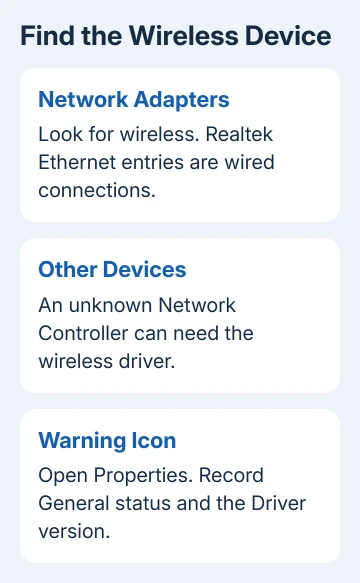
If the wireless adapter is listed with a warning, open Properties > General and record the device status and error code. Then open Driver and note its version. Keep those details if installing the correct package doesn't clear the warning.
If no wireless adapter or unidentified controller appears, restart once and check again. Note whether Windows can't see the device at all or lists it with a driver error. Installing Ethernet packages won't fix either one.
For a visible adapter, open Settings > Network & internet > Wi-Fi and turn Wi-Fi on. Switch Airplane mode off if it's enabled. If the Wi-Fi page itself is absent, install the wireless package before entering a network password.
2. Install the driver for the exact Carbon board
Open the MPG X870E CARBON WIFI support page. Check the full model name, choose its driver downloads and select your operating system. Download the wireless package offered for that model and Windows version.
The board lists Windows 11 64-bit as its supported system. For Windows 10, ask support about a matching wireless driver before trying another model's package.
Don't use an X670E Carbon, X870 Tomahawk or similarly named board's package. MSI's general Wi-Fi instructions use another motherboard as an example; that example's Intel driver name doesn't identify this board's wireless chipset as Intel.
For an offline PC, MSI recommends downloading its driver on a connected computer and transferring it by USB. Newer network hardware can need a package that Windows doesn't supply on its own.
Extract the downloaded archive before running its setup program. Follow its setup instructions, including any restart request. Return to Device Manager afterward: the wireless adapter should have a proper name and no installation warning.
I'd try this before a BIOS update. It directly addresses the common fresh-install problem and leaves the firmware alone. If setup says no compatible hardware was found, save that error and confirm the model plus operating system.
If installation fails, open the unknown device's Properties > Details. Choose Hardware Ids and copy the entries for support. These codes tell support which hardware Windows sees, so they can help you choose the right driver.
3. Fix reception before blaming the router
Attach the supplied antenna to its matching rear connections and put it in an open position, away from the metal case where practical. The adapter can appear correctly in Windows but still get a weak signal if the antenna is poorly placed.
Check networks near the router. If the PC sees several but your usual one is weak or missing, compare it on a phone in the same place. That comparison helps you tell whether the signal is weak there or the router needs a closer look.
Try your phone's hotspot as a second connection if your plan allows it. Connecting to another network helps you tell whether the PC or your usual router needs attention.
If the hotspot works, keep the driver and check the router. If no networks appear with the correct driver and antenna attached, give support that result. Changing a saved Wi-Fi password can't repair an empty network list.
4. Separate Wi-Fi 7 features from basic connectivity
This board supports Wi-Fi 7, but Windows, your router and country affect the available features. Its specifications list Windows 11 version 24H2 for Wi-Fi 7 readiness. Your country determines whether 6 GHz is available.
Press Windows + R, enter winver, then press Enter. This shows your Windows version. If it's an older build, check the Windows and driver requirements. That alone doesn't mean the wireless module has failed.
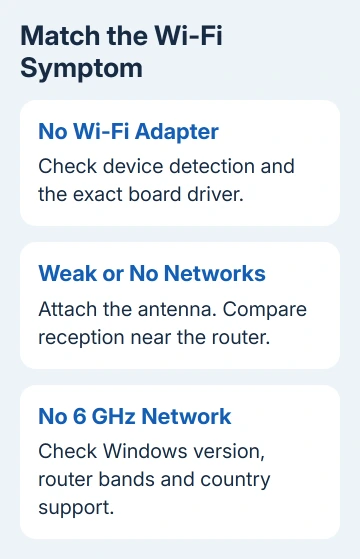
Try the router's 2.4 GHz or 5 GHz network before chasing 6 GHz. If that works, the PC has a usable wireless connection. Check the router's supported bands and configuration before expecting a 6 GHz network to appear.
The advertised maximum wireless rate isn't a promised internet speed. Your router, signal and internet plan still matter. Use a reliable connection for downloads first; missing a newer band doesn't automatically justify replacing the board.
5. Follow the right Windows repair for a bad connection
For a network that won't connect, open Settings > Network & internet > Wi-Fi > Manage known networks. Have its password ready, then choose Forget for that saved network. Reconnect using the current password.
If it joins but shows No Internet, test a second device through that router. The connected-without-internet checks explain that split. A working wireless link can still lead to a router or provider problem.
Run the Network and Internet troubleshooter in Get Help on Windows 11. The Windows Wi-Fi repair instructions cover this and the later adapter steps.
For trouble after a driver change, check Properties > Driver > Roll Back Driver on the adapter. Use it when available and restart as requested. If that option isn't available, ask support which previous driver package to use.
Keep Network reset for later. Windows rebuilds the adapter setup, and VPN software may need configuring again. For a missing adapter, finish the offline network-driver steps before resetting a connection Windows cannot see.
Ask support about the module when detection still fails
Contact MSI motherboard support with the full model, Windows build, BIOS version, hardware IDs and installed driver version. Say whether Wi-Fi is missing in Device Manager, has an error code, sees no networks or only fails on one router.
Ask for the correct package and confirmation of the wireless hardware. If the board-specific steps leave the wireless hardware undetected, ask about warranty service. Avoid opening the module or flashing another model's firmware.
The Short Version
Check for the adapter, install this board's Wi-Fi driver and attach its antenna. Try a hotspot if the PC won't connect through your router. Missing 6 GHz differs from missing Wi-Fi; send support your device details if detection still fails.
Checked November 10, 2026.

Isaac Smith is the founder and editor of PC Glance, a website that covers computers, laptops, and technology. He is a tech enthusiast and a computer geek who loves to share his insights and help his readers make smart choices when buying tech gadgets or laptops. He is always curious and updated about the latest tech trends.