
You snip part of the screen with Win+Shift+S and paste it into Paint, and it comes out shrunk to about two thirds of its real size. The saved PNG is fine, and the same snip pastes at full size everywhere else.
I would paste it through clipboard history instead of Ctrl+V. The owner who asked on Super User found that trick works, tested it, and marked it as the answer.
The question has 1,436 views since June, and a second member reported the same shrink to 66 percent.
When the shrink happens
The owner pinned it down closely. In their words: "This issue only occurs when a screenshot taken using Region Selection is pasted directly into Microsoft Paint".
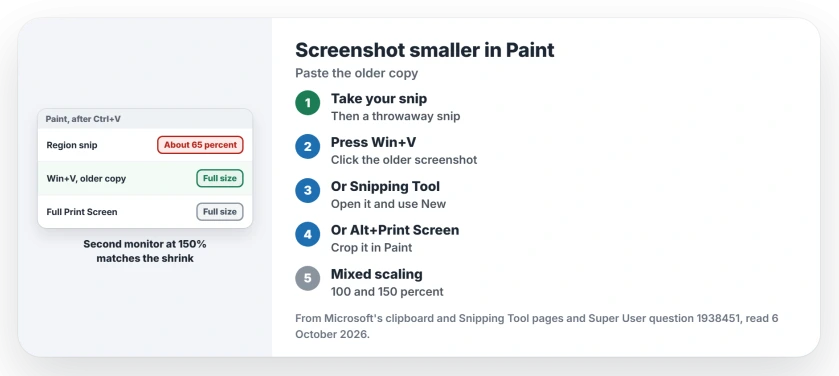
Status: checked 6 October 2026. Region snips pasted into Paint came out at about 65 percent on Windows 11 25H2. Pasting from clipboard history gave the owner full size.
A full Print Screen pasted at full resolution. Only region snips shrank, and only in Paint. It started for them in early June, around the time a Windows update arrived, with no settings changed.
1. Paste from clipboard history
A member found it first: use Win+V to paste, "ensuring that the image to be pasted is not in the first position of the clipboard history". Confirmed by an owner: they turned that into steps and tested them.
Take your screenshot. Then take a throwaway snip, so your real one moves to second place. Press Win+V and click the older screenshot. In their words: "the screenshot then pastes at its correct resolution instead of being downscaled".
Clipboard history has to be on for this, and Microsoft's clipboard page says the first time, you press Win+V and select Turn on.
2. Snip from the Snipping Tool window
The owner listed other routes that pasted correctly. One is to open the Snipping Tool app itself and click New, rather than pressing the keyboard shortcut.
Another member offered the same test. Open Snipping Tool directly, take the screenshot there, and check whether the preview looks right.
3. Use Alt+Print Screen and crop
Alt+Print Screen copies only the active window, and it pasted at full size for the owner. Crop it in Paint afterward.
Ours: if you snip the same window every day, this is the quickest route. It skips the region snip that shrinks.
Why two thirds?
The owner's second monitor ran at 150 percent scaling, the main one at 100 percent. Ours: 100 divided by 150 is about 67 percent, which matches the shrink both members measured.
That fits their last workaround: "Set both monitors to 100% display scaling". I would only do that if you can live with smaller text on the second screen.
What made no difference
The owner checked every screenshot setting first and found nothing about resolution. Their display resolution had never changed either.
Pasting into another editor avoided it, as one member found in Google Docs, but that is a detour, not a fix.
Is Paint broken?
Paint is where it shows, but I read the owner's answer as pointing at Windows, which hands Paint the newest clipboard image at the wrong size. Ours: that is why the older copy from Win+V pastes correctly.
Windows can also hand over a picture without its transparency, which is why a see-through logo can paste with a black background.
One more Paint habit to know: left open in the background, it can make your arrow keys move the mouse pointer.
When Snipping Tool refuses to start, Snipping Tool not working covers that fault; for every way to capture the screen, see how to take a screenshot on Windows.
The Short Version
- Region snips can paste into Paint at about two thirds of their size.
- Saved PNGs and other apps keep the full size.
- Take a throwaway snip, press Win+V and paste the older one.
- Or open Snipping Tool and use New, or use Alt+Print Screen.
- Mixed scaling, 100 and 150 percent, matches the shrink.
- Both monitors at 100 percent also stopped it.
Where to Next
Turn on clipboard history now, then try the throwaway snip once. If the older copy pastes at full size, you have this fault.
Are your monitors at different scaling too? Leave the two percentages in the comments.

Isaac Smith is the founder and editor of PC Glance, a website that covers computers, laptops, and technology. He is a tech enthusiast and a computer geek who loves to share his insights and help his readers make smart choices when buying tech gadgets or laptops. He is always curious and updated about the latest tech trends.