
Pin an email in new Outlook by right-clicking its message in the inbox and choosing Pin. In Outlook.com, hover over the message and select its pin icon. Keep the inbox sorted by date so pinned messages stay visible at the top.
Classic Outlook for Windows doesn't have message pinning. A follow-up flag is the closest built-in choice for keeping track of an email there, but it doesn't move the message to the top in the same way.
Pin from the new Outlook message list
Open your Inbox, find the email you want to keep handy, and right-click its row in the message list. Choose Pin. Look for the message in the pinned section, ahead of ordinary inbox mail.
Right-click the message row, rather than text inside an open email. Right-clicking a sentence or an attachment gives you a different menu, which can make the pin command seem missing.
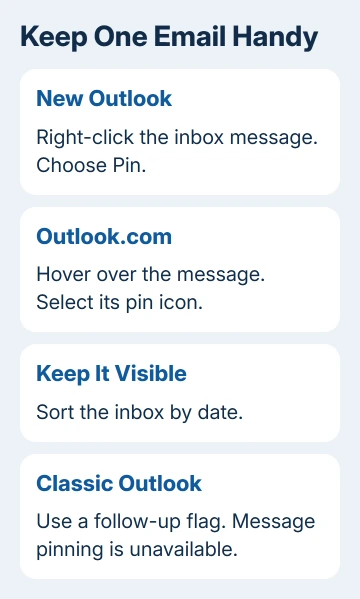
Microsoft says to select Pin after right-clicking in its new Outlook instructions. This keeps the original email handy.
I'd pin just the messages you're using, such as a booking confirmation or today's conversation. A long pinned section makes incoming mail harder to scan, so remove a pin when that message stops needing attention.
Check the sender and subject before selecting the command. Several similar messages can belong to the same exchange, and the one containing the information you need isn't always the newest reply.
For a message you need to send to someone else as a separate item, use the Outlook email attachment steps. Pinning keeps it handy for you; attaching shares the original message with a recipient.
Use the pin icon in Outlook.com
Open your Outlook.com inbox in the browser and move the pointer over the required message. Select the pin icon on its row. A pinned indicator should remain on that message after you move the pointer away.
In the browser, keep your inbox sorted by date. Open the message list's sorting control and select Date if another arrangement, such as sender or subject, is selected.
Depending on the layout, sorting appears under Sort by or within the Filter menu. Look at the current sort choice before searching through the main account settings. This is a message-list setting.
Once the inbox is sorted by date, check the top again. The message should be easy to find there. If it still isn't visible, confirm that you're viewing the same account and folder where you applied the pin.
Work and personal mailboxes can look similar in a browser. Check the account picture or account menu when several mailboxes are open. Organizing an email in one mailbox won't organize a different copy in another account.
No Pin command? Check which Outlook is open
An Outlook window with the traditional File tab can be classic Outlook for Windows. Don't keep searching its ribbon for a pin button intended for the newer app.
The Outlook feature comparison lists Pin messages as unsupported in classic Outlook. Reinstalling won't add it.
Check the app's name in Start if both editions are installed. Outlook (classic) and the newer Outlook can coexist, so opening a familiar desktop shortcut might launch an edition with different commands.
These steps cover Windows and Outlook.com. Phones and Macs can have different controls. Check your edition's commands rather than assuming a Windows right-click menu applies to the app on your phone.
If you prefer staying in classic Outlook, use the flag method in the next section. For one message, using a feature already in your mailbox saves the work of switching apps.
Keep track of an email in classic Outlook with a flag
In classic Outlook's message list, hover over the email and select the flag beside it. The flag marks it for follow-up. It won't keep that message at the top of a date-sorted inbox.
Use the message list's filtering controls to show flagged mail when you want to review those items. You can review the emails that need attention there, even though a flag doesn't move them to the top.
With a supported Microsoft 365 account, right-click a flagged item and look for Add reminder if you need a reminder at a set time. A visual marker alone is easy to miss if you don't open the inbox during a busy day.
Choose the action by the job: pin for quick inbox access, flag for follow-up, or a reminder for a time-sensitive task. Applying all three adds little unless each serves a purpose.
Automatic replies do a different job. Before leaving, set Outlook's automatic replies for the relevant account instead of assuming a flagged email will tell senders you're away.
Remove a pin without deleting the email
In Outlook.com, select the pin icon again to unpin the message. In new Outlook, right-click the pinned email and choose Unpin. The email returns to the normal message arrangement.
Don't choose Delete or Archive just to clear the pinned section. Those commands change where the email is stored; removing its pin only changes how you keep it in view.
If pinning still fails with date sorting active in a supported version, note your Outlook edition and whether that mailbox works in a browser. For Outlook.com, open Help, enter the problem, and follow the support option offered there.
For a work mailbox, give IT the folder name, app version, and what happens after selecting Pin. A missing command in classic Outlook needs a different answer from a command that appears but doesn't keep the message pinned.
The Short Version
Right-click an inbox email and choose Pin in new Outlook, or use the pin icon in Outlook.com. Sort by date to see pinned messages. Classic Outlook uses flags for follow-up instead; unpin a message when you no longer need it at the top.
Checked November 9, 2026.

Isaac Smith is the founder and editor of PC Glance, a website that covers computers, laptops, and technology. He is a tech enthusiast and a computer geek who loves to share his insights and help his readers make smart choices when buying tech gadgets or laptops. He is always curious and updated about the latest tech trends.